
Zapier
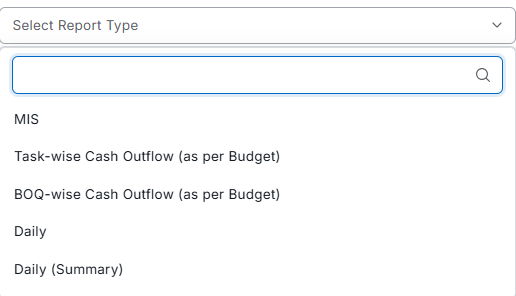
The Daily Report Created trigger fires when a daily report is submitted, so a Zap can post to Slack or add a row to Google Sheets. Scope it to one project by entering the project ID.
Solutions
A daily progress report, or DPR, records what happened on a construction site on one date. SuperWise builds it from the deliveries, labour, task progress, measurements and issues your team has already logged.
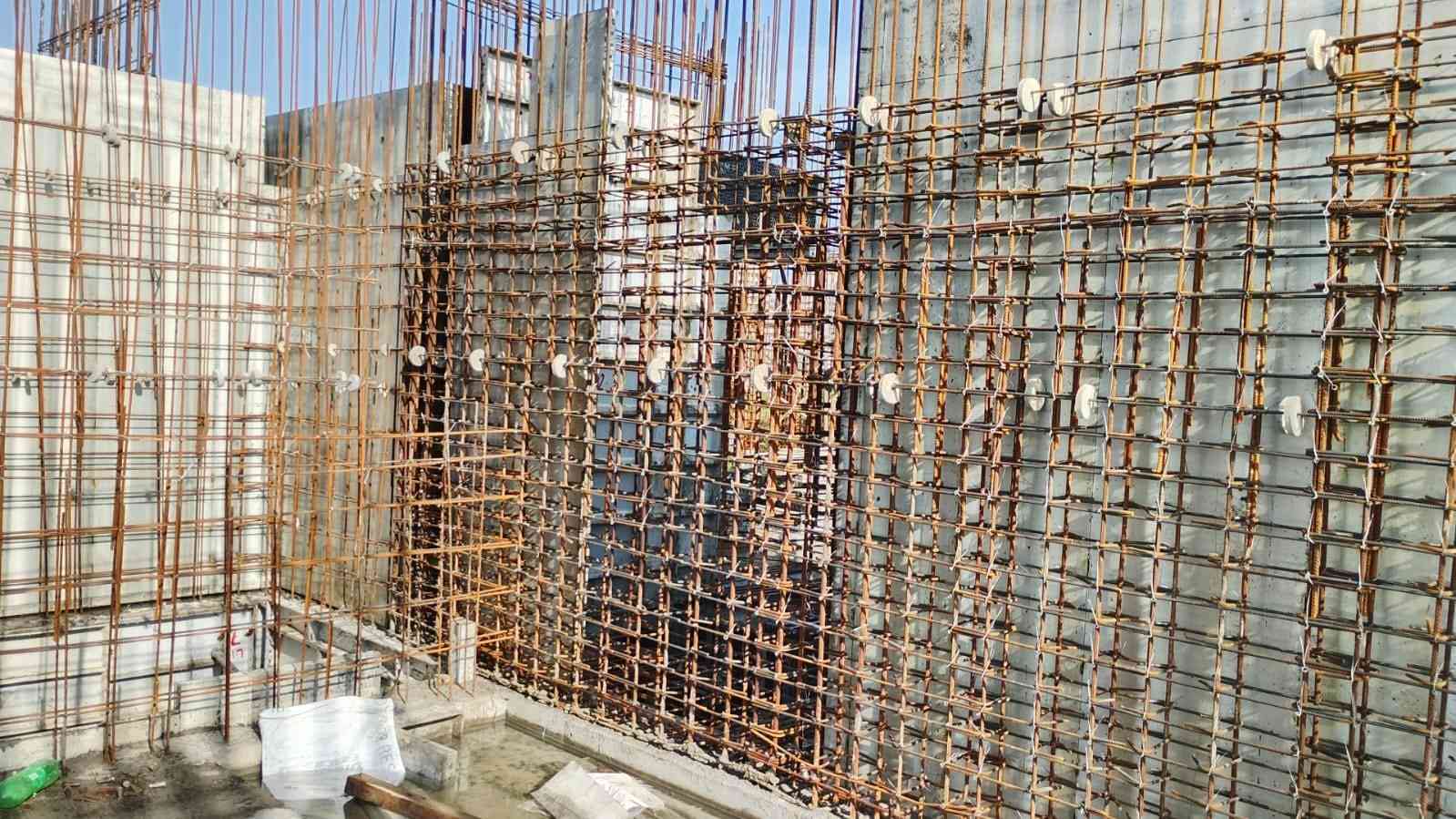
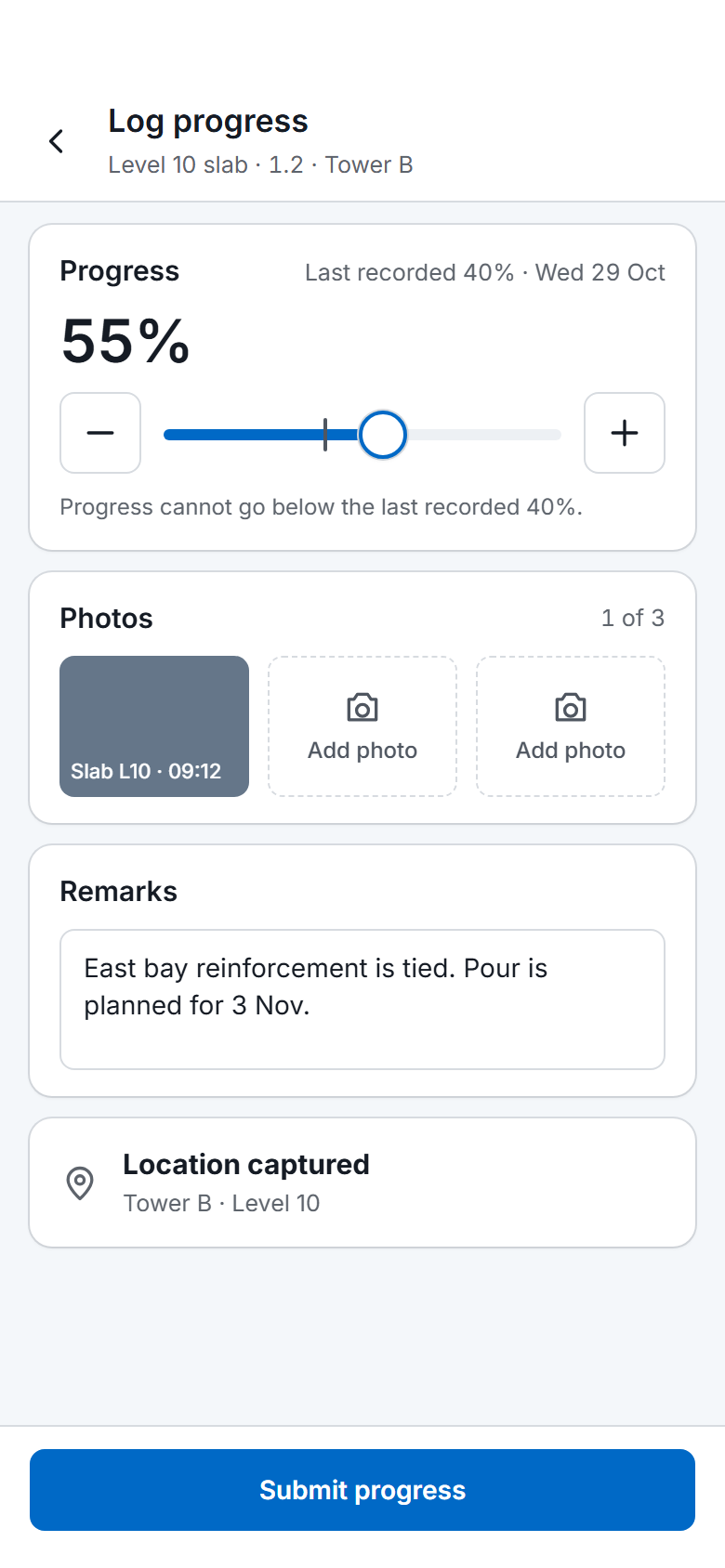
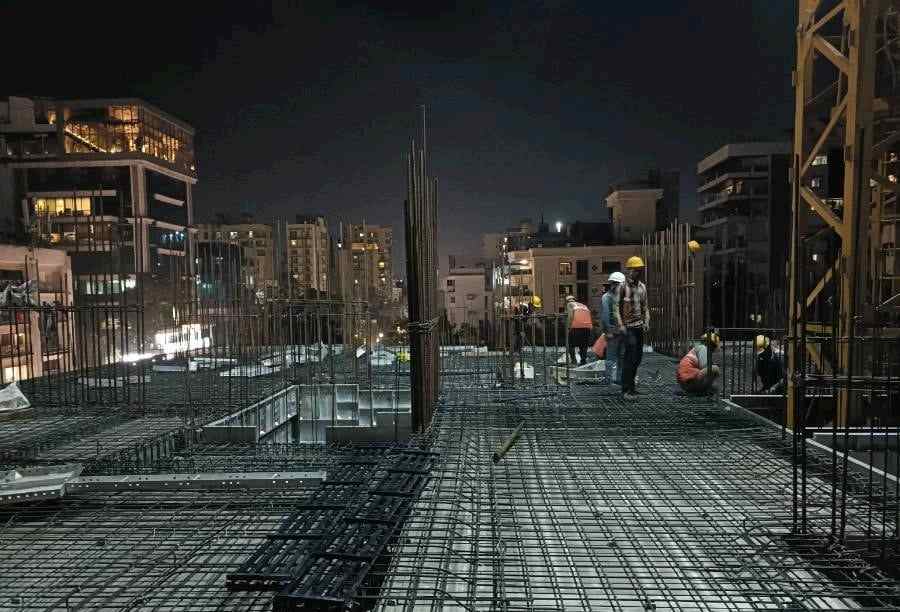
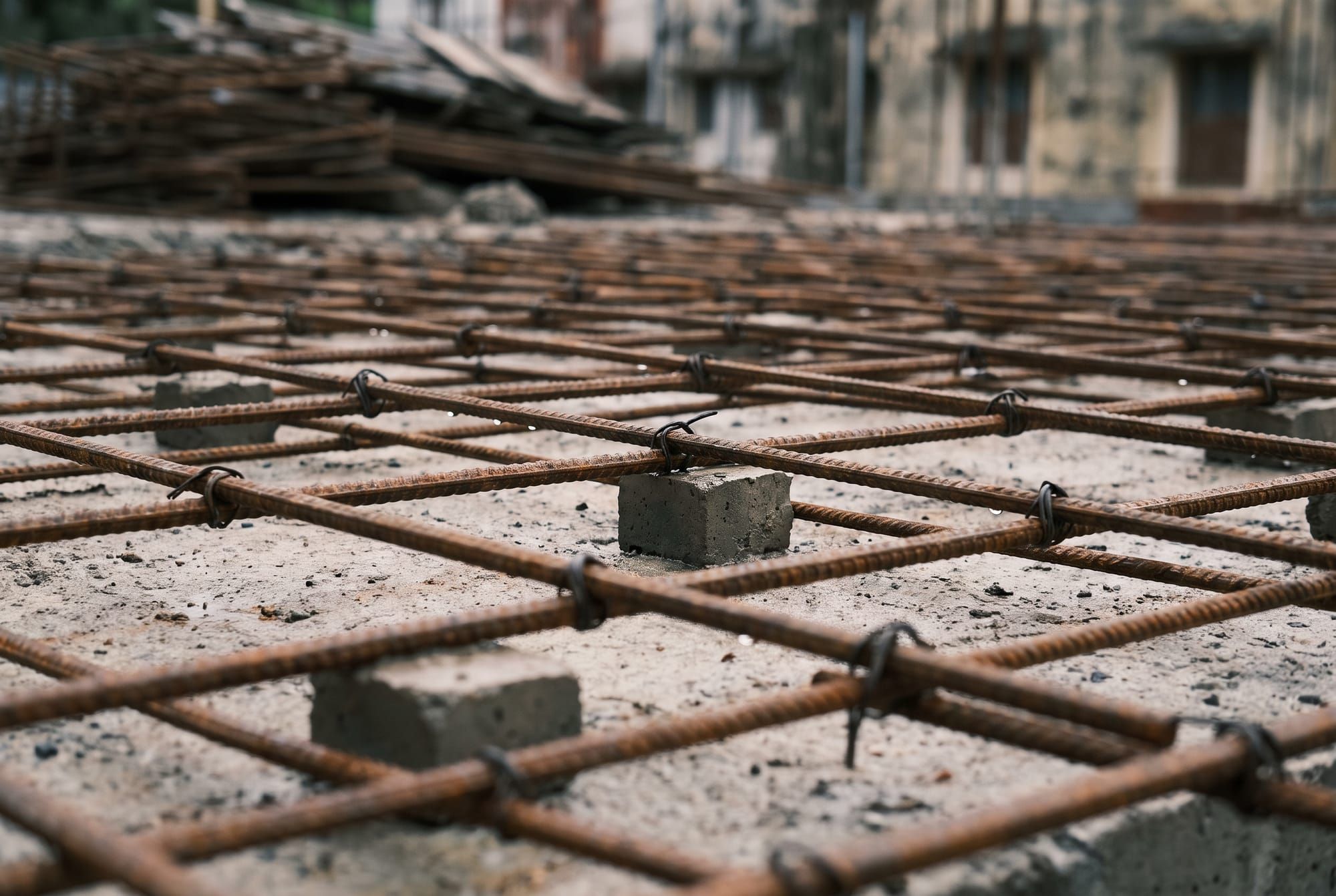
Level 10 slab · East bay reinforcement tied
Where daily reports go wrong on Indian sites
A DPR typed from memory carries rounded quantities and forgotten deliveries into billing, the MIS report and every later dispute.
The report is written after the pour, the deliveries and the labour muster are over. Quantities get rounded, a delivery is forgotten, and the site engineer cannot point to the challan or measurement behind a figure.
Delivery photos sit in a messaging group, apart from the challan they prove. When a supplier disputes a quantity, someone scrolls back through weeks of messages.
The DPR, the measurement book and the store register each hold their own version of the day. Billing waits while the billing engineer and the store keeper reconcile them.
How it works
For each MDC SuperWise stores the supplier's challan number, the vehicle registration and driver, three photo fields (the loaded vehicle, the unloaded vehicle and the material), a quality status and the person who did the quality check.
The quality status is satisfactory, rejected, or unsatisfactory but accepted, and a checklist can be attached to the challan. Labour challans and issues each store a GPS location, and issues take photo attachments. Deliveries, indents and issues keep who created them and when.
A tenant setting adds a visible timestamp to images captured through the mobile app, so a delivery photo cannot be passed off as taken on another day. It is off by default and an administrator turns it on.
The DPR downloads as a PDF or an Excel file, for one date or for a date range. Options decide what goes in: a cover page with the project logo, the date and the signatories; the delivery photos from each challan; the weather for the day; and the content of filled checklists.
One inventory option always prints the full inventory table even when nothing changed that day, and another hides items with a zero balance. Debit and credit note images from the vendor ledger can be embedded as well.
The help agent in the portal can generate a DPR for a date or a range and return the download link to any user whose role can view reports, without that user opening the reports screen.
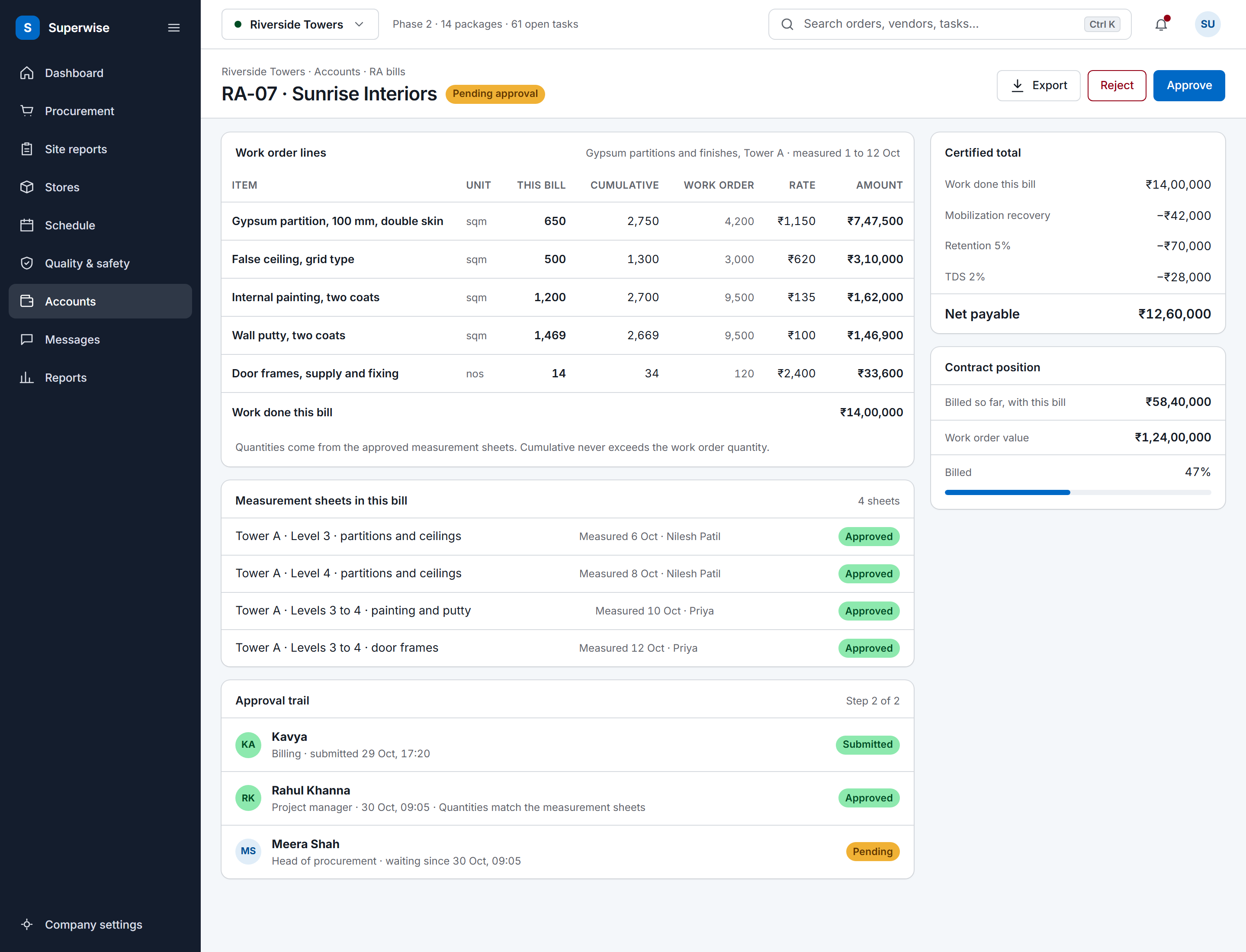
The DPR and the RA bill read the same records. A measurement sheet recorded on the day shows in the DPR's measurement section, and once it is approved it updates the BOQ progress that the RA bill claims against.
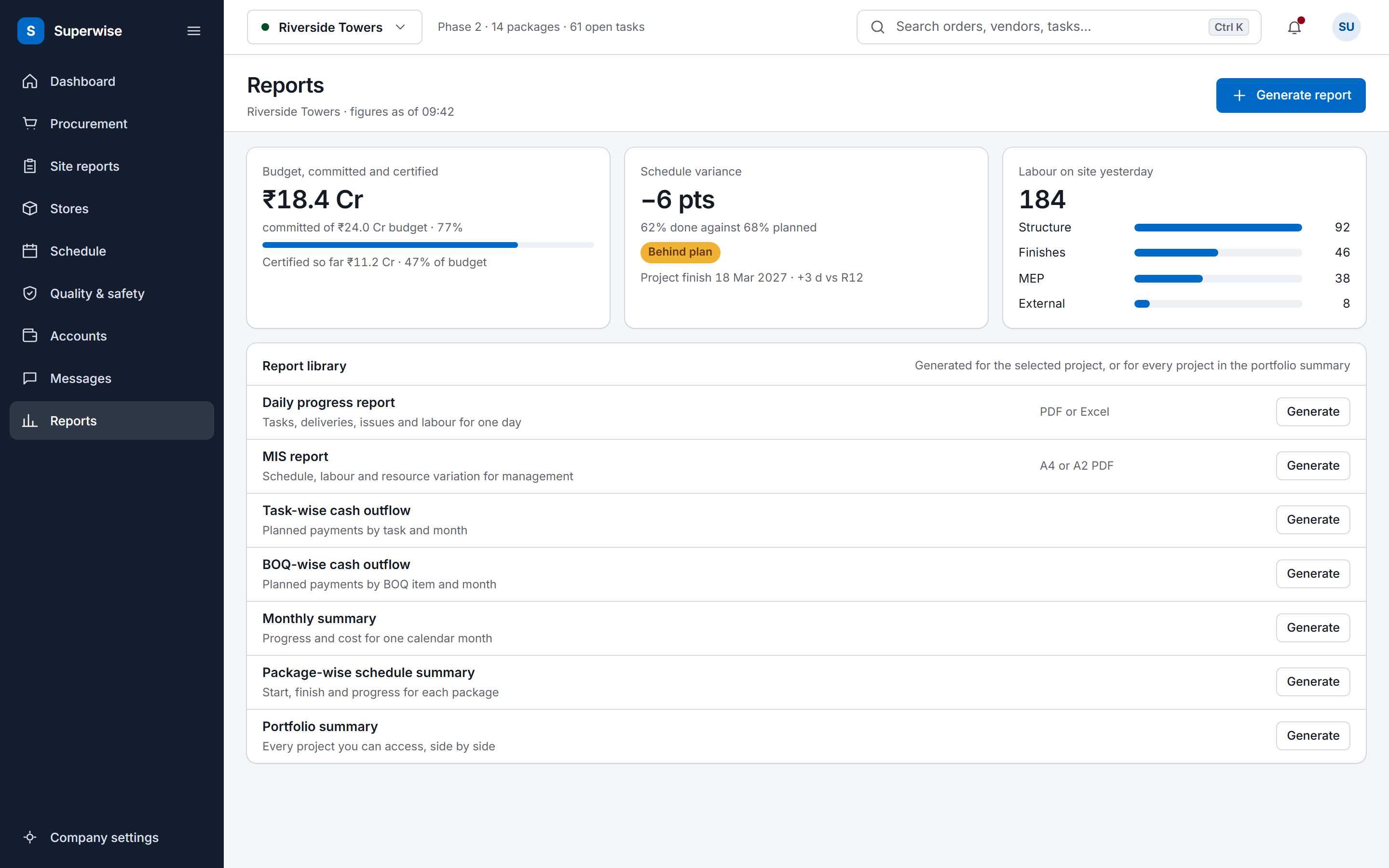
The monthly MIS report reads the same modules over a longer period: planned against actual cost and dates, labour by contractor and month, material consumption against plan, and purchases that have no matching PO. A project management consultant using PMC software for construction can hand that report to the client without rebuilding it from daily files.
When a quantity or a delay is questioned, the answer sits in the records behind the report: the challan with its photos, the measurement sheet with its dimensions, the issue with its opened and closed dates. Each carries who created it and when, and the site team writes them day by day in site management software.
Five kinds of site record feed the report. You choose the sections, set the options and download the file, and nothing is retyped between the record and the report.
Definition
A daily progress report, or DPR, records what happened on a construction site on one date, and SuperWise builds it from the deliveries, labour, task progress, measurements and issues your team has already logged.
A daily progress report answers four questions for one date: which work moved, who was on site, what arrived or left the store, and what went wrong. Clients, PMCs and head offices read it to decide whether the site is on plan, so its figures have to match the records behind them.
In SuperWise the DPR has eleven sections, and you pick the ones each report needs. Every section reads from its own module, which is why the report and the records cannot disagree. The material delivery challan (MDC) is the delivery record, and it holds the vehicle, the photos and the quality check for each load. The people who log the rest are your site engineers, store keepers and supervisors.
What a daily progress report must include
Our data was spread across construction ERP, Excel files, MS Project and Whatsapp Chats. With SuperWise, now we are able to achieve smart field-office co-ordination and align the planning, contracts & execution teams with to detect any deviations early on!
Sundar Rajan, Head of Projects Development, Shree Naman Group
Read customer storiesSundar Rajan, Head of Projects Development at Shree Naman Group, describes the change. SuperWise has run live projects since 2015.






The report is built from records that other tools can reach, and it reads a schedule you already have.
Do the company-wide setup first, then the project, then log site records.
Create users and roles, resources (material, labour, machinery and tools), checklists and the working calendar. These are set once for the company.
Add the project, import the schedule into a template, assemble it in the schedule playground, then verify and approve it.
The help agent validates CSV files for vendors, resources, labour reports and material delivery challans, reviews likely duplicates, runs a dry run and commits only after you confirm.
Record task progress, deliveries, labour and issues as they happen on site.
Pick the sections, set the options and download the PDF or Excel file.
A daily progress report (DPR) is a dated record of the work done, labour present, materials received, issues raised and checks made on a construction site. Clients, PMCs and head offices use it to judge progress and to settle disputes. In SuperWise it is generated from site records rather than typed, so each figure traces to a challan, a measurement or a task update.
The DPR has eleven sections: site progress, BOQ measurement sheets, material inventory, material deliveries, site issues, labour details, tools inventory, site attendance, materials supplied, material indents and checklists. You select or deselect each section before you generate the report, so a client copy can be shorter than the copy kept on site.
Yes. Switch on delivery images to embed the photos attached to each material delivery challan, and weather data to add that day's conditions from the project's weather records. A cover page with the logo, date and signatories is another option, and so is the content of filled checklists.
Yes, once an administrator turns on the timestamp setting for the company. Images captured through the mobile app then carry a visible timestamp, which stops a photo from being passed off as taken on another day. The setting is off by default, so confirm it is on before you rely on it as evidence.
Yes. The date-range option produces one DPR across several days instead of a single date. For a calendar month, the monthly summary report gives progress and cost for that month, and the MIS report covers the whole project in more depth. All of them are generated from the same project records as the DPR.
The DPR downloads as a PDF or an Excel file, and you choose the format when you generate the report. A PDF suits a copy that goes to a client or stays on file, while an Excel file suits a team that wants to work with the figures in its own sheets.
The DPR, RA bills and the MIS report all read the same records, so they agree with each other. A measurement sheet recorded on the day shows in the DPR, and once approved it updates the BOQ progress that an RA bill claims against. The MIS report reads the same modules over a longer period.
Yes. Zapier has a Daily Report Created trigger that fires when a daily report is submitted, and a Zap can pass that event to apps such as Slack or Google Sheets. You can limit the trigger to one project by entering its project ID in the trigger step, or leave it open for every project.
Book a demo and we generate one from a project in your account.