
Solutions

Construction document management for drawings, revisions and approvals

Construction document management software controls a project's drawings and files through folders, access rules, revisions and review states. In SuperWise each document has a folder, a purpose, a stage and a numbered revision history.

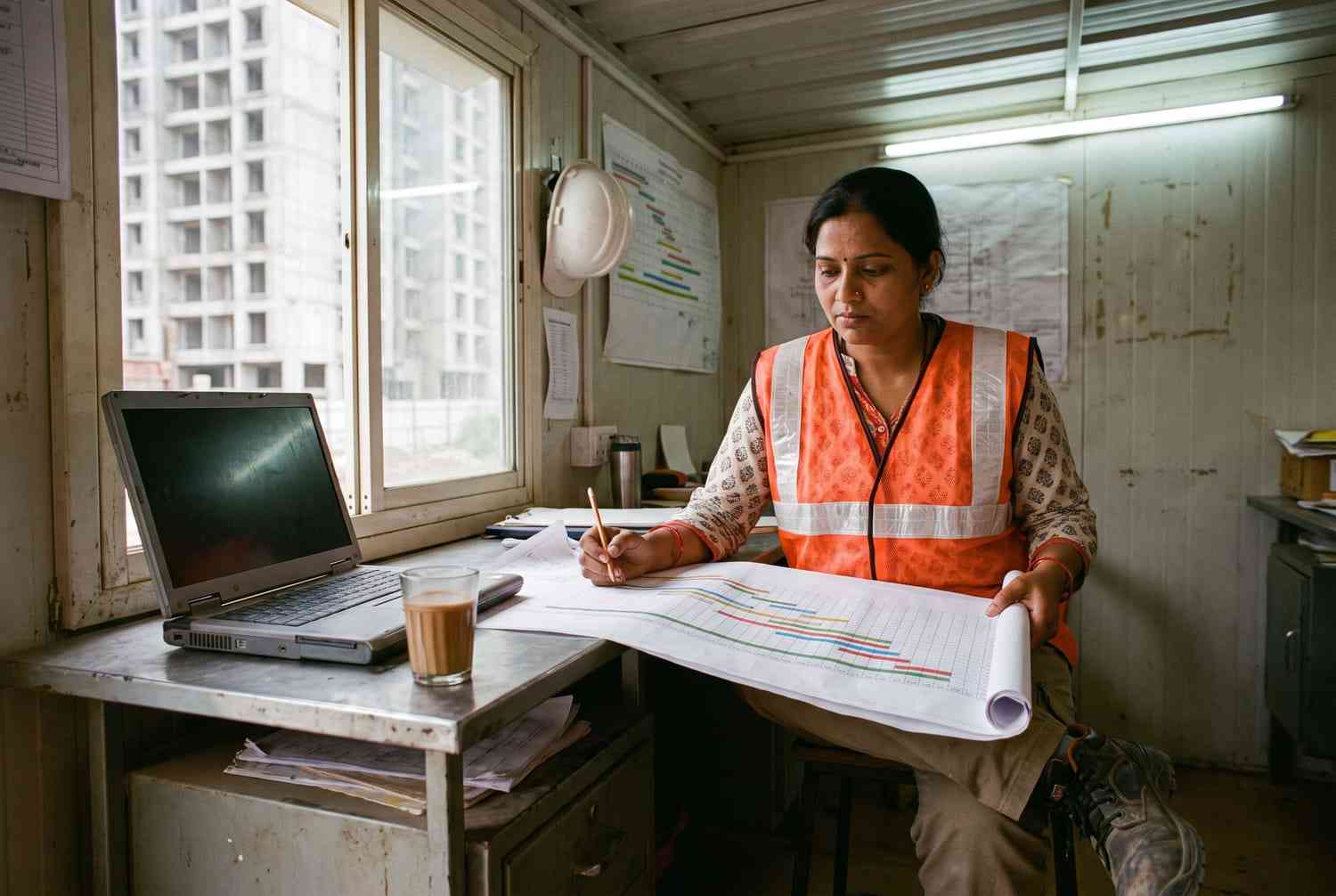
A woman planner in a hi-vis vest at a desk in a site portacabin, pencil in hand over a printed bar chart schedule, with an unbranded laptop, a tea glass and a bar chart pinned on the wall
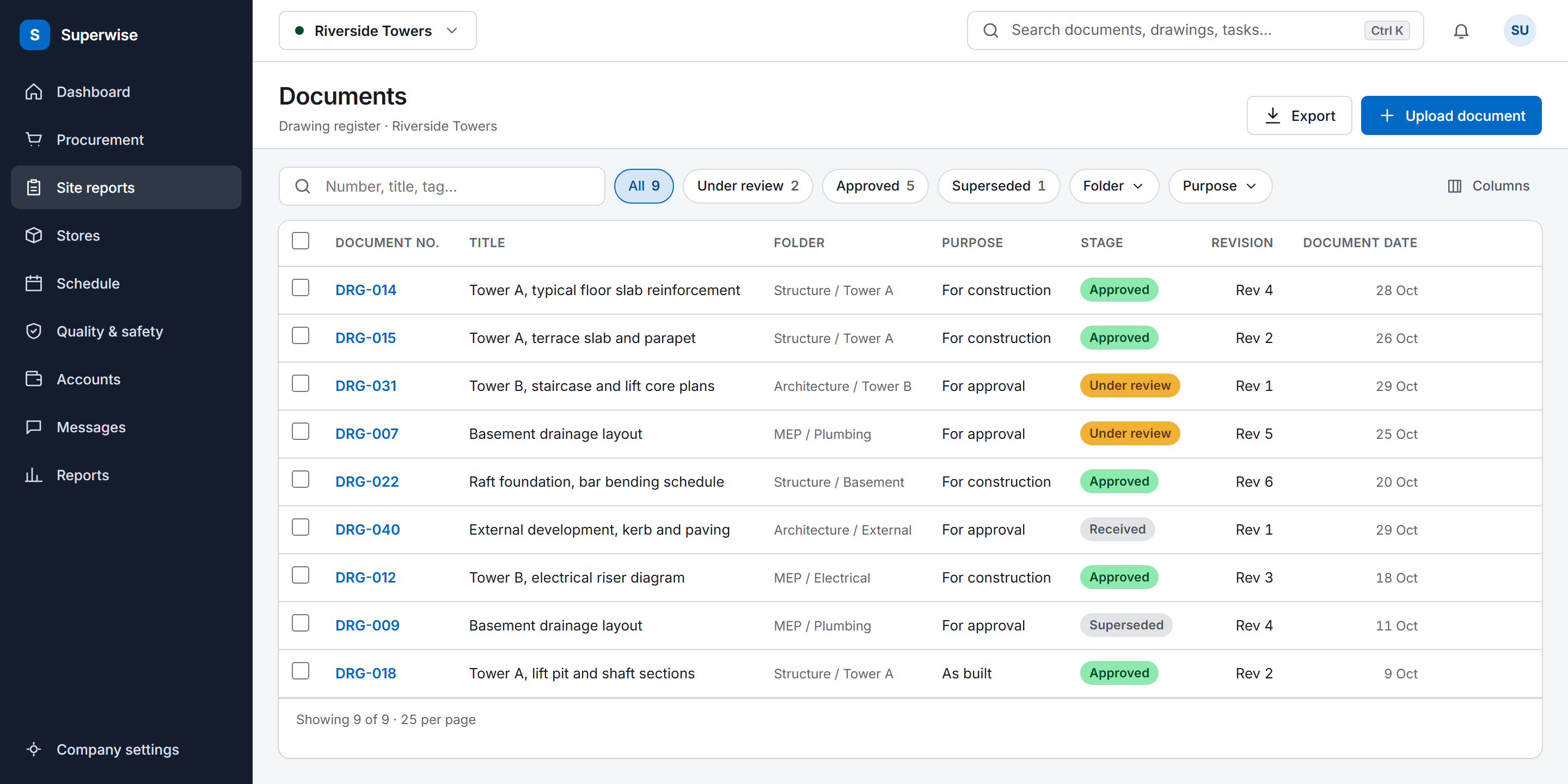
The SuperWise documents register for a project: a table of drawings with document number, title, folder, purpose, stage, revision number and document date, above it a search box and filter chips for stage, folder and purpose.

Where drawing control breaks down

The crew built from last month's drawing.

Revisions arrive faster than people update their copies.

  1. The wrong revision on site

    A drawing is revised, and the older print stays in the site office. The crew builds from the superseded revision, and the error shows up after the pour.

  2. Review state held in inboxes

    Whether a drawing was received, is under review or is approved depends on who last read the email, so a consultant's approval can sit in one person's inbox while the site waits.

  3. Folders that differ by project

    Each project invents its own folder structure and its own access rules, so the same drawing is filed in a different place on every site.

How it works

How a drawing stays under control

01 · Revisions and stages

Version control and review stages

Document control has to answer three questions for every drawing, namely which revision is current, who revised it and what review state it is in.

In SuperWise the project documents module stores drawings, specifications and any file uploaded against a project or a schedule node. Each document has a document number such as DRG-001-A, a name, a document date, comma-separated tags for search, a folder, a purpose and a stage. The file is uploaded to the project and downloaded from the project document list. The document management system feature page describes the module in more detail.

The stage is the review state. A company keeps a master list of stages, and the product guide names Received, Under Review, Approved and Superseded, the last for drawings that a later issue has replaced. Each document holds one stage at a time.

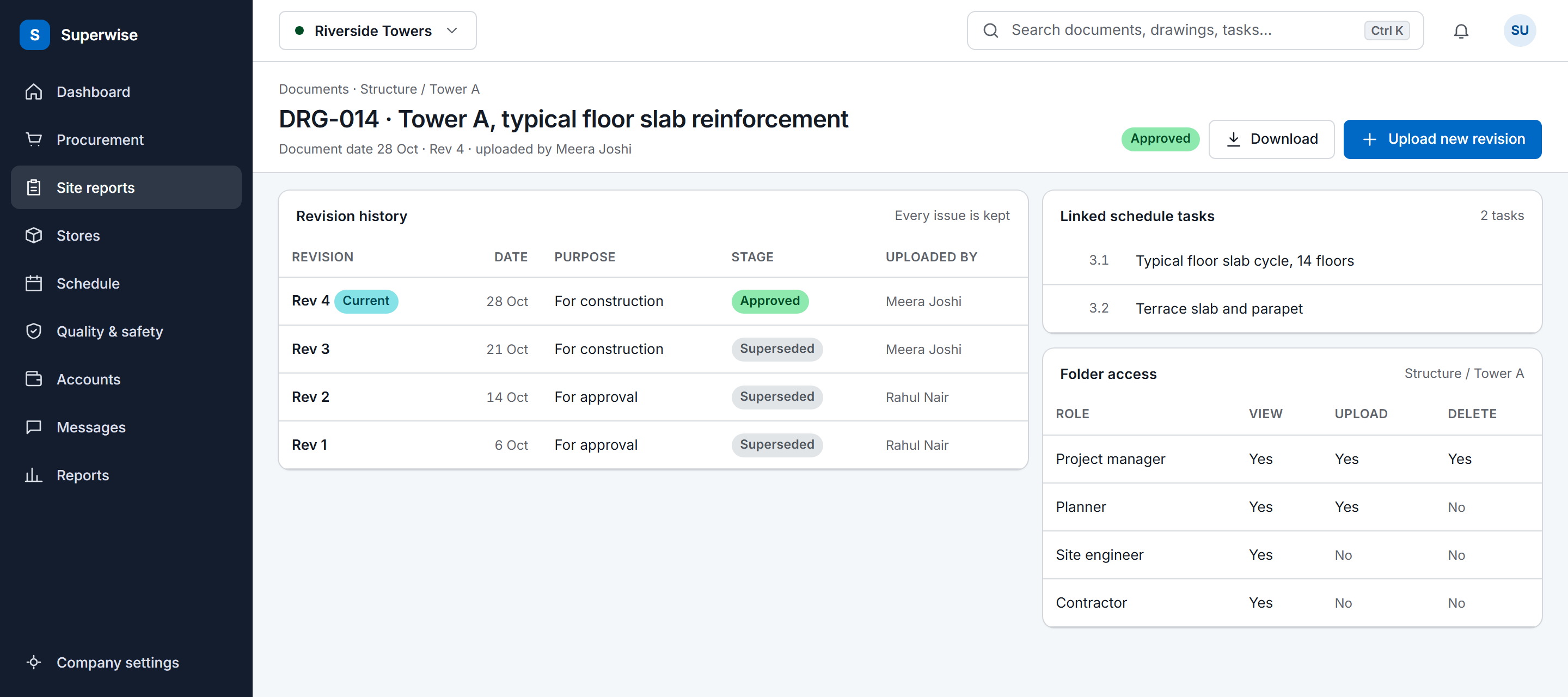
Revisions are separate records. When a document is updated, the revision number goes up and a revision record keeps the number, the file for that version, who revised it and when. Earlier versions stay on record.

A SuperWise document record for one structural drawing: its revision history from revision 1 to the current revision 4 with date, purpose, stage and who uploaded each, the schedule tasks it is linked to, and the folder access by role.
02 · Folders and access

Folders and role access

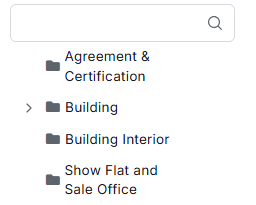
Documents live in folders, and folders nest. A folder has a name such as Structural Drawings or Approved Submittals and can sit under a parent folder. A folder that belongs to a project holds that project's documents. A folder with no project is a company-level template folder, so a standard structure can be defined once at company level.

Access is set per folder and per role, with three switches. A role can be allowed to view a folder, to upload to it and to delete from it, in any combination. That lets a team limit each role to the folders it needs.

Documents is also one of the module areas in Roles and privileges, where each role gets a mix of view, create, edit, delete and approve. Those privileges are set once for the company, alongside every other module area.

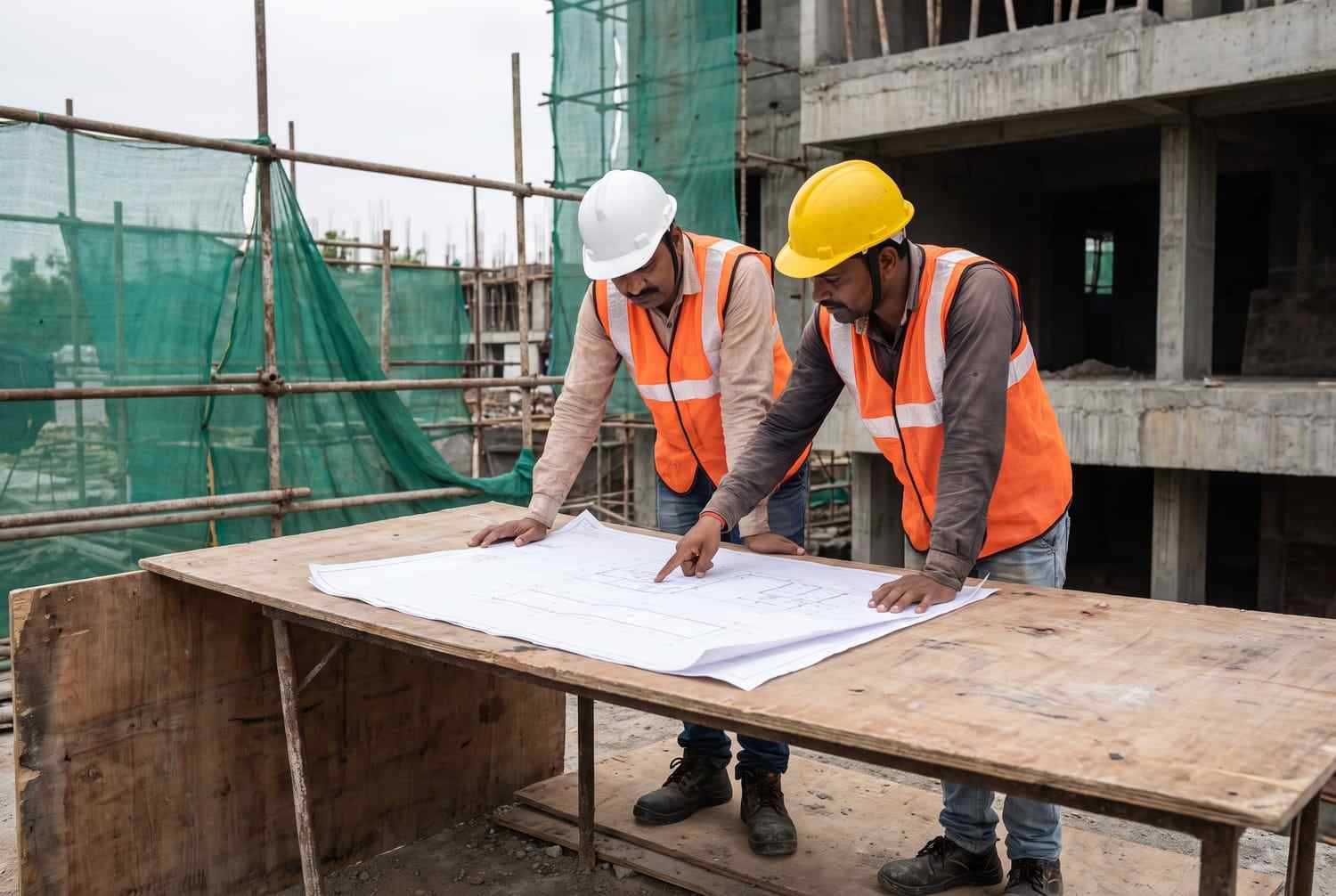
A project manager in a white helmet and a foreman in a yellow helmet leaning over a plain line drawing on a plywood table, the foreman pointing, with scaffolding and a concrete frame behind
Document folders tree under a search box, listing Agreement and Certification, Building, Building Interior and Show Flat and Sale Office
03 · The schedule

Linking drawings to the schedule

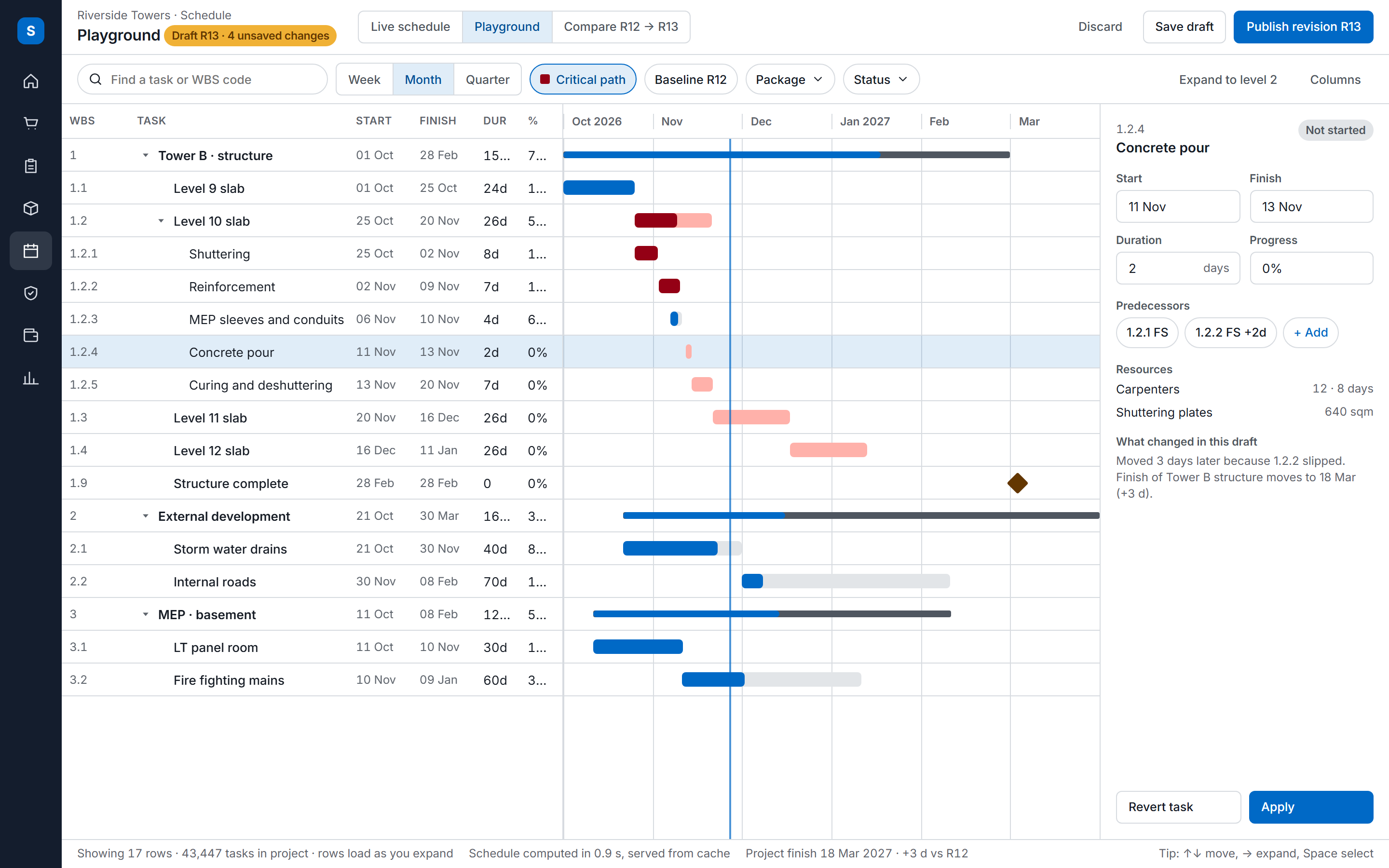
A document can be linked to one or more schedule nodes. A node is a template placed in the project schedule, such as a floor slab, so the drawings for that part of the work are tied to it as well as filed in their folder. The product guide gives the example of drawings that apply to the Floor 3 slab node.

The same nodes carry the work the site does. Site teams log task progress against them in construction site management software, and a task can need a quality checklist before it starts or finishes. A checklist on the task records the quality check on work built from a drawing, and the forms are set up as described under construction quality and safety.

The SuperWise schedule playground: a task tree with WBS codes, dates, durations and progress beside a Gantt timeline with the critical path highlighted, and an inspector for the selected task.

From upload to approved revision

A document is uploaded to a project folder, given a purpose and a stage, revised with each issue kept on record, and linked to the schedule nodes it applies to.

How a drawing moves from upload to an approved revision A document is uploaded to a project folder where roles can view, upload or delete. You set its purpose (for approval, for construction or as built), move it through stages such as received, under review, approved and superseded, and each new revision keeps its number, who revised it and when. Documents can be linked to schedule nodes. Upload to a folderRoles with view, upload ordelete access 1 Set the purposeFor approval, for constructionor as built 2 Move through stagesReceived, under review,approved, superseded 3 ReviseEach revision keeps its number,author and date 4 Link to the scheduleAttach drawings to schedulenodes 5 How a drawing moves from upload to an approved revision A document is uploaded to a project folder where roles can view, upload or delete. You set its purpose (for approval, for construction or as built), move it through stages such as received, under review, approved and superseded, and each new revision keeps its number, who revised it and when. Documents can be linked to schedule nodes. Upload to a folderRoles with view, upload or delete access 1 Set the purposeFor approval, for construction or asbuilt 2 Move through stagesReceived, under review, approved,superseded 3 ReviseEach revision keeps its number, authorand date 4 Link to the scheduleAttach drawings to schedule nodes 5

Definition

What is construction document management software?

Construction document management software controls the drawings and files of a project through folders, access rules, revisions and review states, and in SuperWise each document sits in a project folder with a purpose, a stage and a numbered revision history.

Example

One document, as SuperWise records it

Document no.
DRG-014
Folder
Structure / Tower A
Purpose
For construction
Stage
Approved
Revision
Rev 4, with Rev 1 to 3 kept

Submissions by purpose

Every document carries a purpose, chosen from a company list. The product guide names three. For Approval (IFA) marks a drawing issued for review. For Construction (IFC) marks the issue that site may build from, which many teams also call a good for construction (GFC) drawing. As Built marks the record of what was built, and as-built drawings are what a contractor hands over at completion.

The purpose says why the document was issued, and the stage says where it stands in review. Both are labels you choose from company lists.

Audit trail

In a dispute over a drawing, produce the document record, which holds its number, its date, who uploaded it and its tags. Each revision record adds the revision number, who revised it and when, so you can show which revision was issued on a given day and by whom.

The module does not generate transmittals or mark up a drawing, and the approval workflow that signs off POs, work orders, RA bills, expense vouchers and schedule changes is not described for documents.

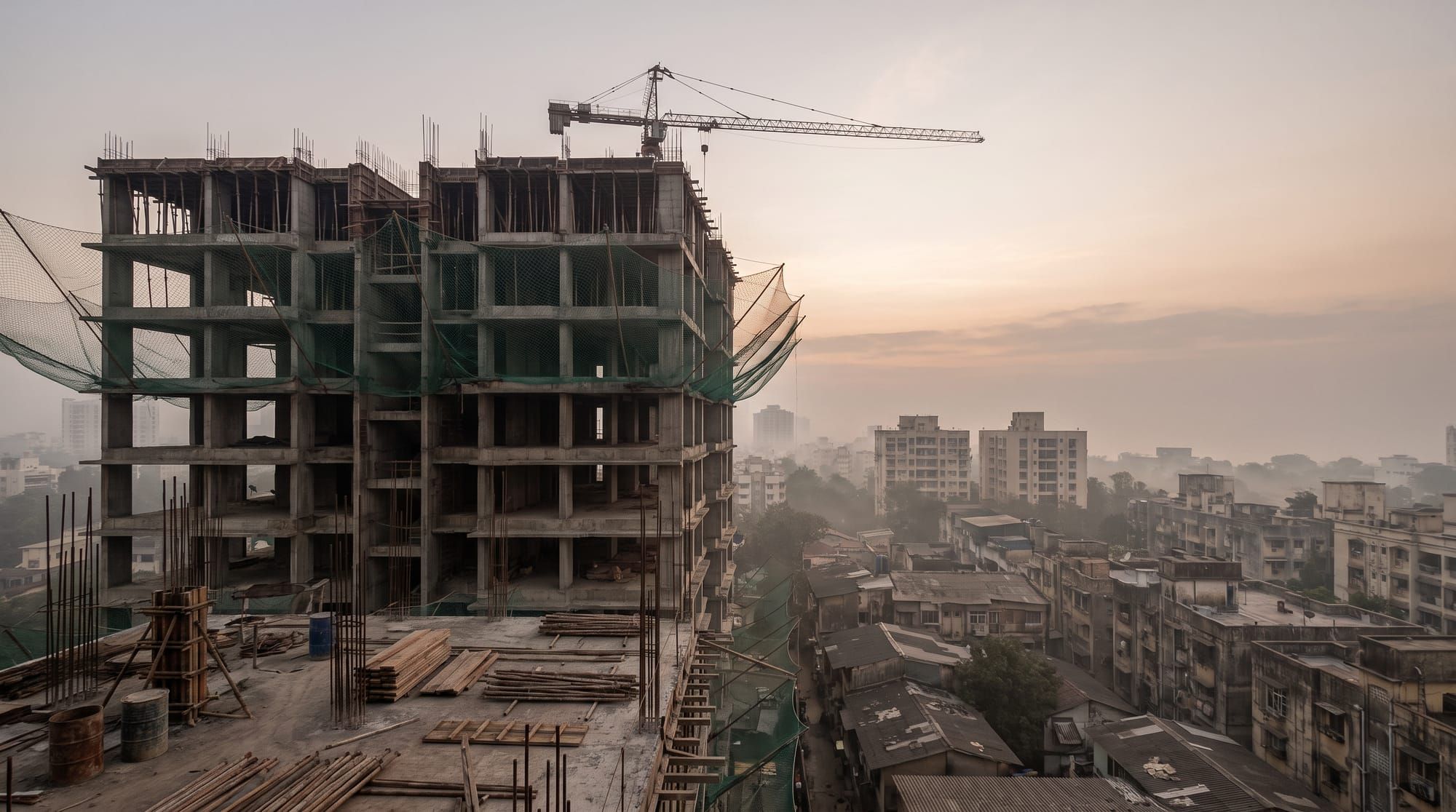
A concrete tower frame with green safety netting and a tower crane at dawn above the rooftops of a Mumbai neighbourhood, under a pale orange sky

Proof from a customer

Our data was spread across construction ERP, Excel files, MS Project and Whatsapp Chats. With SuperWise, now we are able to achieve smart field-office co-ordination and align the planning, contracts & execution teams with to detect any deviations early on!

Sundar Rajan, Head of Projects Development, Shree Naman Group

Read customer stories

A word from Shree Naman Group, a SuperWise customer. SuperWise has run live projects since 2015.

SuperWise reviews on Capterra

How a team sets up documents

Set up the company masters before any document is uploaded, starting with roles and users and ending with folders, purposes and stages.

  1. Create the folders and set access

    Folder access is set per role, so create the roles and users first. Add the folder structure as company masters, nest folders under parents, and choose which roles can view, upload and delete in each.

  2. Define purposes and stages

    Enter the purposes (For Approval, For Construction, As Built) and the stages your review follows, for example Received, Under Review, Approved and Superseded.

  3. Upload the project documents

    Upload each drawing to its folder with its document number, name, date, purpose, stage and tags, and link it to the schedule nodes it applies to.

Frequently asked questions

What is construction document management software?

Construction document management software controls the drawings and files of a project through folders, access rules, revisions and review states, so a site knows which revision is current. In SuperWise each document sits in a project folder with a document number, a purpose such as IFC, a stage such as Under Review and a numbered revision history.

What do IFA and IFC mean in SuperWise?

They are document purposes. For Approval (IFA) marks a drawing issued for review, and For Construction (IFC) marks the issue that site may build from. As Built is the third purpose in the product guide. A company keeps the list of purposes as a master, and each document carries one. The purpose is a label and does not set review deadlines.

How are drawing revisions tracked?

Each revision is a record with its number, the file for that version, who revised it and the date. Updating a document raises the revision number and keeps the earlier records, so the history of a drawing can be read back revision by revision. The document itself also holds the uploader, the document number and the document date.

Who can view, upload or delete drawings?

Access is set per folder and per role. For each folder a role can be allowed to view, to upload and to delete, in any combination. Documents are also a module area in Roles and privileges, where each role has view, create, edit, delete and approve settings. Set both before the first upload so each team sees only the folders it needs.

Do documents go through an approval workflow?

Not as documented. The approval workflow covers POs, work orders, RA bills, expense vouchers and schedule changes. A document carries a stage, such as Under Review or Approved, that records where it stands in review. If your process needs a multi-step sign-off on drawings, raise it in a demo so we can say what exists today.

Can SuperWise send transmittals or mark up drawings?

Not today. The module does not generate transmittals and does not mark up or redline a drawing. It keeps the controlled record, meaning folders, access, purpose, stage and revisions. A team that needs a transmittal log or markup keeps using the tool it has for that and uses SuperWise for the register.

Can drawings be linked to the schedule?

Yes. A document can be linked to a schedule node, which is a template placed in the project schedule, for example a floor slab. The link ties the drawings for that part of the work to it. The module accepts a file against a project or against a schedule node, and a document needs no link to be filed in a folder.

Can documents be searched by their contents?

The product guide describes a document number, a name, a date and searchable tags for each document. It does not describe searching inside the file, so tag documents when you upload them. Tags are comma-separated words you choose, such as the discipline or the package, and they are the field the guide marks for search.

See a drawing through its folder, stage and revisions

Book a demo and we walk one through the document register in your account.