
Microsoft Project integration
What imports from MPP and XML files, and what does not.
Guide
A planner's guide to the route from the plan in your planning tool into SuperWise, out to site as tasks that people update, and back as actual dates measured against a baseline.
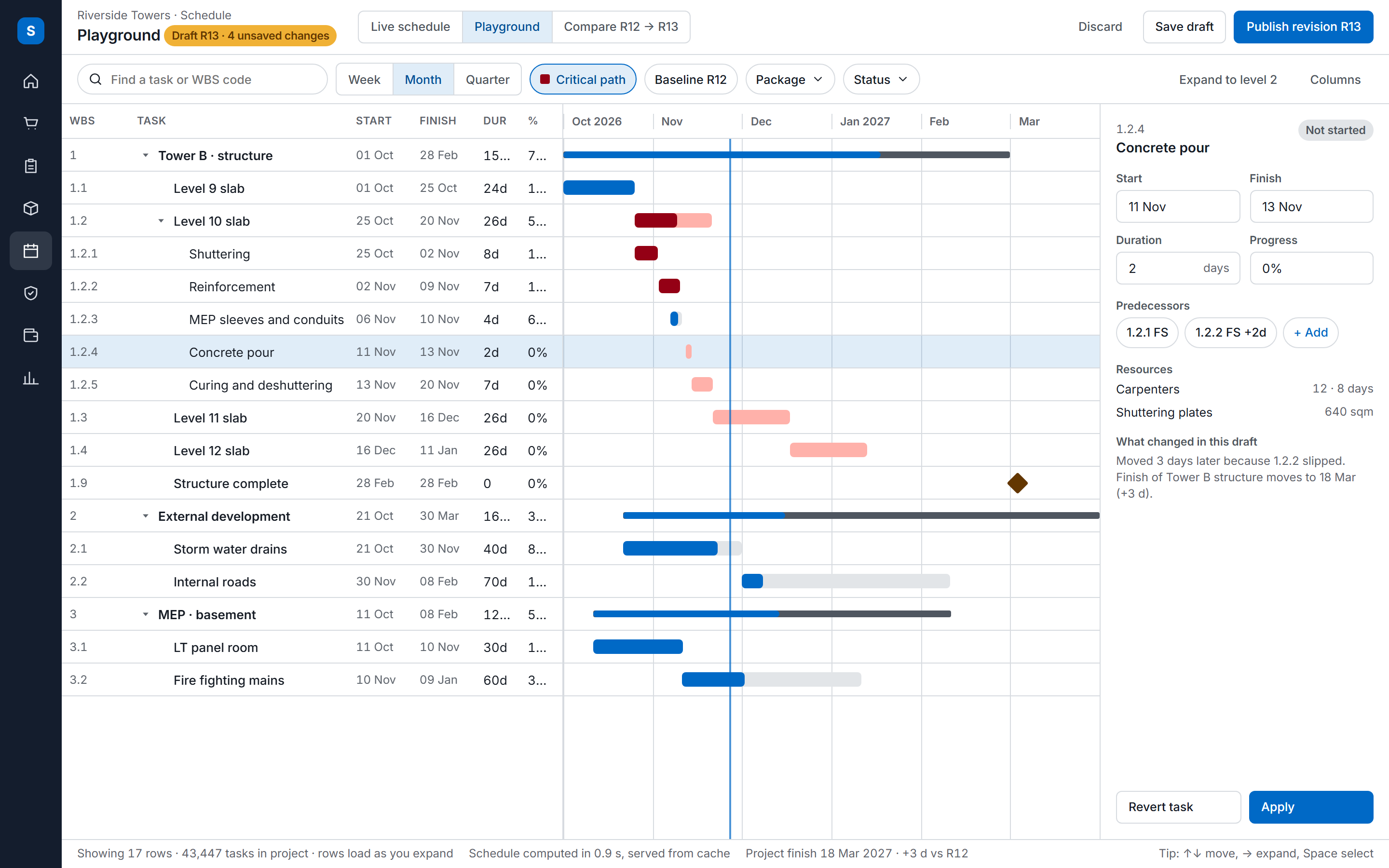
A plan in Primavera P6 or Microsoft Project is only as current as the last progress figure the planner received. When that figure arrives by phone call, message thread or a weekly spreadsheet, the planner retypes it task by task, and the plan lags the site by days. The review meeting then argues about the data instead of the delay.
This guide follows one route for that figure. It runs from the plan in your planning tool into SuperWise, out to the site as tasks that people update, and back to the planner as actual dates measured against a baseline. It describes what the SuperWise product guide documents today, and it says where the planner's own work remains.
SuperWise reads a schedule from a Microsoft Project file (MPP or XML), from a Primavera XER file or from an Excel template. Either import creates a schedule template with its WBS, tasks and predecessors, and runs as a background job.
Progress comes back in two ways: task by task, or in bulk from an Excel file with six columns. The dates that the critical path method computes sit beside the baseline that SuperWise saves when a schedule is approved.
Two things SuperWise does not do, and this page does not claim them.
The plan starts and ends in your planning tool. Steps 2 to 5 happen in SuperWise, and the planner closes the loop in step 6 by hand.
Build the plan in P6 or Microsoft Project as you do today, then bring it in as a template. From Microsoft Project, upload the MPP or XML file on the import screen. From Primavera P6, upload the XER file, or use the Excel template. Try a first import on a small plan before you rely on it.
The Excel template is a sheet with these columns: Code, Title, TaskType, PlannedDuration and Predecessors, then TaskSteps, TaskResources, TaskBOQs, PackageName, DepartmentName, StartChecklistName and FinishChecklistName. Code carries the WBS hierarchy, such as 1, 1.1 and 1.1.2. Title names the task or summary, cannot be empty and cannot repeat under the same WBS parent. TaskType is Summary, Task, Milestone or Dummy. PlannedDuration is in the template's duration unit, days or hours.
Predecessors is a comma-separated list in the form task, relation, sign and lag. The entry 12FS+2 means task 12, finish to start, with 2 units of lag. The relations are FS, SS, FF and SF. Names for packages, departments and checklists must match records that already exist.
Import a small plan first and open the result before you load the full programme. Check the durations, the predecessor links and the WBS codes against the source file.
An imported plan becomes a template, a reusable block of tasks and links. In the schedule playground you place templates as nodes, such as a 3rd floor slab, and link the nodes. Each link says which node must finish before the next one starts, and the task-level dependencies sit underneath.
Saving the playground writes a working copy. Verify starts the critical path calculation as a background job, and the working copy moves from Saved to Verified, Processed and PendingForApproval. Approval promotes it to a revision. It also saves a baseline automatically, titled with the date and the revision number. That baseline is the reference for every later variance.
The calculation gives each task an earliest and a latest start and finish. A task whose latest start equals its earliest start has zero total float and sits on the critical path.
Site teams update the tasks, not a spreadsheet. Each task has a status (NotStarted, InProgress, Completed or OnHold), an ActualStart and an ActualFinish, and progress is recorded against the task with a date.
A task can require a checklist before it starts or before it finishes, and a template can enforce it, so the task cannot be completed without the form. Issues link to tasks as well, so a hindrance on site stays attached to the task it held up.
When progress arrives as a spreadsheet, for example a contractor's weekly update, upload it in bulk instead of retyping it.
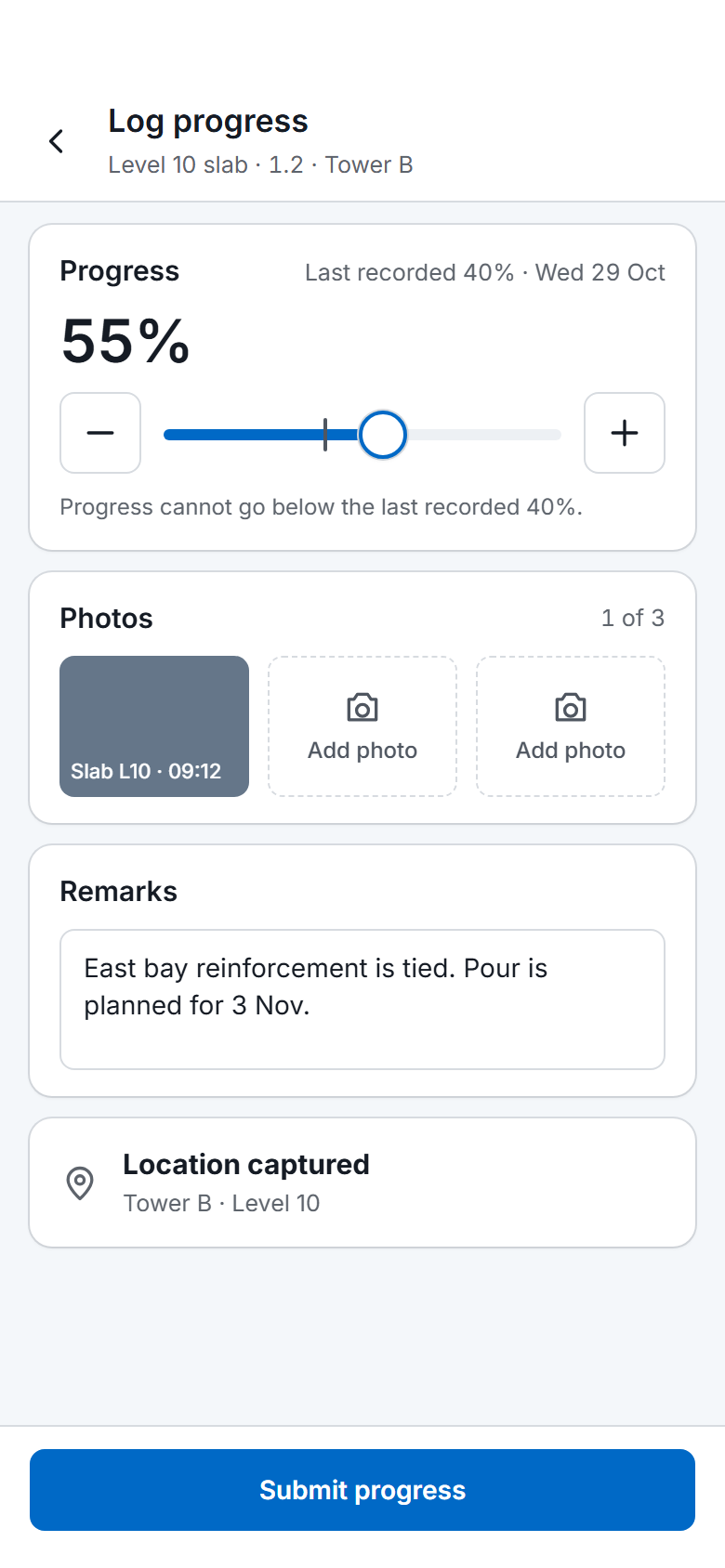
The bulk progress file has six columns, and SuperWise checks every row against the rules below. The same six columns head the Site Progress section of the daily report template, so a team can collect them on paper first.
Titles must match existing records, so copy them from SuperWise or from the imported plan. A task renamed in the planning tool after the import no longer matches the task in SuperWise.
| Column | What it holds | Rule |
|---|---|---|
| SummaryCodeTitle | WBS or area code | Required. Must match a WBS title or code in the active project. |
| WBSTaskTitle | Task name | Required. Must match an existing task within that WBS. |
| CurrentProgress | Progress in percent | Required. Between 0 and 100, and not lower than the previous recorded progress. |
| ProgressDate | Date of the progress | Required. Not in the future, not after the task's ActualFinish, and not the same date as another update for the task. |
| ActualStart | Start date | Optional. Not in the future. |
| ActualFinish | Completion date | Required when progress is 100. On or after ActualStart and not in the future. |
With progress in, the planner compares actual dates with the active baseline. SuperWise keeps a start variance and a finish variance for each baseline task, in days ahead or behind. The MIS report includes a schedule task summary with planned against actual dates and variance, and a baseline schedule chart that compares the current planned dates with the baseline.
Start with the critical path tasks that are behind the baseline, then look at the tasks whose finish variance is growing. A late task off the critical path matters less until its float is used up.
SuperWise writes no MPP or XER file and does not push dates into P6 or Microsoft Project. The planner reads the variance, decides what to change and revises the plan in the planning tool by hand. If the change affects the site, the planner updates the schedule in the playground and approves a new revision, which saves a new baseline.
Give each fact one owner. The planning tool owns the logic and the durations. SuperWise owns the progress and the actual dates that site records. Editing the same logic in both places creates two versions of the schedule.
Microsoft Project users import an MPP or XML file. Primavera P6 users import an XER file or use the Excel template. Field progress, the baseline and the review are the same for both, because they all happen after the import.
A team that holds its plan in an XER file imports it as it is. SuperWise reads the file and never writes one back, so a revised plan goes into P6 by hand.
These limits come from the product guide, and they apply to every plan you bring in.
Yes. The schedule import reads .xer files as well as MPP, XML and Excel files. SuperWise writes no XER file and does not push dates back, so the planner revises the plan in Primavera by hand.
No. SuperWise writes no MPP or XER file and does not push dates back. The planner reads the progress and the variance in SuperWise and revises the plan in the planning tool.
The site engineer records progress on the task, with a date. The planner reviews it against the baseline. Splitting the work this way means the planner does not retype figures from messages and spreadsheets.
SuperWise refuses it. In the bulk Excel, CurrentProgress cannot be lower than the previous recorded progress, and two updates for one task cannot share a ProgressDate. Check the sheet against the task before you upload it.
No. Some teams plan in P6 or Microsoft Project and keep the schedule that site teams update in SuperWise. Others build the schedule in SuperWise from templates. This guide covers the first group.
Book a demo and bring an MPP, XML, XER or Excel schedule. We import it and record progress on it in front of you.