
PDF report
A formatted DPR for one date, with a cover page and signatories if you switch them on.
Features
Daily reporting software compiles the day’s site records into one report. SuperWise builds the DPR in eleven selectable sections, with a cover page, delivery photos, weather and checklists, as PDF or Excel.
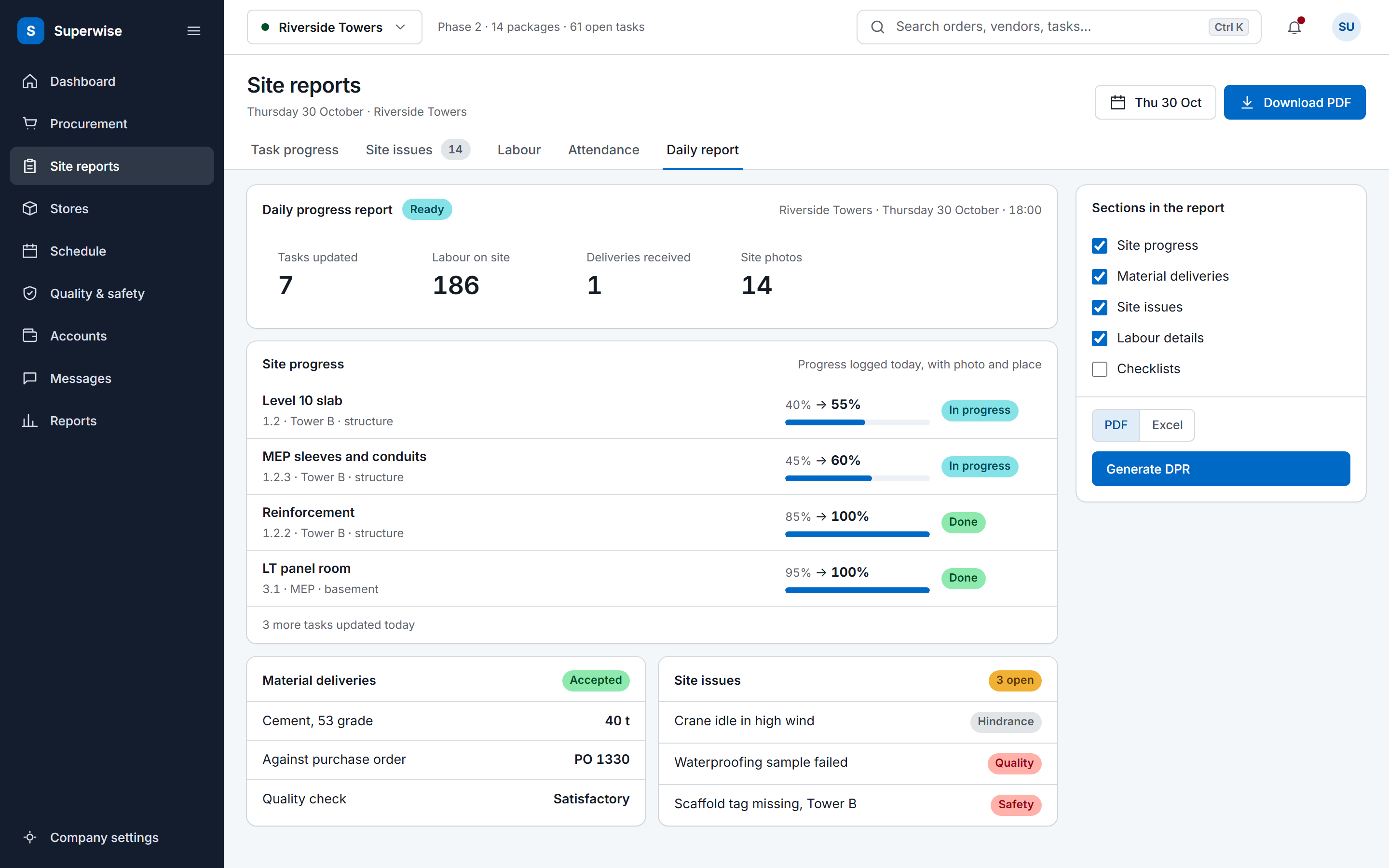
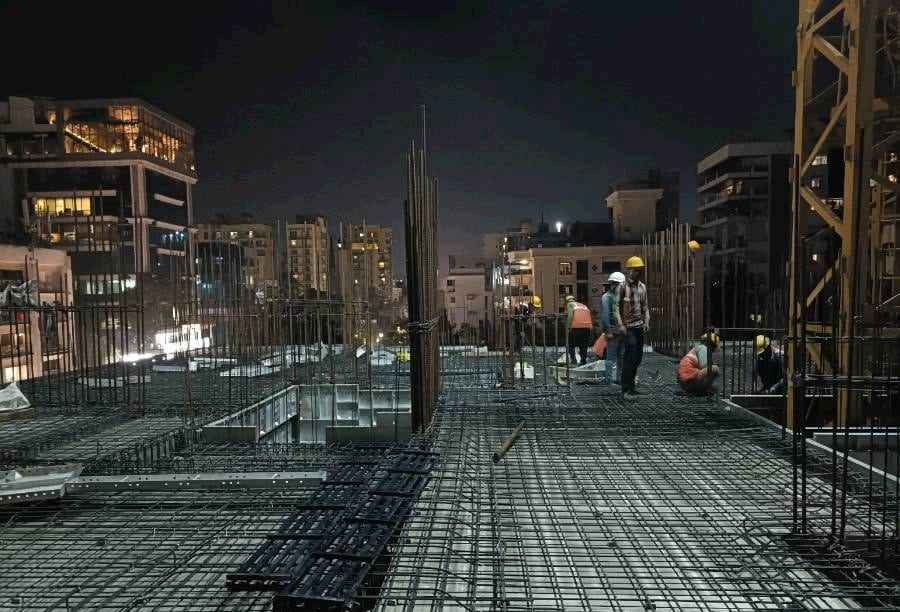
Seven tasks, one delivery, three issues
The problem
SuperWise builds the DPR from what the site already logged: progress, deliveries, labour and issues. The report reads the records, so nobody copies them into a spreadsheet.
Sections run from task progress and measurement sheets to attendance, indents and filled checklists, and you switch each one on or off.
Add a cover page with the logo and signatories, delivery photos, the day's weather and the content of filled checklists.
Generate a DPR for a single date or for a start and end date, as a PDF or an Excel file.
Run it from the reports screen, ask the help agent for a download link, or trigger a Zap when a daily report is submitted.
The DPR is generated from records the site keeps anyway.
Progress, deliveries, labour and issues are logged on the phone or the portal as they happen, each with its date and the person who logged it. The daily report reads these records and nothing else, so what is logged is what is reported.
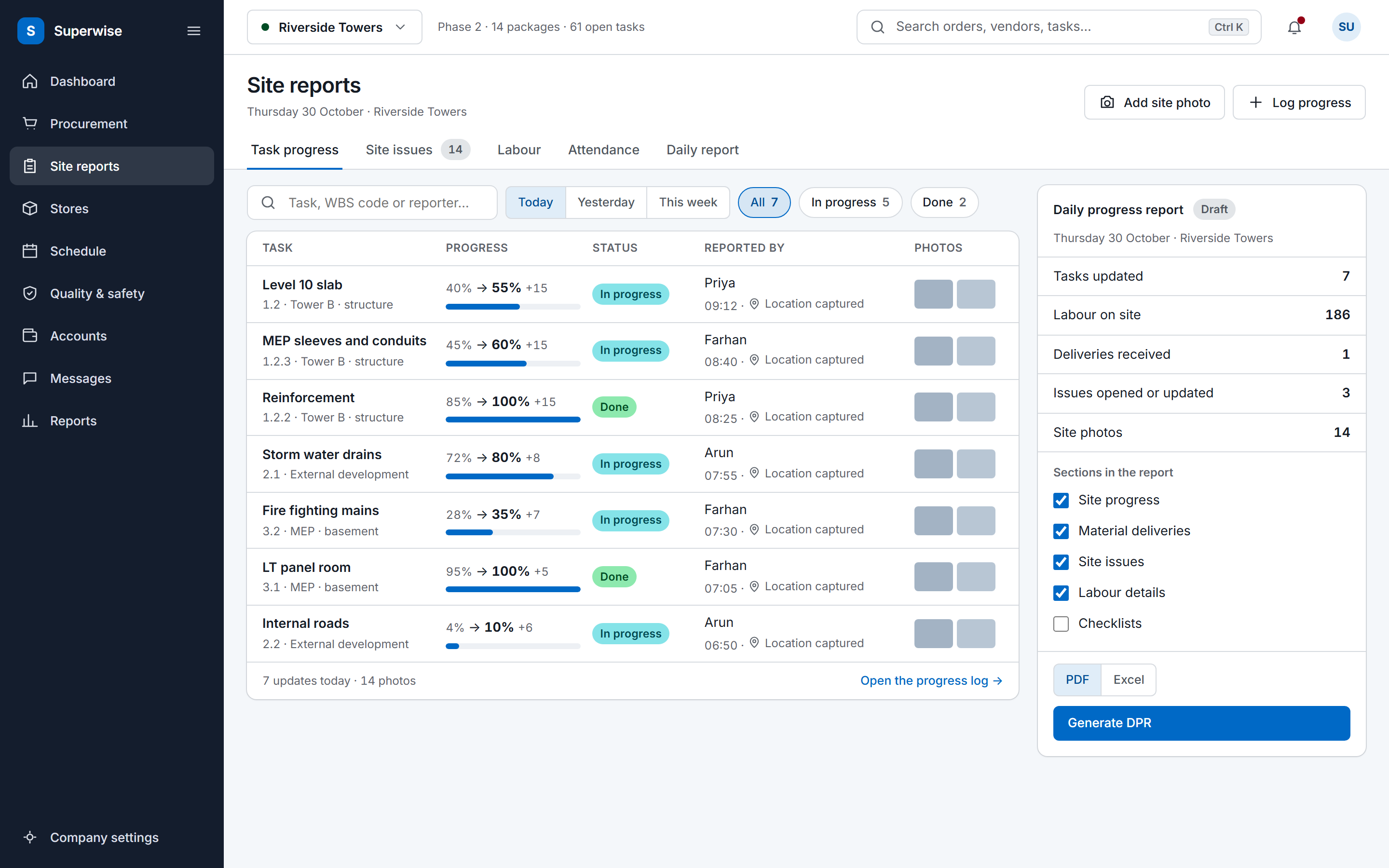
Choose the project and one report date, or switch on the date range and give a start and an end. Then select the sections you want among the eleven, and the options: a cover page, delivery photos, weather and the content of filled checklists.
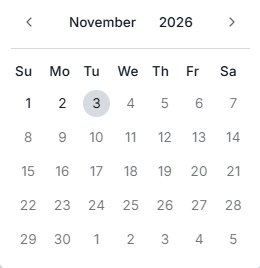
Choose the report type and the format. The report is built from the records at that moment and downloads as a PDF or an Excel file. The help agent can return the same download link when you ask for it by date.
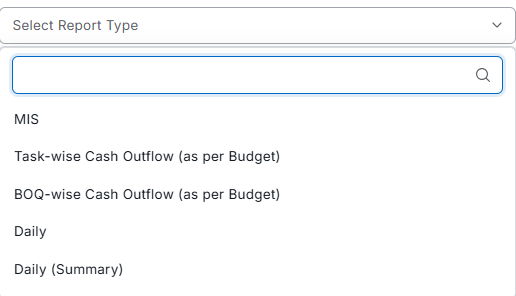
Five kinds of record feed the report. You pick the sections and the options, then download a PDF or Excel file, and the Zapier trigger hangs off the last step.
You select or deselect each of the eleven sections of the daily progress report before you generate it. Each section reads one record type for the report date, the same records the daily report app turns into the day's report.
Material inventory and tools inventory are balances, which is the stock side of inventory management. The other sections list what was recorded on the date. If your site still reports from a spreadsheet, start with the construction daily report template and compare its fields with the sections below.
On site
The DPR reads the day’s records, so nobody retypes them in the evening.
Options add content to the selected sections. The cover page adds the project logo, the date and the signatories. Delivery images embeds the photos attached to each delivery challan. Weather adds the day's conditions from the daily weather records. Checklist content embeds the answers from filled checklists, and vendor ledger images embeds debit and credit note images.
Two switches control the stock tables. One forces the full inventory table to print even when nothing changed that day, and the other hides resources with a zero balance.
You give the project and one report date. Switch on the date-range option and you give a start date and an end date instead. The format is PDF or Excel. The report is a read-only output computed when you generate it, so a challan corrected today shows in the next report you generate.
A date-range DPR runs the same sections across several days in one file, which suits a weekly or fortnightly copy for a client. The monthly summary is a separate report. It summarises progress and cost for one calendar month, chosen by giving the month's start date, and it reads the same project records.
For management, the MIS report takes the longer view, and it comes with the monthly summary and the rest of the pack under site reporting.
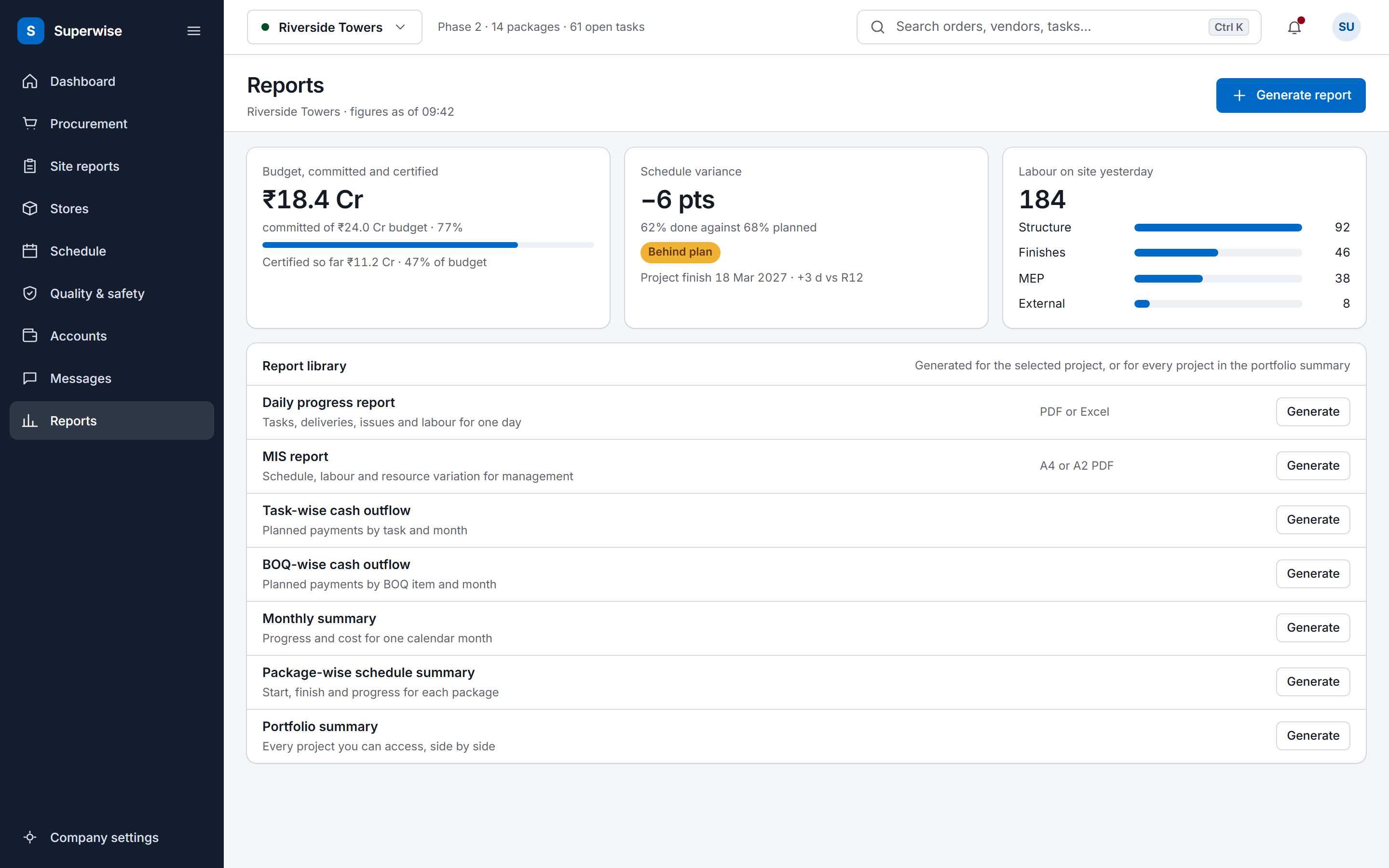
The help agent in the portal has a daily report specialist. It finds the project, generates a DPR for a single date or for a range, and returns the download link. It is available to users whose role has View access to Reports.
The Zapier trigger Daily Report Created fires when a daily report is submitted. A Zap can then post to Slack or add a row to Google Sheets. Leave the project field empty to receive every project, or enter a project ID to scope the Zap to one.
Reports are generated on request from the records as they stand that day.
Yes. Each of the eleven sections can be selected or deselected before you generate the report, so a client copy can carry fewer sections than the site copy. The options sit beside them: cover page, delivery images, weather, checklist content, vendor ledger images, a full inventory table and a switch that hides zero-balance resources.
The project, a single report date and the format, PDF or Excel. If you switch on the date-range option you give a start date and an end date instead of one date. The monthly summary takes the start date of the month you want. Everything else is an option that adds content, such as photos or weather.
The DPR has no approval step of its own. It is a read-only output computed when you generate it, and the records it reads, such as delivery challans, measurement sheets and filled checklists, carry their own statuses and approvals. Enforce sign-off on those records and the report shows what they hold.
Yes. Users whose role has View access to Reports can ask the help agent for a DPR for a date or a range, and it returns the download link. A Zap can react to the Daily Report Created trigger by posting to Slack or adding a row to Google Sheets, so the team hears about a submitted report without opening the portal.
The monthly summary is a separate report that summarises progress and cost for one calendar month, chosen by its start date. The DPR is a day-level report with eleven sections. The monthly summary reads the same project records, and the MIS report goes further for management, with cost and schedule summaries, labour by contractor and a baseline schedule.
No. The eleven sections do not include equipment or hindrances. Equipment rental challans and equipment logs are recorded in their own modules, and delays are logged as issues. The site issues section lists every issue opened or updated on the report date, so a delay logged that day appears in the DPR.
Book a demo and we generate a DPR with your chosen sections and options from a project in your account.