
Platform

One construction management platform for site and office

SuperWise is construction management software that holds a project's schedule, site progress, purchases, measurements and bills together. Set up company masters once, then run every project from the web or the phone.

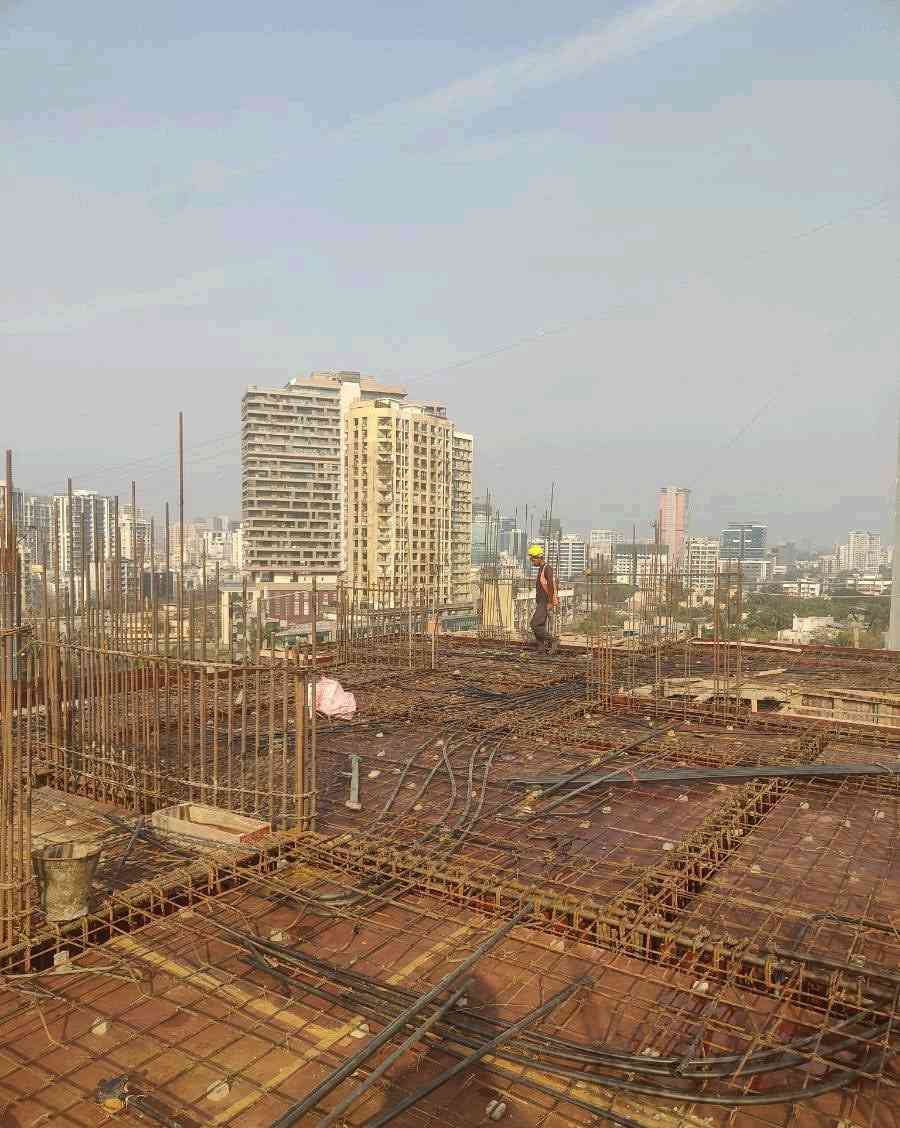
A worker in a yellow helmet walking across a slab reinforcement deck at height, with a tall apartment tower and the city skyline in the haze
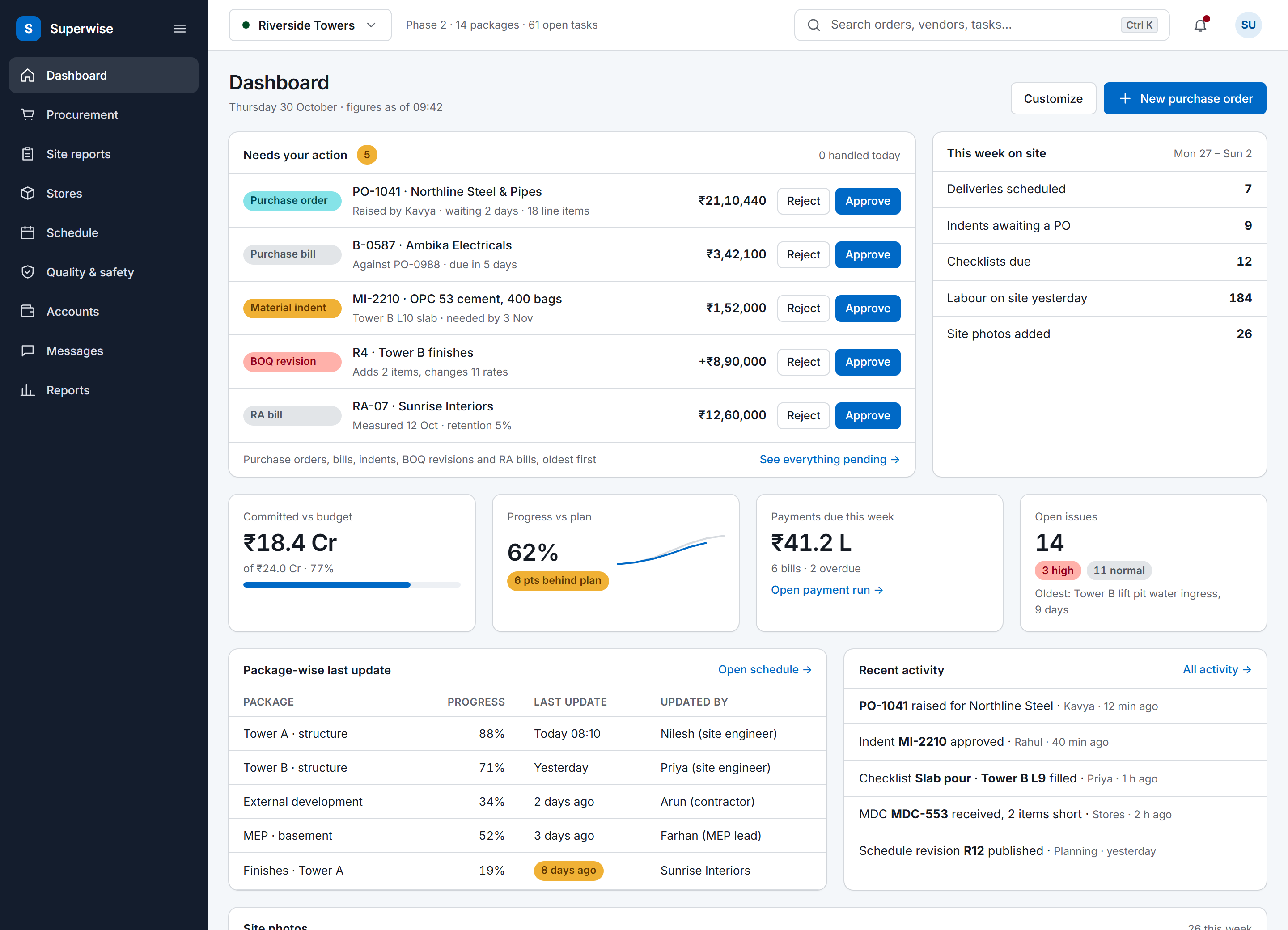
The SuperWise portal dashboard for a project: an approval queue with five items waiting for the user, a week-on-site summary, four key figures for budget, progress, payments and open issues, package-wise last updates and recent activity.
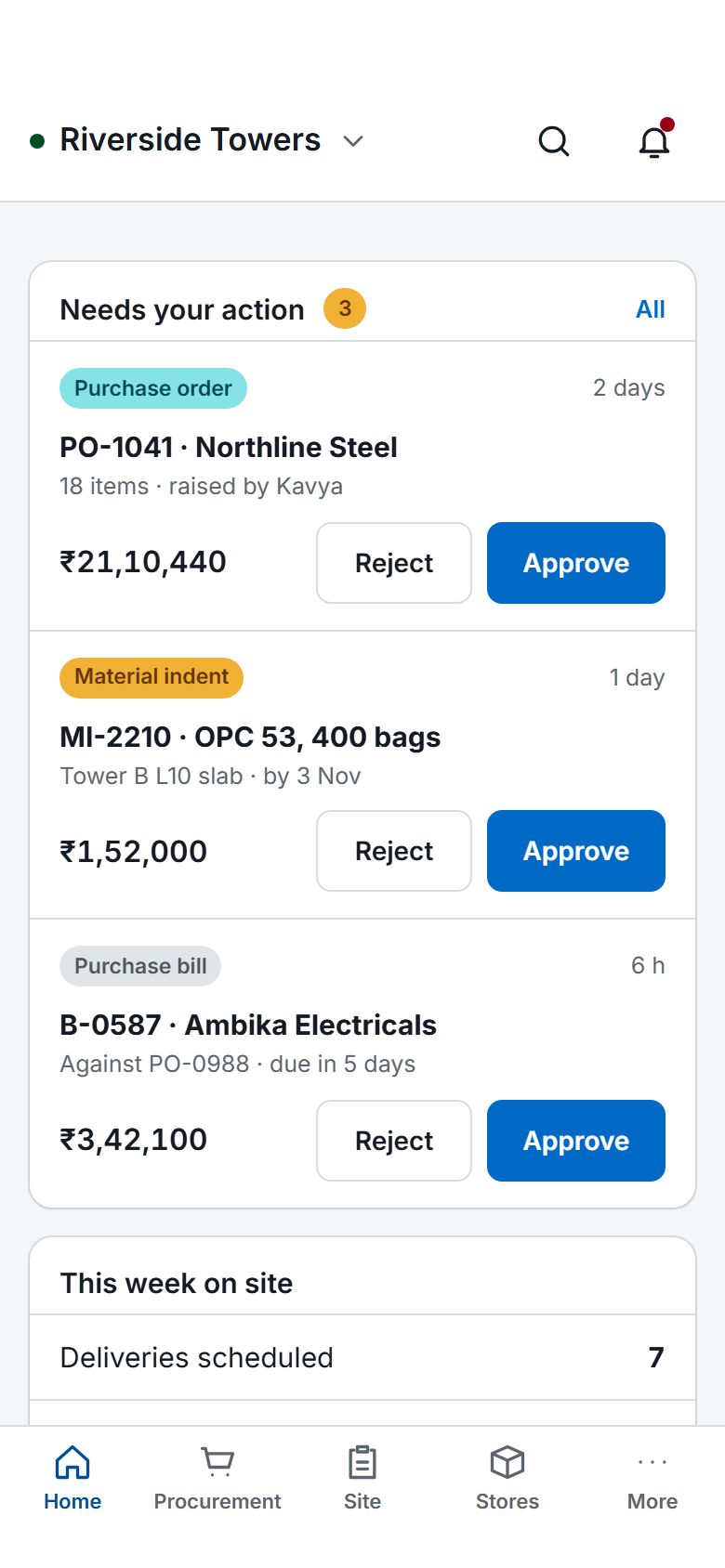
The SuperWise phone app home screen: key figures, three items waiting for approval with Approve and Reject buttons, a week-on-site summary, quick actions for checklists, photos, progress and material receipt, and bottom tabs.

What the platform covers

Ten groups of modules, in the order a company sets them up. Open any module to see the feature that covers it.

01 · 8 modules

Foundation and general

Set the company up once: people, rules and approvals.

02 · 5 modules

Planning masters

The calendars, work items and templates a schedule starts from.

03 · 1 module

Projects

Each site created with its client, calendar and duration.

04 · 6 modules

Site monitoring masters

The materials, checklists and issue types site teams log against.

05 · 2 modules

Schedule

A critical-path schedule the site updates, with baselines.

06 · 8 modules

Procurement: material chain

From indent to delivery, every step on record.

07 · 3 modules

Procurement: works contract chain

From proposal to work order, ready for RA bills.

08 · 7 modules

Billing

Bills and payments tied back to measurements.

09 · 5 modules

Site operations

What happened on site today, logged where it happened.

10 · 7 modules

Reports

The DPR and management reports, generated from the records.

Site to office

What the office sees from the site

Site teams log progress, deliveries and issues from the phone app, with photos. The office reads the day from those records instead of chasing calls.

The same records feed the daily progress report and the bills, so what the office signs is what the site logged.

See site reporting

Site feed

Example
  1. 17:15

    Roof slab cast

    Riverside Towers, Tower B

  2. 16:48

    Short delivery flagged at the gate

    Riverside Towers, Store 2

  3. 16:20

    RA bill sent for approval

    Riverside Towers, Package C

How the record flows

Two chains run through every project. A purchase moves from indent to bill, and the work moves from schedule to RA bill. Each step is a record the next one reads.

Materials · indent to bill

  1. Indent

    The site asks for material and the request is approved.

  2. Purchase order

    The order goes to the vendor, from an indent or direct.

  3. Challan

    The delivery is checked in at the gate, with photos.

  4. Bill

    The purchase bill is raised from accepted deliveries.

Work · schedule to RA bill

  1. Schedule

    The plan the site works to, with baselines.

  2. Progress

    Logged from site against each task, with a photo.

  3. DPR

    The daily report is compiled from those records.

  4. RA bill

    Bills built from approved measurements.

The running chains, on screen

The five chains that run a project, each with the screen it lives on.

  1. Procurement: material chain

    Material indent, request for quotation, quotation and purchase order, then material delivery or labour challans.

  2. Procurement: works contract chain

    Request for proposal, proposal, work order, RA bill and payment.

  3. Billing

    The project BOQ, measurement sheets, RA bills, vendor bills, payments, expense vouchers and the vendor ledger.

  4. Site operations

    Issues and snags, project documents, site attendance, task progress and the daily progress report.

  5. Reports

    The DPR, the MIS report, cash outflow by task and by BOQ item, a monthly summary, a package-wise schedule summary and a portfolio summary, computed from the other modules.

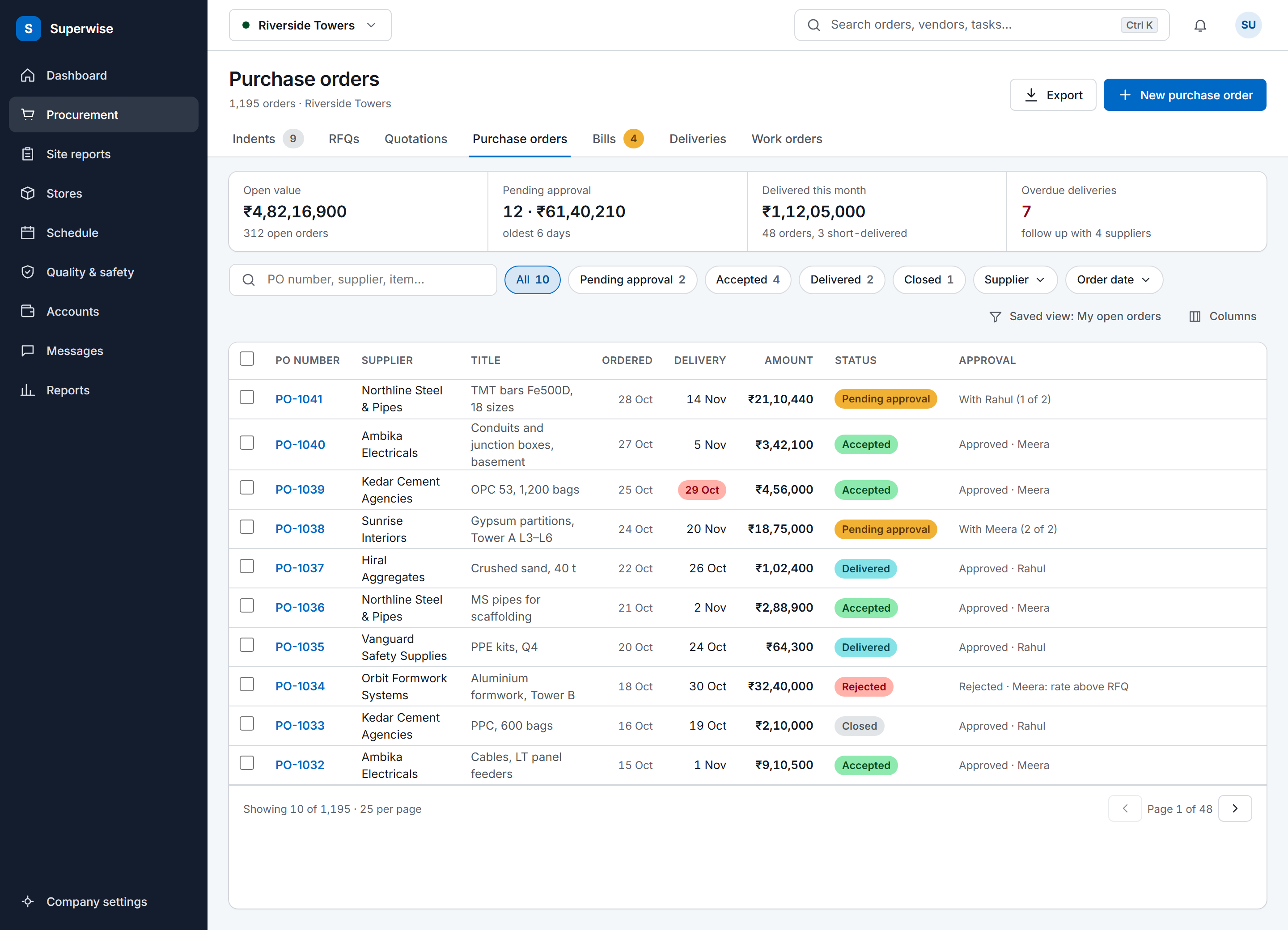
The SuperWise purchase orders list: procurement tabs, a four-figure summary strip, search and status filters, and a full-width table of orders with supplier, delivery date, amount, a status label and the approval state.
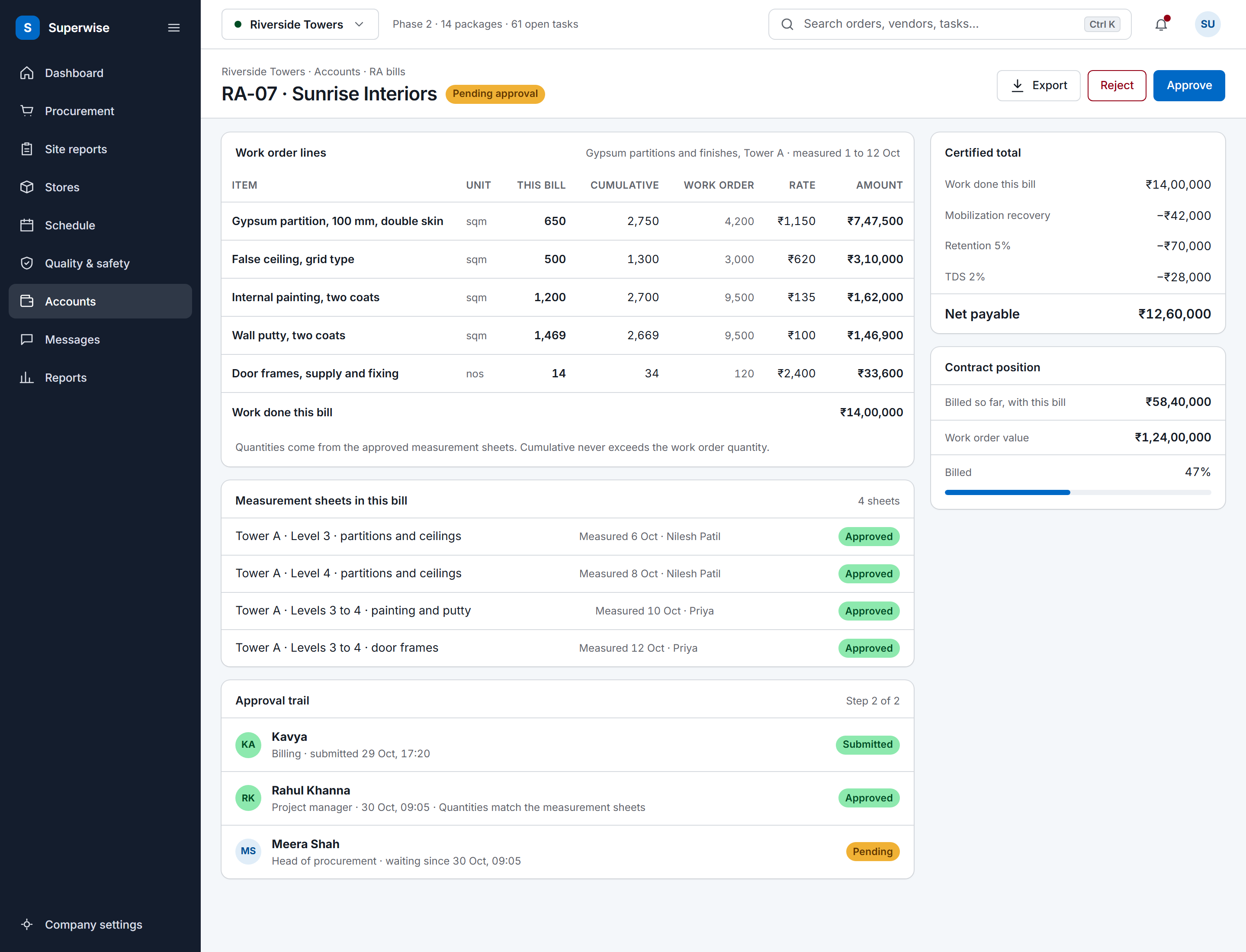
A SuperWise running account bill for a contractor: work order lines with this bill, cumulative and work order quantities, rate and amount, the certified total with mobilization recovery, retention and TDS deducted to a net payable, the approval trail and the contract position.
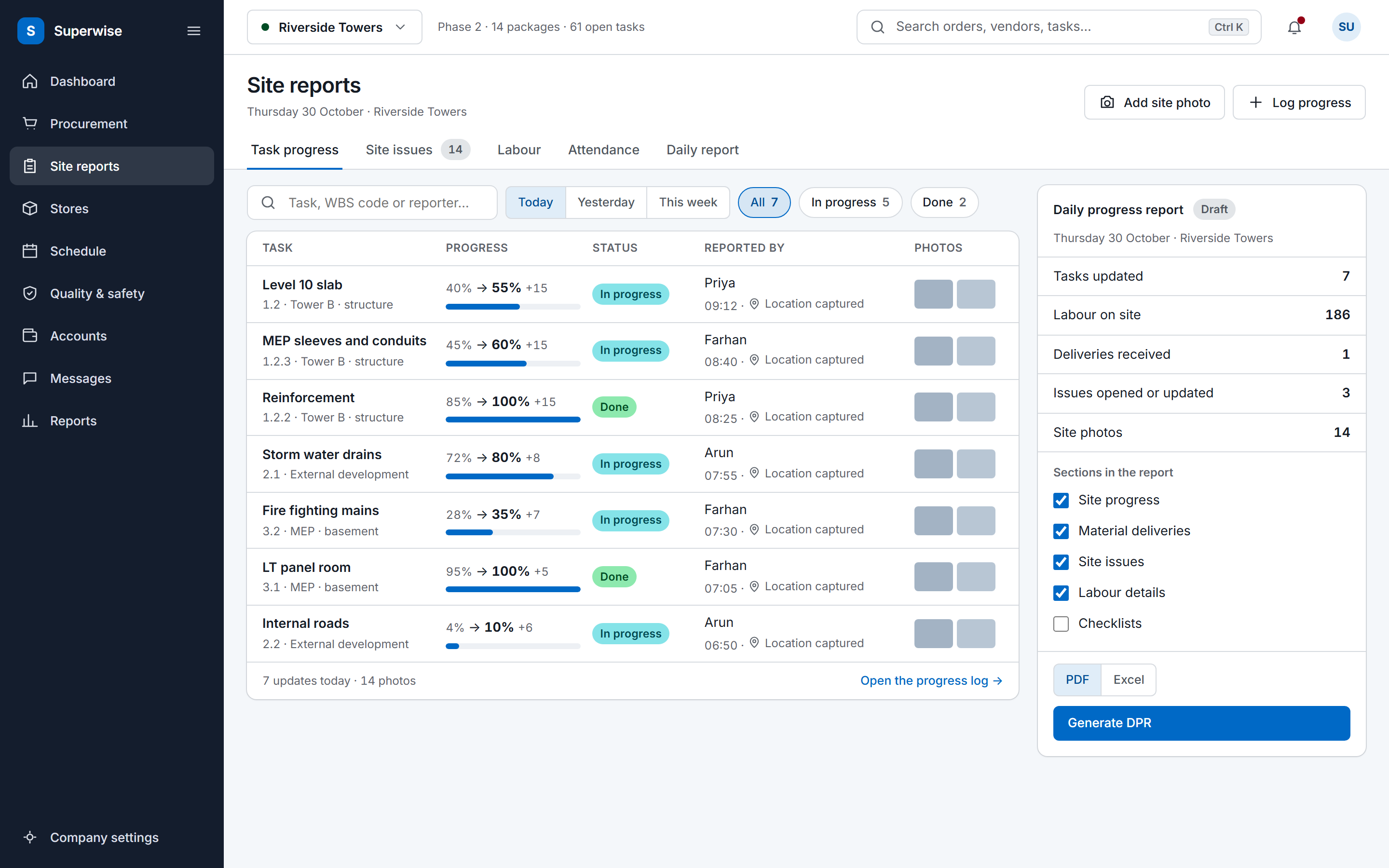
The SuperWise site reports screen: a feed of today's task progress updates with the previous and new percentage, a status label, the person who reported it, a location marker and photo thumbnails, beside a daily progress report summary with a Generate DPR button.
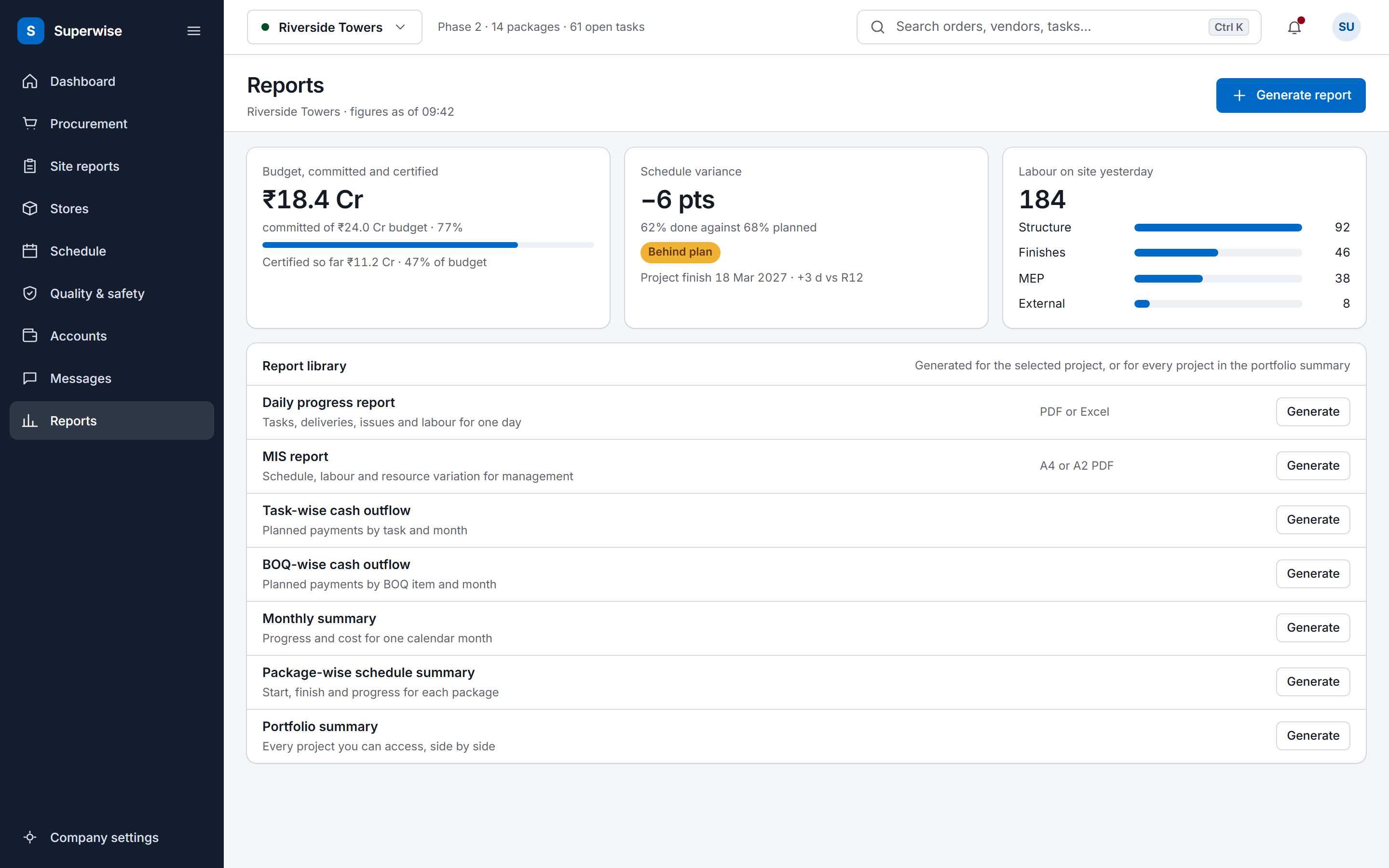
The SuperWise reports hub: a cost tile for budget, committed and certified, a schedule variance tile, labour deployment by package, and a library of the reports a project can generate.

Fits beside your tools, under your permissions

Beside your ERP and planning tools

SuperWise sits between the planning desktop, the accounts package and the site. A planner imports a schedule from Microsoft Project (MPP or XML) or Excel as a template. The billing team downloads the BOQ as Excel and generates reports as PDF or Excel.

Work items hold the account references an ERP expects, and a bill can be marked as passed to Tally. Each of these is an import, an export or a reference. A live exchange with another system is documented only for Zapier.

See the integrations

How SuperWise sits beside planning and accounting tools Planning files from Microsoft Project and Excel are imported into SuperWise. SuperWise exports the BOQ and reports to Excel and PDF, and marks bills as passed to Tally. ImportExport Planning files Microsoft Project, Excel SuperWise One project record Accounts and reports Excel, PDF, Tally mark How SuperWise sits beside planning and accounting tools Planning files from Microsoft Project and Excel are imported into SuperWise. SuperWise exports the BOQ and reports to Excel and PDF, and marks bills as passed to Tally. ImportExport Planning files Microsoft Project, Excel SuperWise One project record Accounts and reports Excel, PDF, Tally mark

Zapier and the API

The Zapier integration runs on an OAuth2 REST API. A Zap acts only as the user who authorised it, with that user's role permissions.

Triggers fire when a purchase order is created or approved, when a material indent is created, when task progress is logged, when a site issue is opened and when a daily report is submitted. A Zap can create a site issue.

See the integrations

Access and security

Each role holds View, Create, Edit, Delete and Approve privileges per module. Vendor users see only their own organisation's records. Document folders carry their own view, upload and delete permissions, and approval workflows can chain several approvers.

How a rollout runs

A rollout follows the dependency order of the modules, as the product guide lays it out.

  1. Set up the tenant

    Tenant settings come first. They fix the currency and number format, the start of the financial year, document numbering and notifications, and they change how the whole application behaves.

  2. Load the company masters

    Departments, roles, users, organisations, taxes, calendars, resources, templates and checklists are set up once for the company, in dependency order. Vendors and resources can be loaded in bulk from a CSV through the help agent.

    See the bulk CSV import

  3. Onboard each project

    A project needs a name, code, location, client, working calendar and duration unit. Each user is given a role and at least one project.

  4. Run the project modules

    Schedule, procurement, site operations, billing and reports are kept per project, and a user picks the active project from the top bar.

Web and phone

On site and in the office

The same project record is open in the web portal and in the phone app. Office teams work in the web screens for schedules, purchasing, billing and reports.

Site teams use the phone app for material delivery and photos. A tenant can switch on a timestamp watermark for photos taken in the app, and procurement staff get a push notification when a delivery challan is submitted from it.

A worker in a yellow helmet and striped shirt at a shuttering box among rebar on an upper floor, a blue sky and the city skyline behind
The SuperWise site reports screen: a feed of today's task progress updates with the previous and new percentage, a status label, the person who reported it, a location marker and photo thumbnails, beside a daily progress report summary with a Generate DPR button.
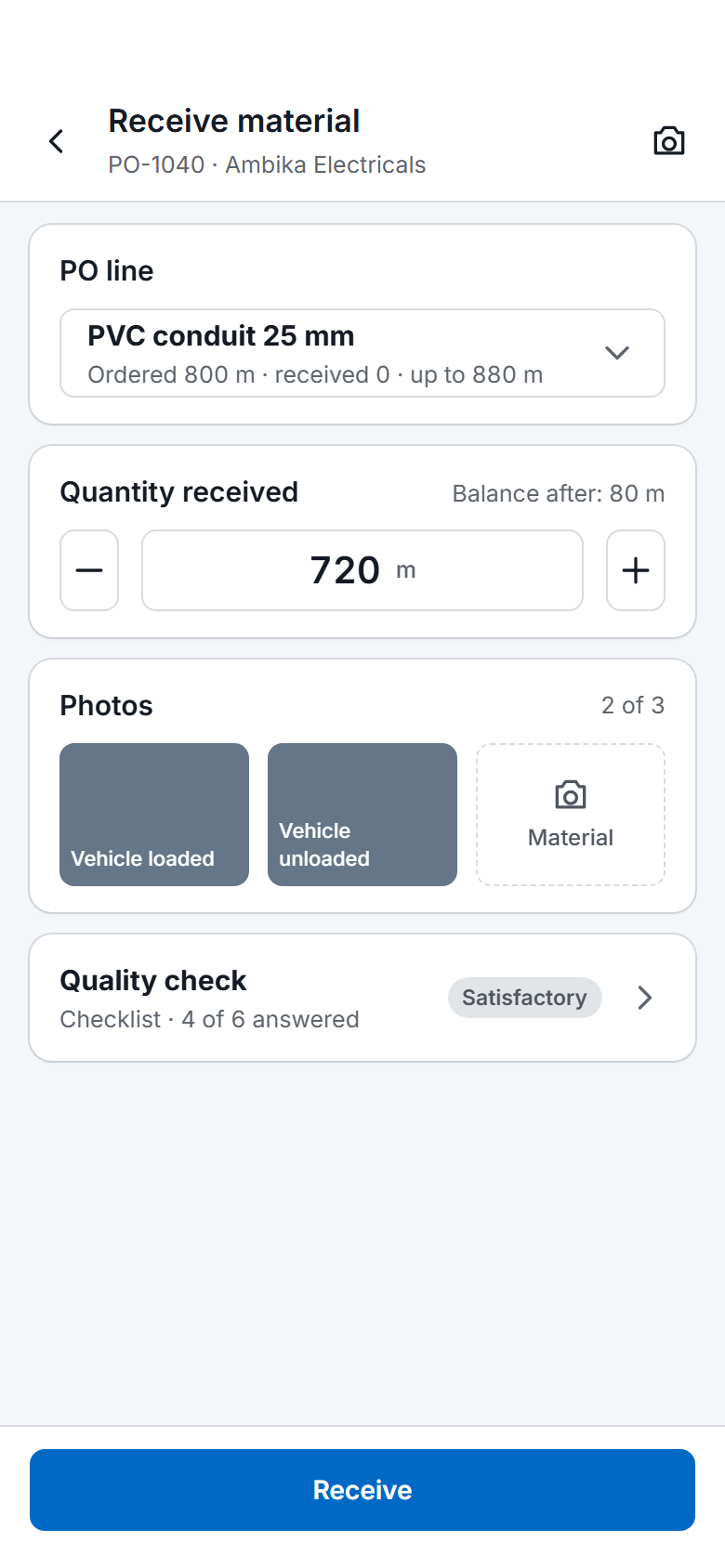
The SuperWise phone app receiving material against a purchase order: the chosen PO line, the quantity received with a stepper, two of three photos taken, a quality check row and a Receive button.

Frequently asked questions

What is SuperWise?

SuperWise is construction management software that keeps a project's schedule, site progress, procurement, measurement, billing and documents in one record. Company masters are set up once, and each project runs its own schedule, purchases, site reports and RA bills on top of them, from a web portal or a phone app.

Who uses SuperWise?

SuperWise is used by contractors, developers and project management consultants. The customers named on this site include a real estate developer, general civil contractors, an event infrastructure contractor, a government infrastructure contractor and a corporate social responsibility organisation, and SuperWise has run live projects since 2015.

Does SuperWise work beside Microsoft Project and our accounts software?

Yes. SuperWise imports a schedule from a Microsoft Project file or an Excel sheet as a template, exports the BOQ to Excel and reports to PDF or Excel, and lets a bill be marked as passed to Tally. These are file imports and exports and a mark on the bill. A live link exists only through Zapier.

How does a rollout start?

A rollout starts with tenant settings, then the company masters, then the first project. Tenant settings come first because they change how the whole application behaves. Masters such as users, vendors, resources and templates follow, and each project is created with a name, code, location, client, calendar and duration unit.

Is there a mobile app?

Yes. Site teams use a phone app next to the web portal, for example to submit material deliveries with photos. A tenant can add a timestamp watermark to photos taken in the app, and procurement staff receive a push notification when a delivery challan is submitted from it.

Can other tools connect to SuperWise?

Yes, through Zapier. The integration uses an OAuth2 REST API and acts only as the user who authorised it. Triggers cover purchase orders, material indents, task progress, site issues and daily reports, and a Zap can create a site issue. Everything else is an import or an export.

See the platform on your own project

Book a demo and we walk through your site data.