
Primavera and MS Project field updates
The round trip from plan to site and back, step by step.
Planning integration
Upload an MPP, XML or Excel file and SuperWise creates a schedule template with its WBS, tasks and predecessors. The site records progress on the tasks, and the planner keeps planning in Microsoft Project.
Files in
The import creates
Leaves .xml Download MSP on the Schedule page. Nothing syncs back.
A plan file goes in once. After that the site works on the tasks, and the planner reads the variance.
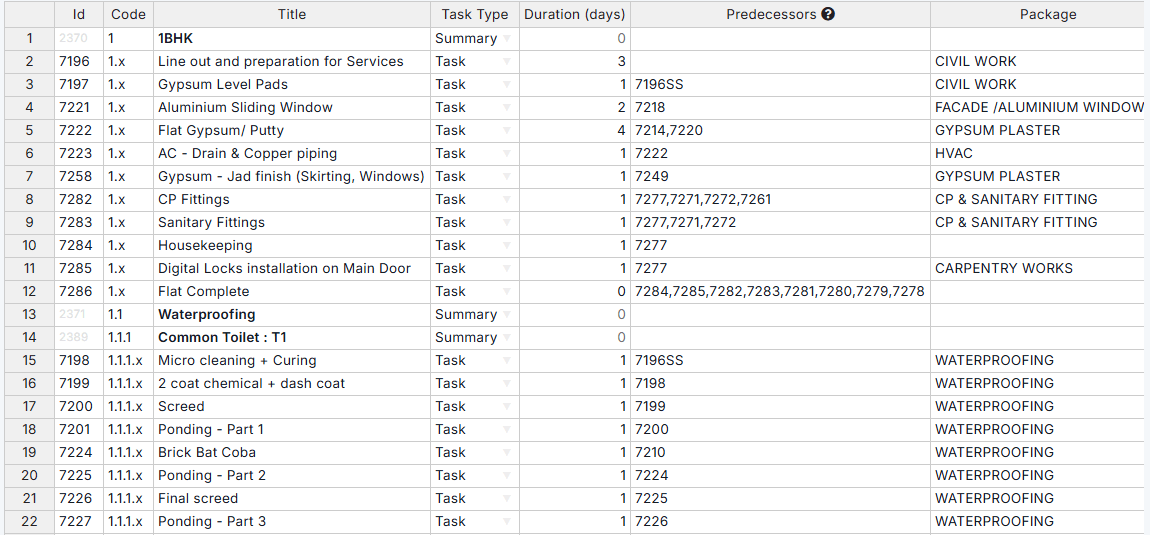
In Planning, Schedule, choose Use Existing File, select your MPP, XML or Excel plan and click Process. The file must be smaller than 75 MB, and importing replaces the rows already in the table, after SuperWise asks you to confirm.
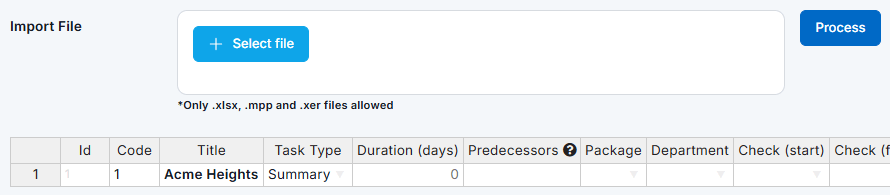
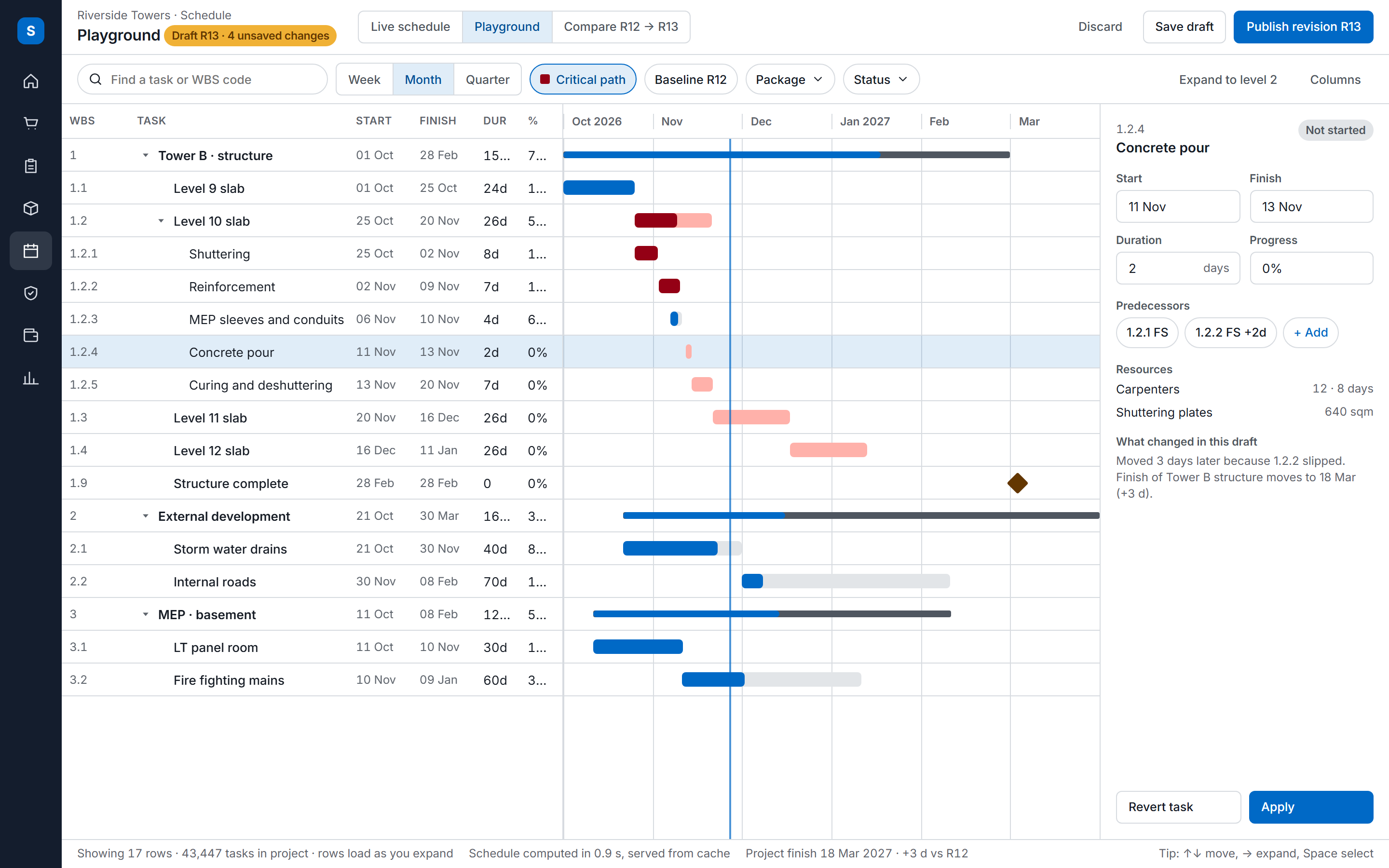
The tasks appear in a table you can fix cell by cell. Verify, save, then place the template in the schedule playground, calculate it with the critical path method and approve it. Approval saves the baseline that progress is measured against.
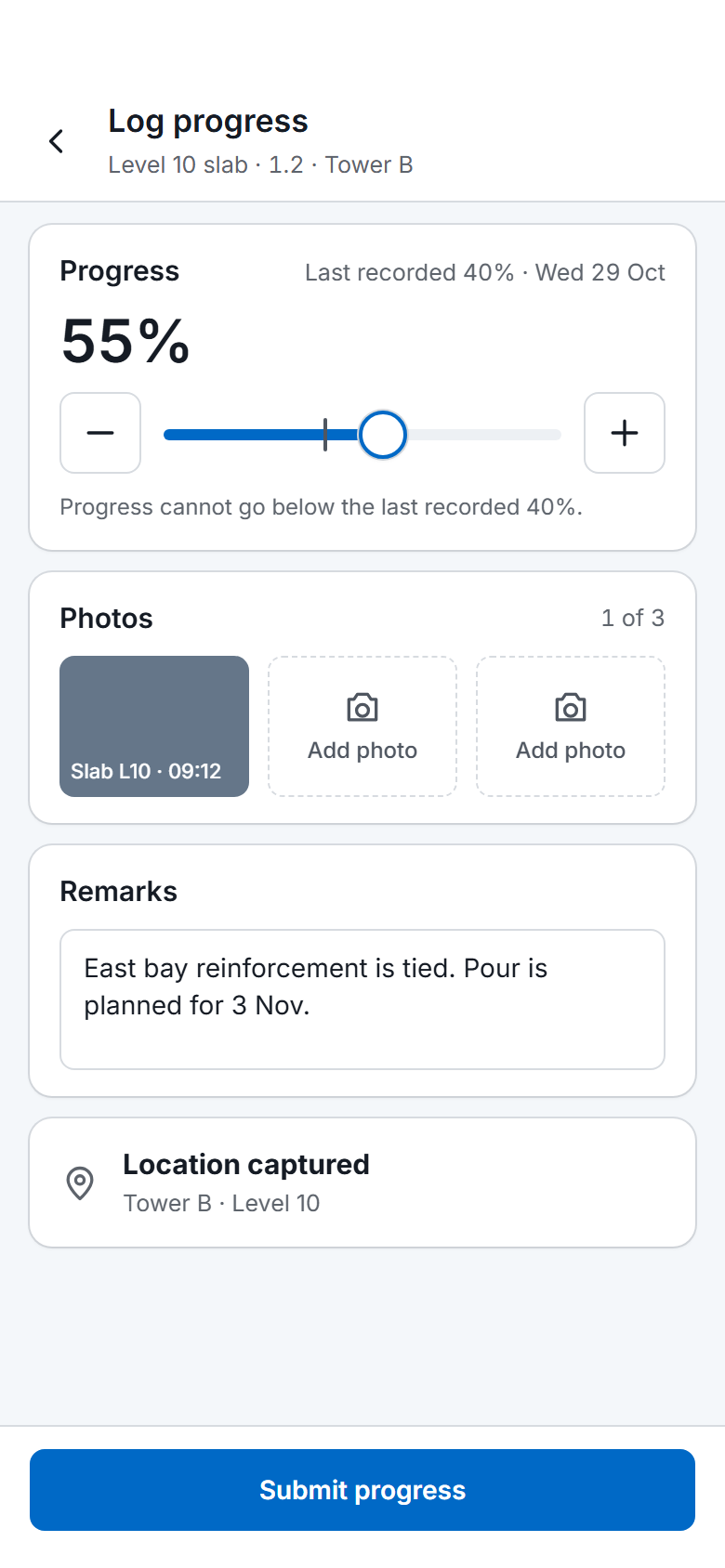
Site teams record progress on the tasks as a percentage with a date, the actual start and finish and photos, on the phone or by Excel upload. The progress stays on the task it belongs to.
The planner reads start and finish variance against the baseline in the reports. The plan is revised in Microsoft Project, and the revised file is imported. The Schedule page can also download the plan as an XML file.
SuperWise reads a Microsoft Project schedule from an MPP or XML file, and a plan kept in Excel from the Excel template. The import runs as a background job and creates a template with its WBS, tasks and predecessors. A file with more than 10,000 rows is saved in the background.
After the import the template is placed in the schedule playground as a node, linked to the others, calculated with the critical path method and approved. Approval saves a baseline that later progress is measured against.
The guide names the records that the import creates. It does not list the fields of the MPP file one by one, so this table separates what is named from what is not.
| In the file | Created in SuperWise | In the guide |
|---|---|---|
| Summary tasks and their hierarchy | Template WBS nodes | Named |
| Tasks | Template tasks | Named |
| Predecessor links | Template predecessors | Named |
| Durations and milestones | Not itemised for the MPP import | Not itemised |
| Resource assignments, costs and calendars | Not itemised for the MPP import | Not itemised |
Nothing syncs back into Microsoft Project on its own. The Schedule page has a Download MSP button that gives the plan as a Microsoft Project XML file, which you open in Microsoft Project yourself.
What else leaves SuperWise is reports for people: the MIS report as a PDF with a schedule task summary and a baseline schedule chart, and the daily progress report as PDF or Excel. The planner reads them and revises the plan in Microsoft Project.
Zapier can carry the Task Progress Logged event to other tools, for example to add a row to a sheet the planner already keeps.
These limits come from the product guide and the help centre.
Yes. Choose Use Existing File on the schedule page, select the MPP or XML file and click Process. The file must be smaller than 75 MB. The import creates a schedule template with WBS, tasks and predecessors as a background job, and an Excel template is the alternative.
No. Nothing is written back and no dates are pushed into your plan. The Schedule page can download the plan as a Microsoft Project XML file, which you open yourself. The planner reads progress and variance in SuperWise and revises the plan in Microsoft Project.
Yes. The plan logic and the durations can stay there. Site teams record progress against tasks in SuperWise, and the planner compares actual dates with the baseline and imports the revised file when the plan changes.
As often as site records it. Progress is saved against a task with a date, and the planner can compare the actual dates with the active baseline whenever the planner chooses, in the schedule and in the MIS report.
Importing a file replaces them. SuperWise asks you to confirm first: it says that importing the file will replace existing rows. The table is a draft, so the live schedule changes only after you save the tasks and the schedule is approved.
Book a demo and bring your schedule as an MPP, XML or Excel file. We import it and record progress on it with you.