

Professions

Build, verify and update the schedule in one playground

SuperWise is construction planner software. You import a schedule from Microsoft Project or Excel, assemble it from templates in a playground, verify the critical path on the working calendar and update progress against baselines.

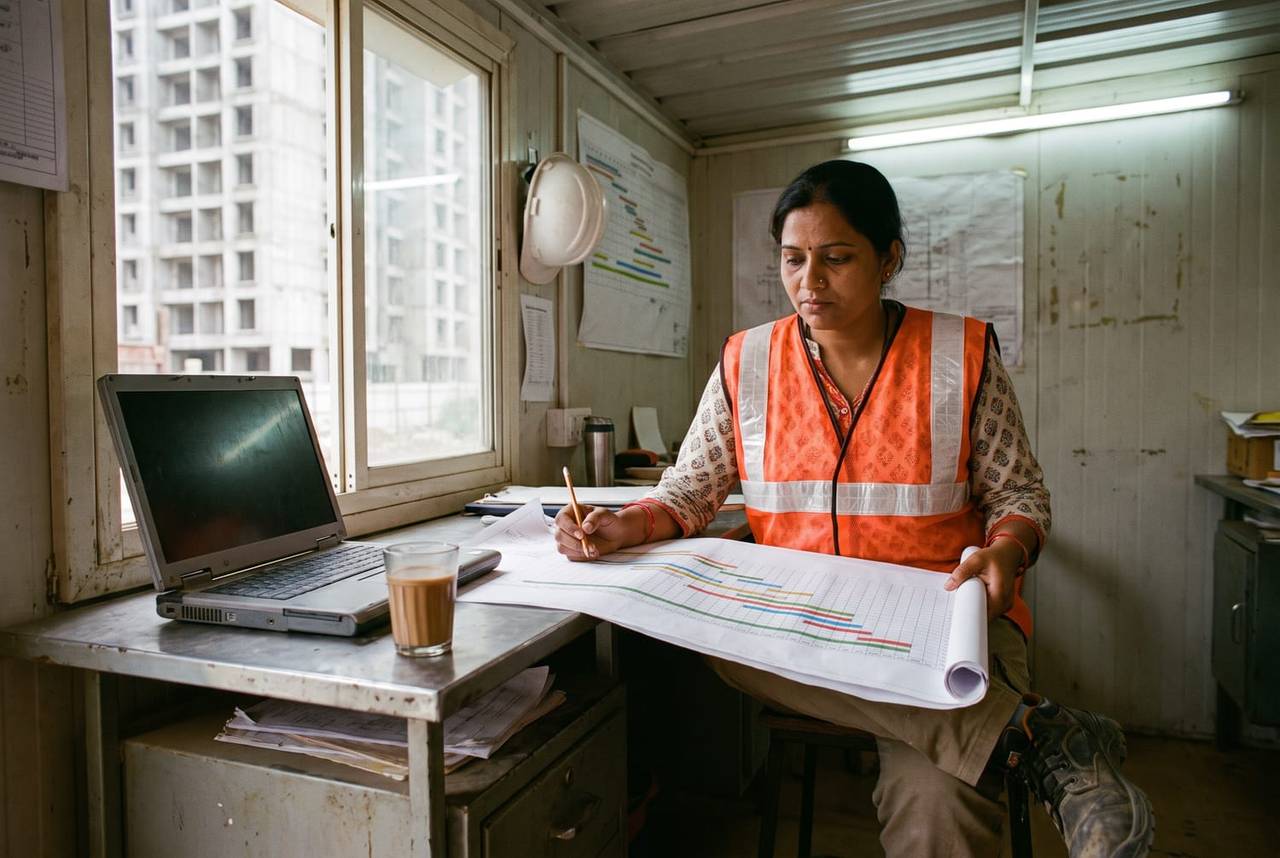
A woman planner in a hi-vis vest at a desk in a site portacabin, pencil in hand over a printed bar chart schedule, with an unbranded laptop, a tea glass and a bar chart pinned on the wall
Schedule verified · 14:05

Typical floor · Critical path checked

Pune100%
Working calendar appliedNo orphan tasksReady to approve

Your headache

The programme was approved in a meeting.On site, nobody updates it.

Morning, site, office

A planner's day on SuperWise

  1. Morning 9:00

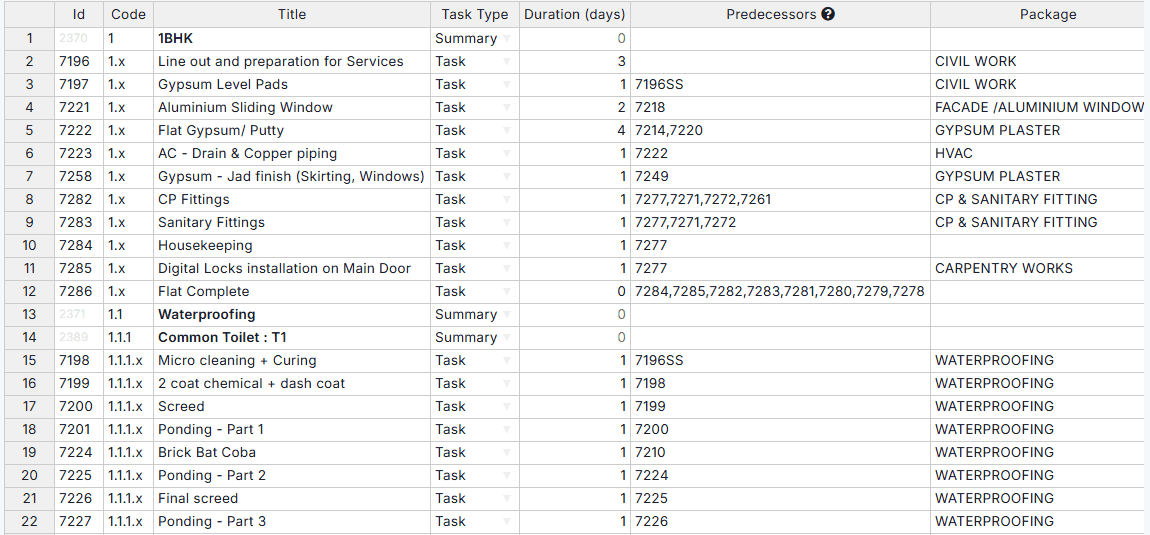
    Schedule task sheet with id, code, title, task type, duration, predecessors and package columns for flat finishing and waterproofing tasks

    Start from a template

    The planner imports a schedule from Microsoft Project or Excel as a background job, or starts from a template that holds the WBS, tasks, durations and predecessors.

  2. On site 12:00

    Roof slab checked and ready for casting: two workers in yellow helmets at the slab edge, starter bars standing and apartment towers of Mumbai behind

    Progress collected from the floor

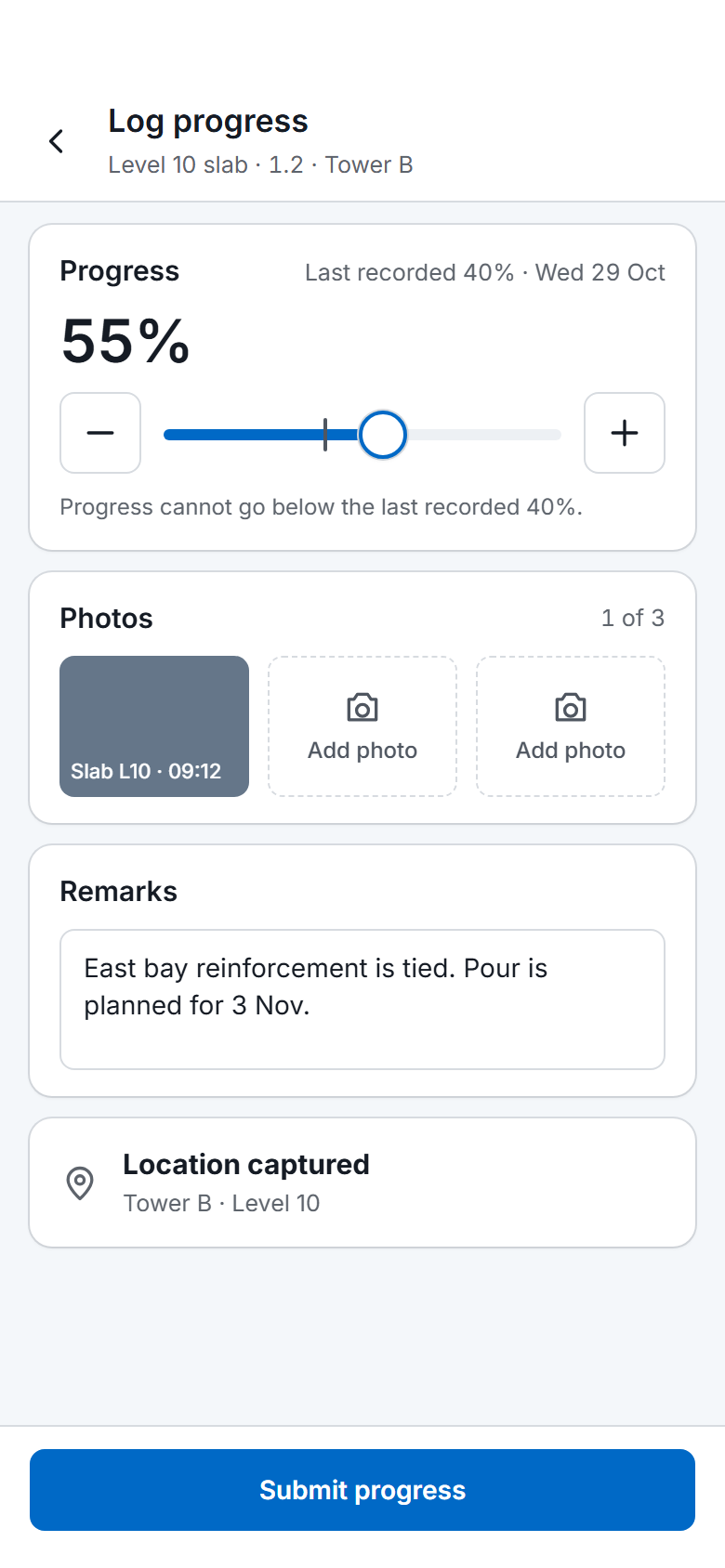
    Site teams log progress against the task. The planner sees percent complete move, and bulk Excel upload rejects lower percentages, future dates and duplicate dates.

  3. In the office 16:00

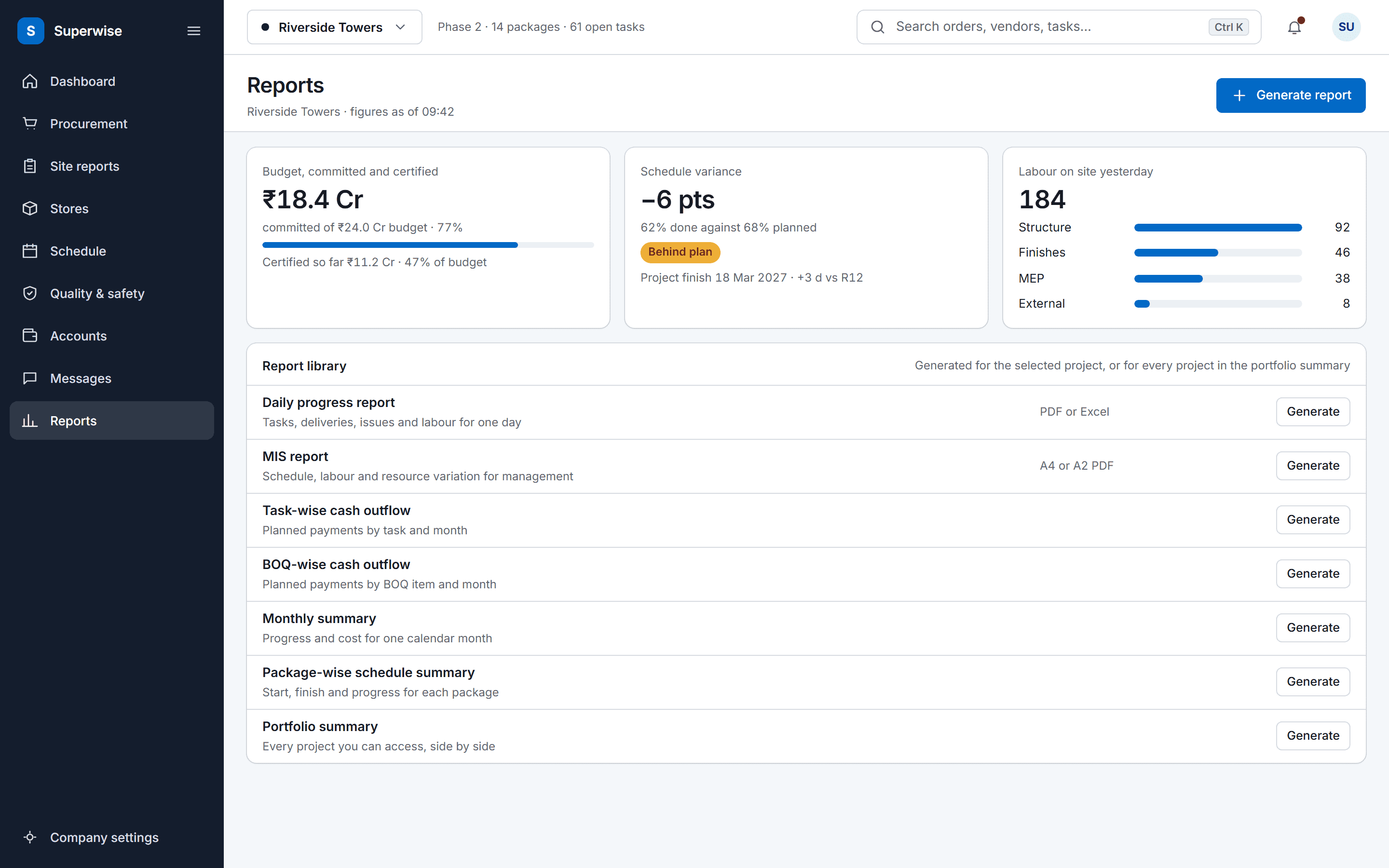
    The SuperWise reports hub: a cost tile for budget, committed and certified, a schedule variance tile, labour deployment by package, and a library of the reports a project can generate.

    Variance read by package

    The package-wise summary shows planned and actual dates, percent complete and delay in days for each package, against the active baseline.

Three workflows

Three workflows a planner runs

01 · Playground

Assemble the programme from templates

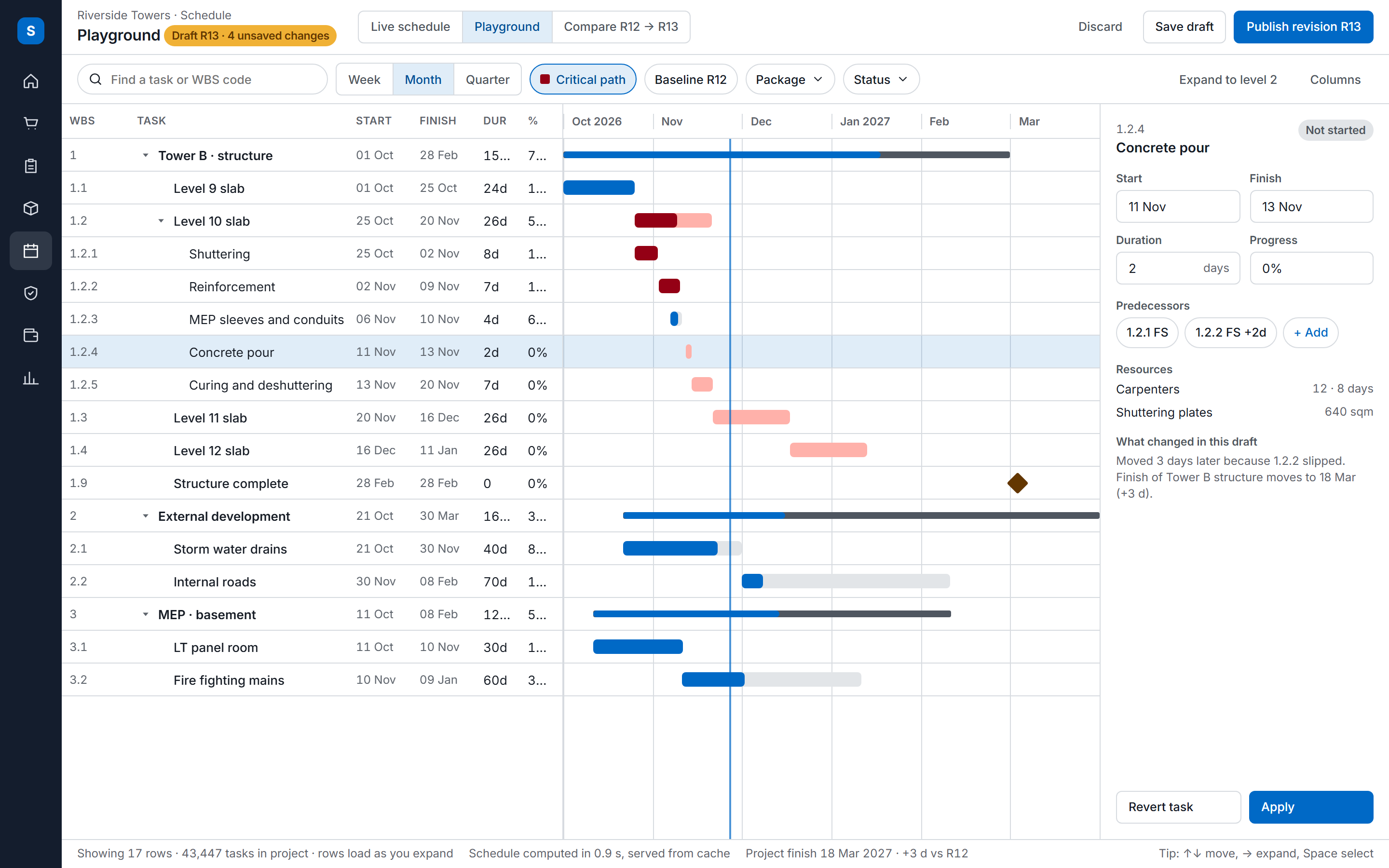
The playground places templates as linked nodes with a relation and a lag, so a typical floor is built once. Edits go to a working copy that is saved, verified and approved.

  • Place template nodes
  • Link them with a relation and lag
  • Save, verify and approve the working copy
See construction scheduling
The SuperWise schedule playground: a task tree with WBS codes, dates, durations and progress beside a Gantt timeline with the critical path highlighted, and an inspector for the selected task.
02 · Verify

A schedule checked before approval

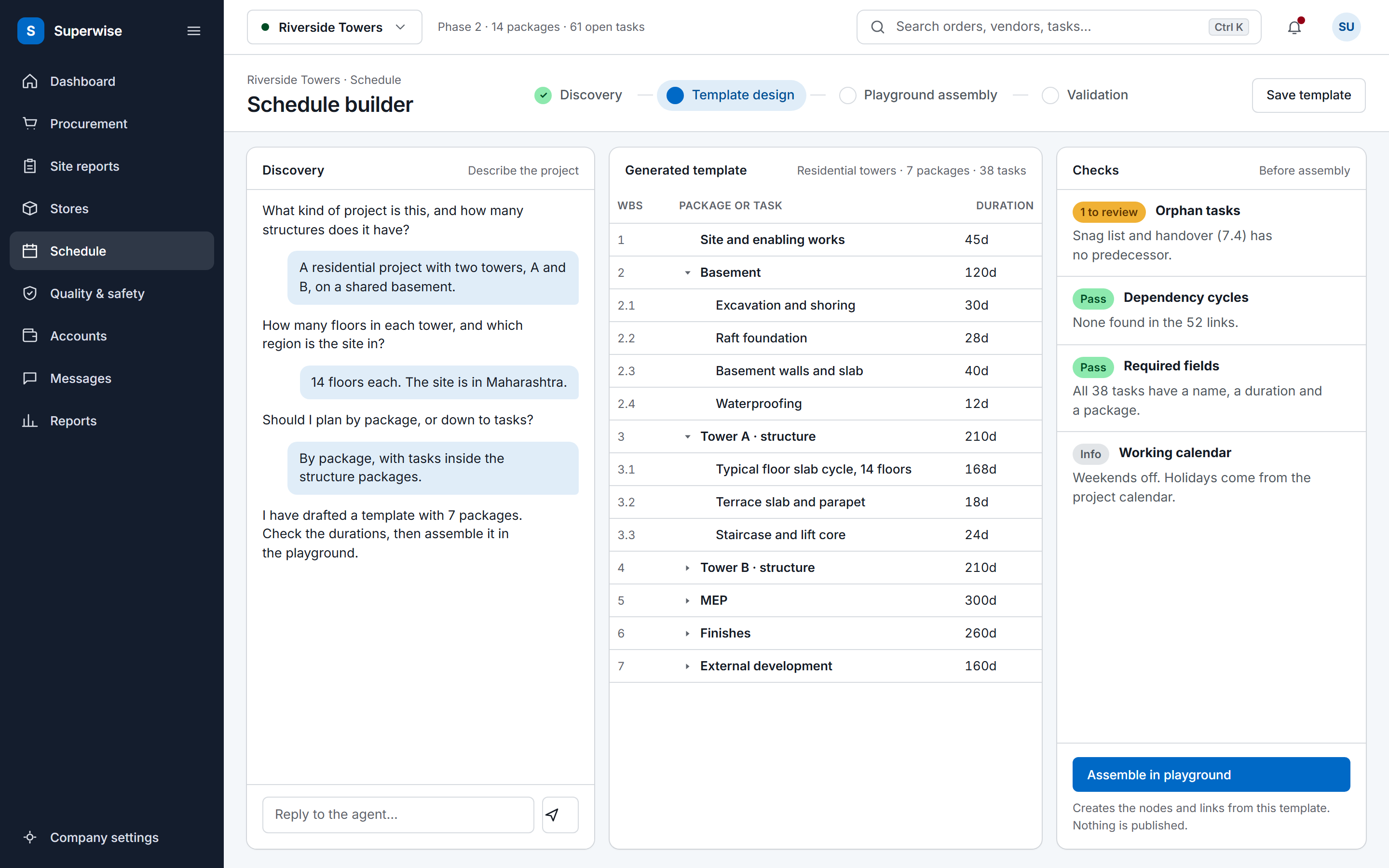
Verification computes CPM dates on the working calendar, and zero float marks the critical path. Template validation checks for orphan tasks, dependency cycles and missing required fields.

  • Set the working calendar and non-working days
  • Run the forward and backward passes
  • Fix orphans and cycles before you assemble
See the Microsoft Project import
The SuperWise schedule builder: the discovery conversation on the left, the generated template tree with durations in the centre, and the pre-assembly checks for orphan tasks, dependency cycles and required fields with an Assemble in playground button.
03 · Progress

Progress that moves the plan

Progress is logged one task at a time or by bulk Excel upload. Variance against the active baseline and delay by package show where the plan slipped.

  • Log progress on the task
  • Upload many tasks by Excel
  • Read delay by package
See the field update guide
The SuperWise phone app progress log for one task: a slider and stepper from the last recorded 40 percent to 55 percent, one photo taken and two to add, remarks, a captured location and a Submit progress button.

Before and now

What changes for a planner

Modules a planner uses

The construction scheduling feature and the Microsoft Project integration pages cover the same modules from the product side.

Modules a construction planner uses and what you do in each
ModuleWhat you do in it
Schedule templatesImport a template from Microsoft Project (MPP or XML) or Excel, as a background job that creates the WBS, tasks and predecessors.
Working calendarsSet working days, hours per day and dated non-working days with a reason, which the CPM calculation skips.
Schedule playgroundPlace template nodes, link them with a relation and lag, then save, verify and approve the working copy.
BaselinesApprove to save a baseline, add manual baselines, set the active one and read start and finish variance in days.
Task progressLog progress one task at a time or by bulk Excel upload, which rejects lower percentages, future dates and duplicate dates.
Construction packagesTag tasks with a package, so that reports roll up by package.
Package-wise schedule summaryRead planned and actual dates, percent complete and delay in days for each package node.

Templates assemble the programme

A planner who repeats one floor across a tower rebuilds the same links each time. In SuperWise a schedule template is a reusable blueprint of tasks with durations, predecessors and milestones, grouped in categories. The playground places templates as nodes with a name and a prefix, and the links between nodes carry a relation and a lag. A parent node rolls up in the Gantt.

The AI schedule builder works through discovery, template design and playground assembly in conversation. It drafts templates and playground nodes from that conversation, and pre-assembly checks run before you assemble.

Import, calendars and the critical path

Templates import from Microsoft Project (MPP or XML) or Excel as a background job that creates the template, the WBS, the tasks and the predecessors. Excel imports follow a fixed column format, with predecessors written like 12FS+2 using FS, SS, FF or SF.

A working calendar sets working days, hours per day and dated non-working days with a reason, and the CPM calculation skips them. Verification runs the forward and backward passes as a background job, zero float marks the critical path, and milestones show as diamonds in the Gantt.

Edits go to a working copy that is saved, verified, approved or reverted. Approval promotes the working copy, raises the revision and saves a baseline.

Frequently asked questions

Can I import my Microsoft Project schedule?

Yes. Templates import from Microsoft Project (MPP or XML) or from Excel, as a background job that creates the template, the WBS, the tasks and the predecessors. Excel files follow a fixed column format, and the import checks titles, weightage and name matches. Place the template in the playground to assemble the project schedule.

Does SuperWise level resources?

No. Verification computes CPM dates on the working calendar and shows the critical path, but resource levelling is not implemented. Resources attach to tasks as planning data. If you level resources in Microsoft Project, do that there and import the resulting schedule into a template.

How does progress reach the schedule?

Progress is logged on a task one at a time, or by a bulk Excel upload with a fixed set of columns. The upload rejects a percentage lower than the one recorded, a future date and a duplicate date. A user with the Progress Add privilege can also ask the help agent to log progress.

What happens to the baseline when the plan changes?

Approving the working copy raises the revision and saves a baseline automatically, and you can add manual baselines. One baseline is the active one, and start and finish variance in days is read against it. Earlier baselines stay in the list, so each revision of the plan remains available for comparison.

Can SuperWise draft a schedule from a conversation?

It drafts templates and playground nodes from a conversation. The AI schedule builder walks through discovery, template design and playground assembly, looks up existing templates, and creates nodes and links. Pre-assembly checks look for orphan tasks, dependency cycles and missing required fields. You review the result and assemble it in the playground.

See an import become a playground

Book a demo and we import one schedule and verify its critical path.