


Professions

Owners see budget, schedule and open issues in one view

SuperWise gives construction owners portfolio and project health in one summary: schedule status, percent complete, cost against budget and open issues for every project, with the approvals and settings the owner controls.

A director in a white helmet and hi-vis vest, seen from behind with hands clasped, standing on a railed walkway and looking up at a concrete tower frame and a tower crane
Sign-off · 18:05

Work order · Waterproofing package

Mumbai100%
Approved at the last stepComment recordedTrail kept

Your headache

Each head of department sees the project from their own desk.The owner gets a different story from each.

Morning, site, office

An owner's day on SuperWise

  1. Morning 8:00

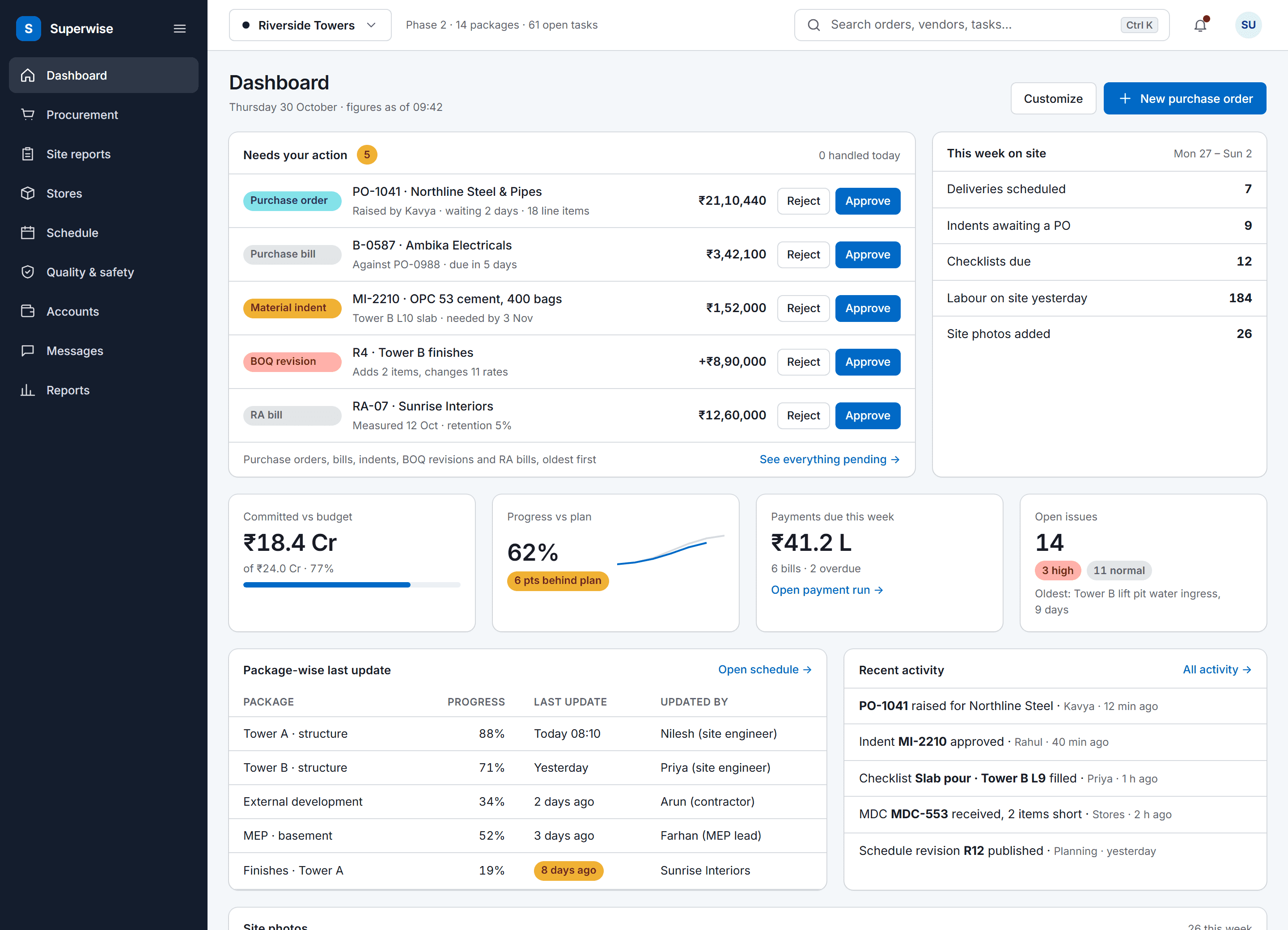
    The SuperWise portal dashboard for a project: an approval queue with five items waiting for the user, a week-on-site summary, four key figures for budget, progress, payments and open issues, package-wise last updates and recent activity.

    Every project's health at a glance

    The portfolio summary shows schedule status, percent complete, cost to date against budget and open issues for each project you can access.

  2. On site 16:00

    A worker in a yellow helmet walking across a slab reinforcement deck at height, with a tall apartment tower and the city skyline in the haze

    A site visit with the figures behind you

    The schedule-wise summary shows planned and actual dates, SPI and variance against the baseline for the project you are standing in, so the questions on site are the right ones.

  3. In the office 18:00

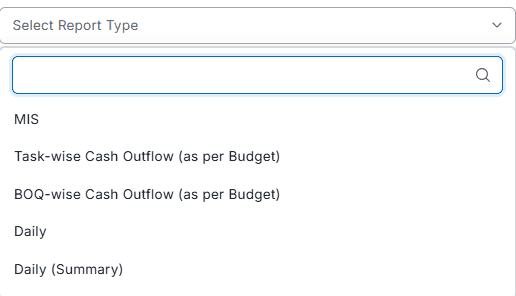
    Report type picker opened to list MIS, task-wise and BOQ-wise cash outflow as per budget, Daily and Daily (Summary)

    The month's report, ready to send

    The MIS report for a project is generated for the client or management each month, as A4 or A2, from the project's own records.

Three workflows

Three workflows an owner relies on

01 · Health

Project health from the records

Schedule status, percent complete, cost against budget and open issues come from the project's own records. The cash outflow reports compare planned with actual and committed with certified.

  • Open the portfolio summary
  • Read the task-wise cash outflow
  • Open the project behind a figure
See estimation and earned value
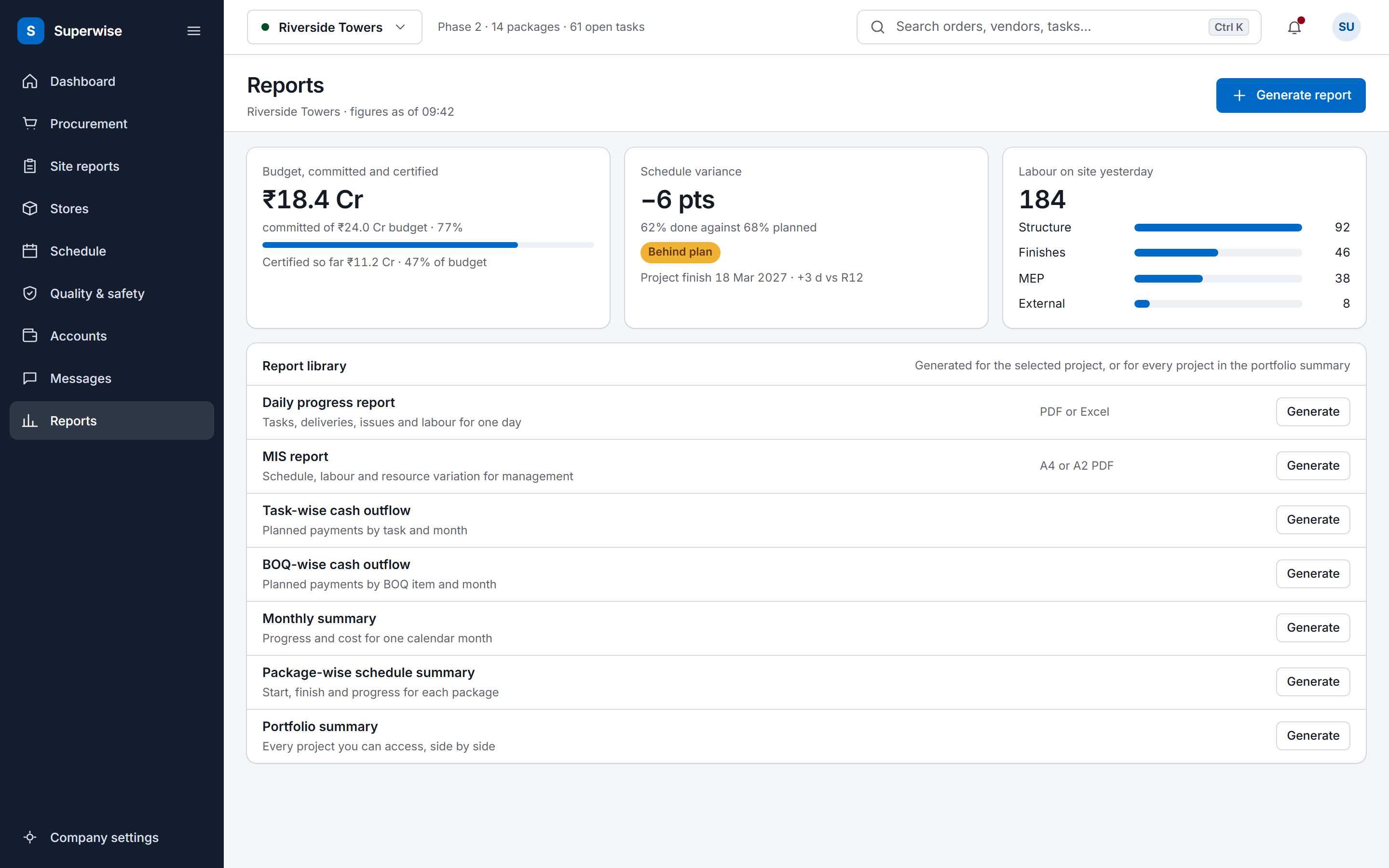
The SuperWise reports hub: a cost tile for budget, committed and certified, a schedule variance tile, labour deployment by package, and a library of the reports a project can generate.
02 · Sign-off

Sign-off set by role

A company sets approval steps for purchase orders, work orders, RA bills, expense vouchers and schedule changes. Each step belongs to a role, and a project can override the company workflow.

  • Choose who signs off each document type
  • Require any member or all members
  • Read approver, date and comment
See what developers use
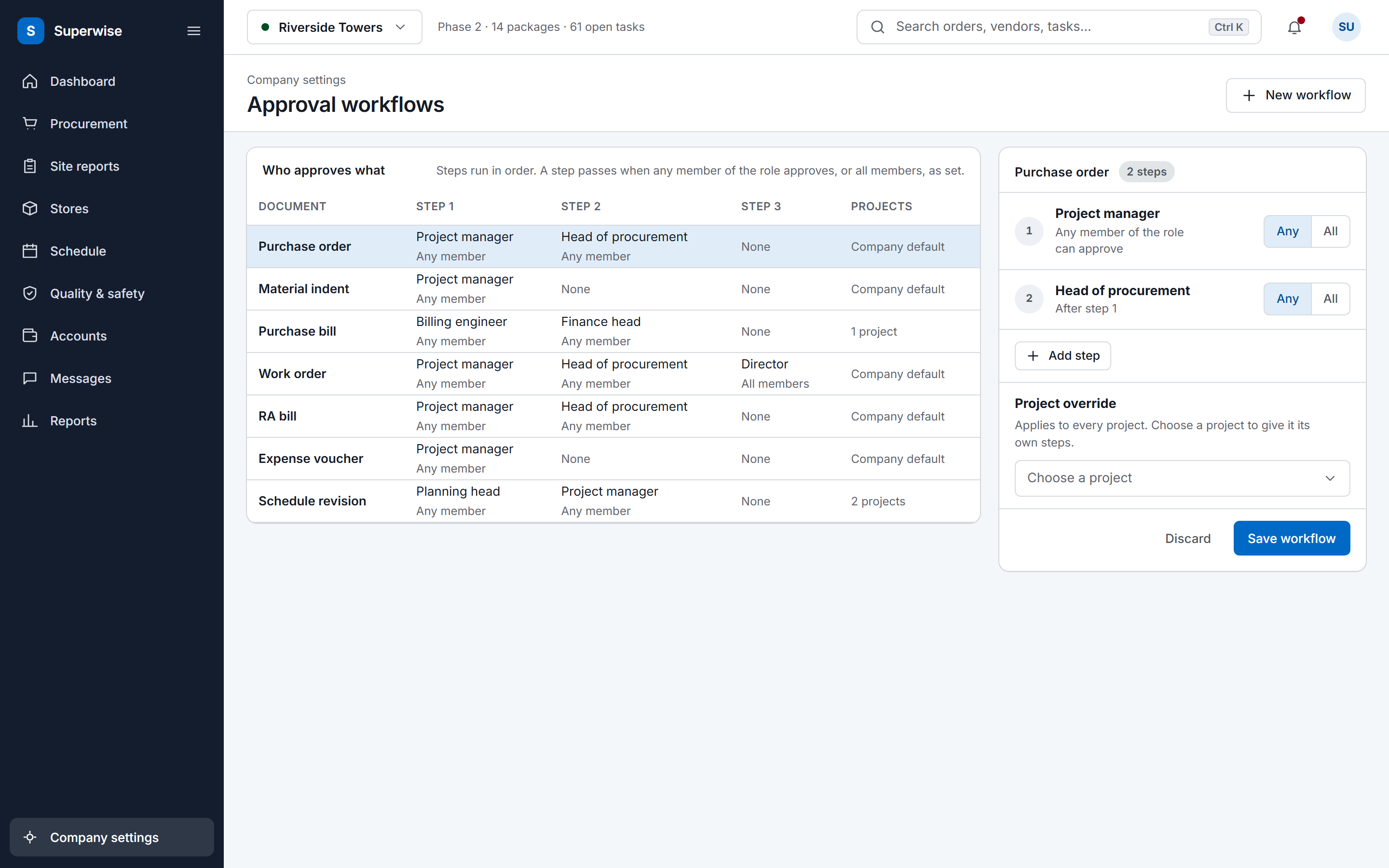
The SuperWise approval workflows settings: a matrix of document types by approval steps with the role and whether any or all members must approve, and an editor for the purchase order workflow with a project override and a Save workflow button.
03 · Phone

Approve from the phone

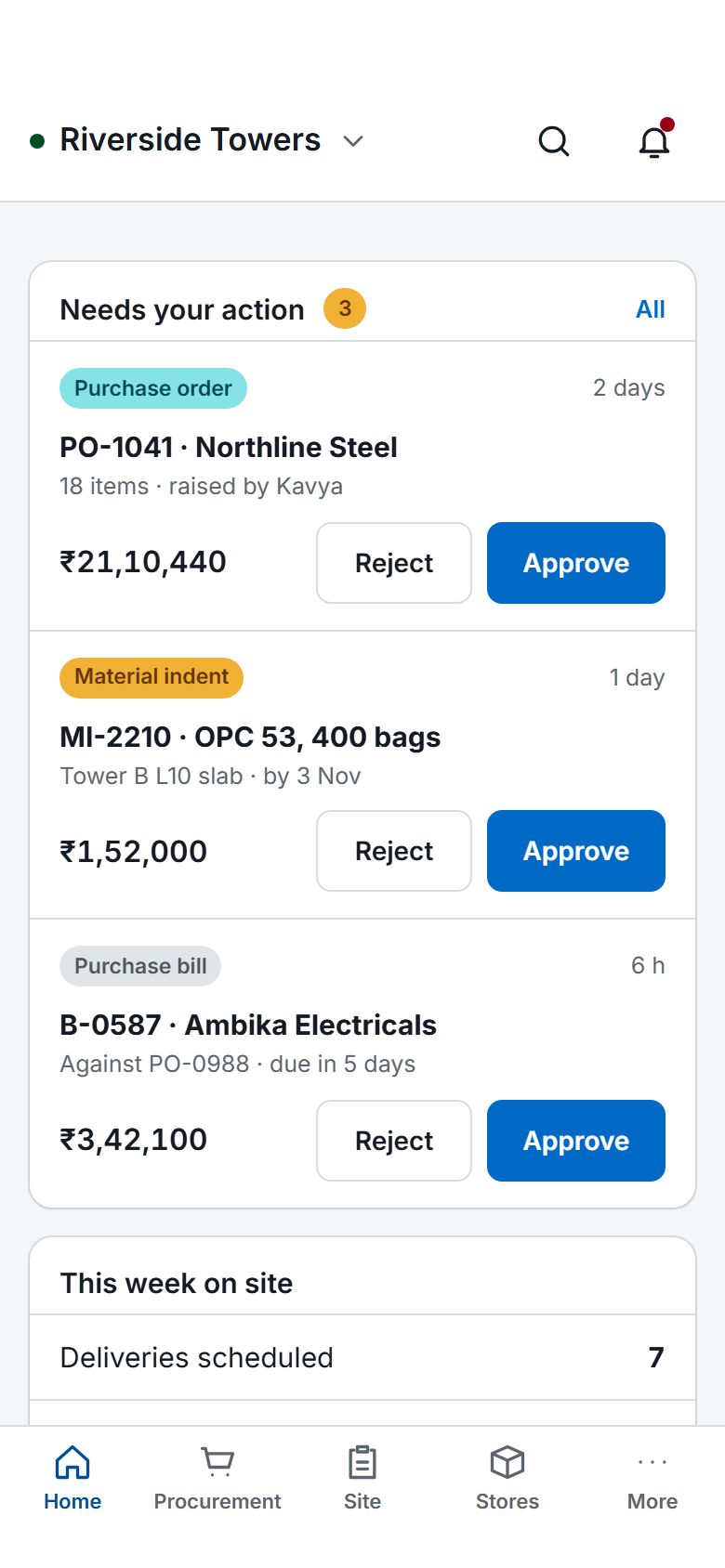
What needs your action sits on the first screen of the mobile app, with the amounts and the people behind each request. Approve or reject with a comment.

  • Open the app
  • Read the request and its detail
  • Approve or reject with a comment
See the mobile app
The SuperWise phone app home screen: key figures, three items waiting for approval with Approve and Reject buttons, a week-on-site summary, quick actions for checklists, photos, progress and material receipt, and bottom tabs.

Before and now

What changes for owners

Modules an owner uses

The budget tracking page covers the cost reports in more detail.

Modules a construction owner uses and what you do in each
ModuleWhat you do in it
Portfolio summaryReview all projects you can access for schedule status, overall percent complete, cost to date against budget and open issues.
Approval workflowsDefine who signs off each document type, and read the approver, the date and the comment stored at each step.
MIS and management reportGenerate the A4 or A2 MIS report for a project, usually submitted to the client or management monthly.
Task-wise cash outflowCompare planned spending from the budget with actual spending from bills and challans, by WBS level and period.
Roles and privilegesGive each person a role with view, create, edit, delete and approve rights by module area, and assign users to projects.
Tenant settingsSet company formats such as en-IN, the financial year start and the order number format, and switch on rejection notices and push alerts.

Early sight of deviation

The early signs of a budget or schedule problem are in the reports. The schedule-wise task summary shows planned and actual dates, SPI and variance against the baseline, and the cash outflow reports show committed against certified cost.

The portfolio summary adds the number of open issues for each project. An issue has a priority from low to critical, a responsible user and a target closure date, so the owner can see which problems are open and who owns them.

The A2 MIS task summary is a large-format period summary suited to display on a site board.

Sign-off and settings you control

A company sets approval steps for POs, work orders, RA bills, expense vouchers and schedule changes. Each step belongs to a role and needs any member or all members, and a project can override the company workflow. A rejected document returns to its submitter.

Roles carry privileges by module area, and users are assigned to projects, so an owner decides who sees which project and what each person may do. Tenant settings turn on rejection notices, a push to procurement on each new delivery challan and a timestamp on images uploaded through the mobile app. All three are off until you switch them on.

Frequently asked questions

How is SuperWise different from the ERP we bought?

SuperWise tracks the construction project itself: schedule, BOQ, site records, procurement, measurement and billing. It does not replace your accounts. The quickest test is a demo on one of your running projects, where you compare the same figures with your ERP and see which one reflects the site today.

Who decides what each person can do?

The owner, through roles. A role holds view, create, edit, delete and approve privileges for each module area, a user can hold several roles, and users are assigned to projects. Approval steps are then set by role for each document type, with a project override where a project needs a different chain.

Which reports go to the board or the client?

The MIS report is the consolidated health report, usually submitted to the client or management monthly, in A4 or A2. The monthly summary covers one calendar month, and the portfolio summary covers all active projects for director and PMO review. All of them download as PDF or Excel.

What do the tenant settings control?

Company formats and three notifications. The formats are en-IN culture, the financial year start month, the time zone and the order number format with its reset period. The notifications are a notice to the creator when a document is rejected, a push to procurement on each new delivery challan and a timestamp on mobile images. All three are off by default.

Can an owner see cost against budget?

Yes. The portfolio summary shows cost to date against budget for each project. The task-wise cash outflow report compares planned spending from the budget with actual spending by WBS level and period, and the BOQ-wise report compares what purchase orders and work orders committed with what bills certified.

See your portfolio health in one summary

Book a demo and we open the portfolio summary on a sample portfolio.