
Filled checklist
A numbered form with its answers, photos and signature, a status of pending, approved or rejected, and who filled it and when.
Features
A construction quality checklist is a form an inspector fills while work is under way. SuperWise attaches it to a task or a delivery and can hold the task until the filled form is approved.
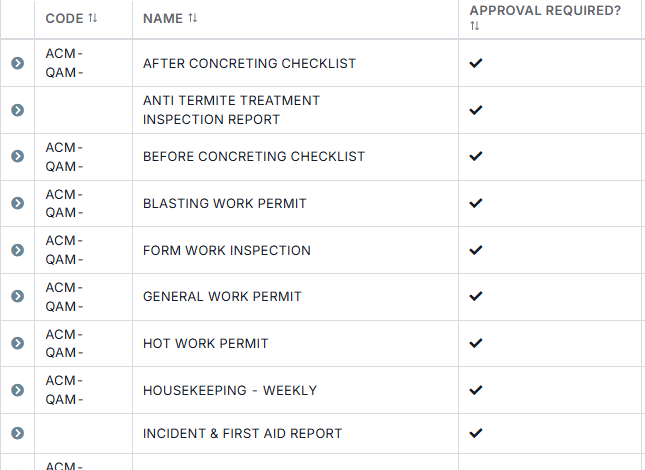
Before concreting checklist
The problem
SuperWise puts the check on the task. With enforcement on, a task cannot be completed until its finish checklist is filled and approved.
Build a form from text, number, date, yes or no, dropdown, photo and signature fields. Mark fields required, set an ideal response and group fields into sections.
Set a start and a finish checklist on a template task. With enforcement on, the task cannot be completed until the filled finish checklist is approved.
A material can require a quality check at delivery and name the checklist for it. The filled form attaches to the delivery challan beside its quality status.
Log a problem with a type, a priority, a responsible user, photos and a GPS location. Link it to a task, and raise a penalty against a vendor through the vendor ledger.
A check is defined once, filled on site and approved before the work moves on.
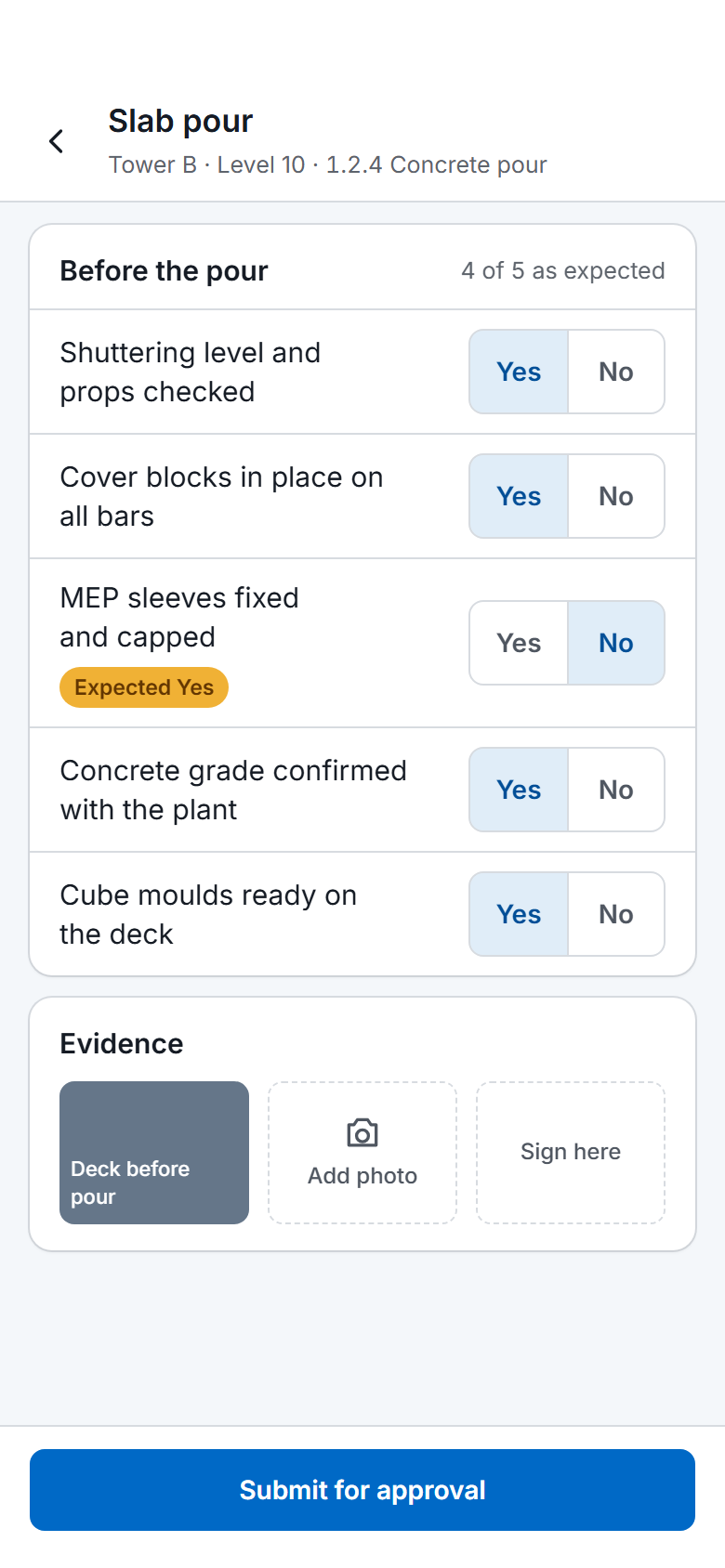
The inspector opens the form where the work is: yes or no answers, numbers, dates, photos and a signature. A field can be marked required, and the filled form records who filled it, when, and the task it belongs to.
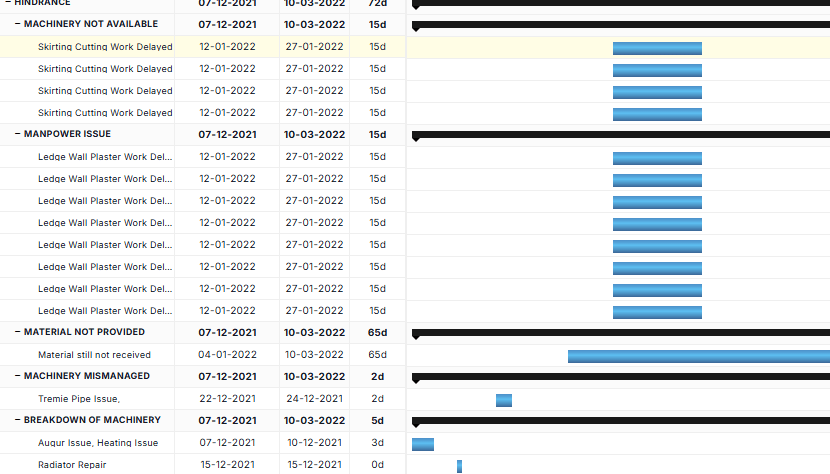
Something wrong on site is logged as an issue with a type, a priority, a responsible user, photos and a GPS location. It links to the task and moves through open, in progress, resolved and closed until someone signs it off.
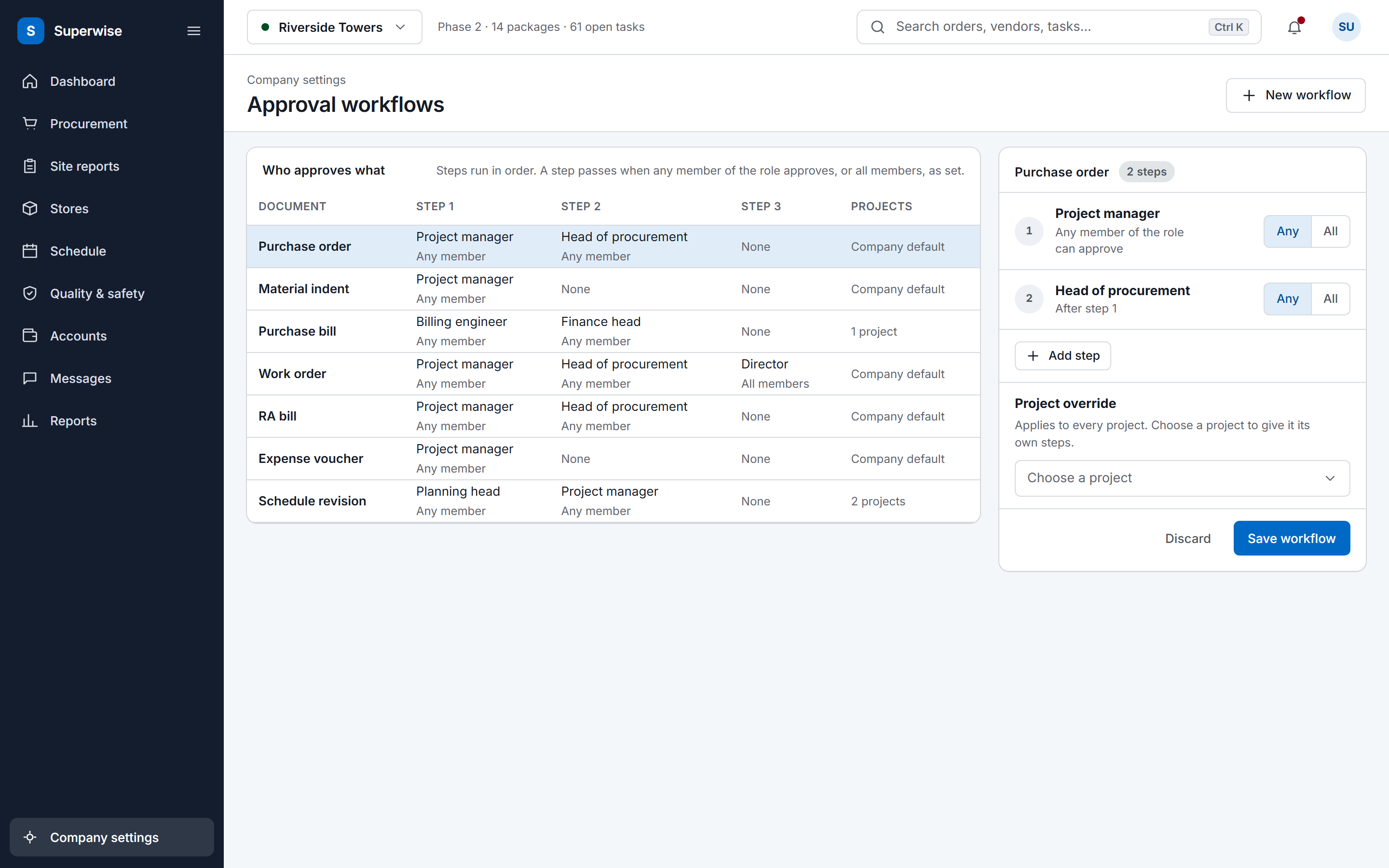
A filled form goes to its approver. With enforcement on, the task cannot be marked complete until the finish checklist is approved. Deliveries have the same gate: a material can require its checklist and a quality status at the gate.
The highlighted step marks where a filled checklist joins the other site records that feed the daily report.
A checklist puts QA/QC checks into a form. The checks are defined before the work, then filled and approved while it runs. Each checklist has a name, a code prefix that numbers every filled form (SBT-QAM-001, for example) and a category for filtering.
Every field has a label, a type and a position in the form. The types are text, number, date, yes or no, dropdown, photo and signature. A field can be required, and it can carry an ideal response, the answer the form expects. Fields group into sections, and a checklist can let its sections be filled separately, which suits a form that two parties complete.
A pour checklist shows how the types fit together. It can ask for the concrete slump test reading as a number field, a yes or no answer on the formwork, a photo of the reinforcement and the engineer's signature. You choose the fields, so the same builder makes a pour checklist, a fortnightly site observation report or an incident and first aid report.
A checklist can require approval. A filled form then stays Pending until an approver marks it Approved or Rejected. A checklist can also allow approval when answers differ from the ideal response, for a form where the reviewer decides.
On site
The rebar is checked before the pour, and the checklist is filled where the work is.

A template task can name a start checklist and a finish checklist. The start checklist is required before the task starts and the finish checklist before it finishes. With enforcement switched on, the task cannot be marked complete until the filled finish checklist is approved. A filled form records who filled it, when, its status, its reference number and the task it belongs to.
Material deliveries have their own gate. A resource can require a quality check at delivery and name the checklist to fill, and the filled form is attached to the delivery challan. The challan also holds a quality status (satisfactory, rejected, or unsatisfactory but accepted), the person who checked and their remarks. From there the challan goes on to the supplier bill in material management.
A rejected delivery challan can notify its creator by push or email, which is a tenant setting that is off by default. A checklist can also be mapped to chosen projects, so a project sees only the forms that apply to it.
An issue records a problem found on site. The module is named Issues and Snags, and it holds defects, safety incidents and delays in one list. A punch list of defects to rectify can be kept as issues in the same module.
Each issue has a type from a company master, such as equipment breakdown, safety incident or material shortage, with a title, a description, labels and a priority of low, medium, high or critical. Its status moves from Open through In Progress and Resolved to Closed, or to Rejected when it is invalid or a duplicate. It records who opened, resolved and closed it, with dates and a target closure date.
One user is responsible for the fix. An issue can also name the contractor organisation and the department responsible, and link to a schedule node or a task, so a defect belongs to a place in the programme. Photos and other evidence attach to the issue, a GPS location is stored with it, and comments carry the discussion.
A penalty or debit can be raised against a vendor for an issue through the vendor ledger. Delays are logged as issues too, so a held-up pour or a day lost to weather has a record with an opened and a closed date.
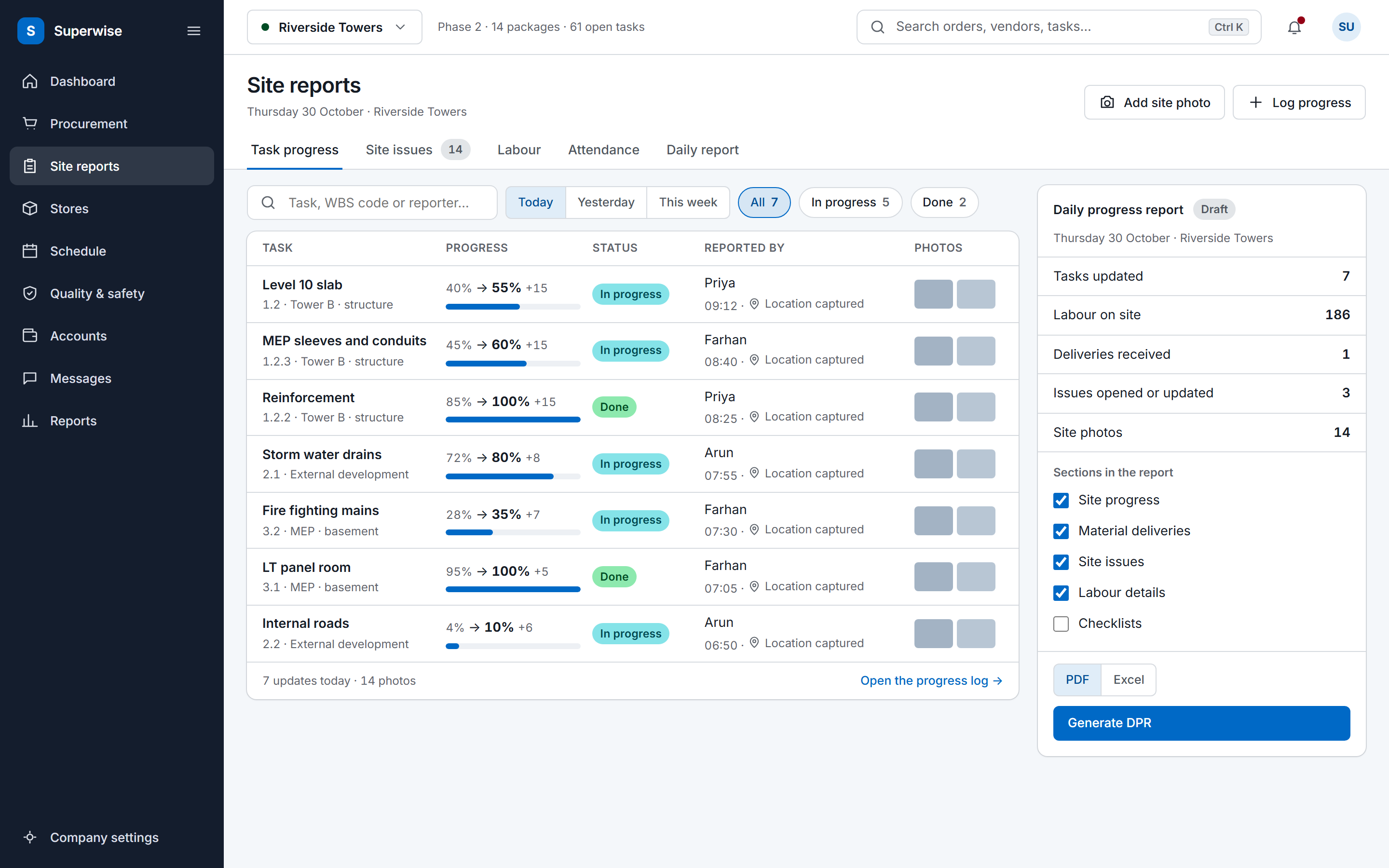
The daily report's Checklists section lists the forms submitted on the report date, and an option embeds the filled checklist content. Its Site Issues section lists issues opened or updated that day. Both sections belong to the DPR, one of the reports in the construction site reporting pack.
Delivery photos, if you switch them on, come from the same challans that carry the quality status. Checklists, issues, deliveries and progress share one project in site management software.
Yes. A template task can name a start checklist and a finish checklist, and an enforcement flag blocks completion without the checklist. The task cannot be marked complete until the filled finish checklist has been approved. A filled checklist records who filled it, when, its reference number and its status of pending, approved or rejected.
Seven: text, number, date, yes or no, dropdown, photo and signature. Each field has a label, a section and a position, and it can be required. A field can hold an ideal response, the answer the form expects. A checklist can let its sections be filled separately, so two parties can complete one form.
Yes. A material can require a quality check at delivery and name the checklist to use, and the filled form attaches to the delivery challan. The challan also records a quality status of satisfactory, rejected, or unsatisfactory but accepted, the person who checked and their remarks. Three photo fields sit beside it.
Yes. The checklist builder makes a form from the seven field types, with required fields, ideal responses, sections and a code prefix that numbers each filled form. Names such as incident and first aid report or fortnightly site observation report show the range. A checklist can be made available to selected projects only.
An issue can name the responsible contractor organisation, and a penalty or debit can be raised against a vendor for the issue through the vendor ledger. The issue also records a responsible user, a priority, a target closure date and the schedule node or task it relates to. Photos attach to it as evidence.
Yes. A checklist can be filled as a standalone inspection, as well as at the start or finish of a task or at a material delivery. A filled form records who filled it, when, its reference number and its status of pending, approved or rejected, and it names a task only when the form is linked to one.
Book a demo and we set a finish checklist on a task in your account and walk through what the site engineer sees.