
Gantt and critical path
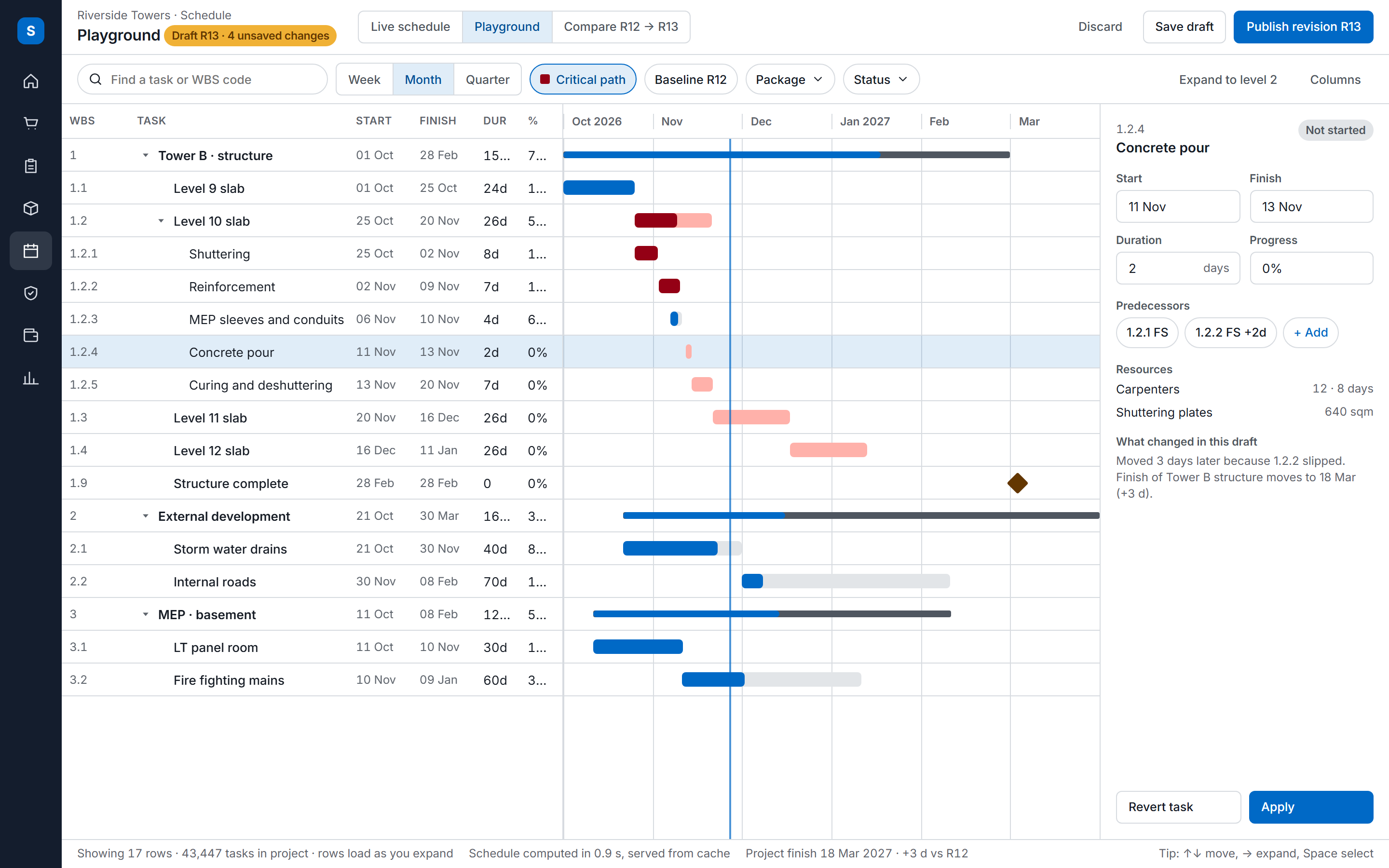
The playground and the task view draw the Gantt from the CPM dates, with the critical path highlighted and optional baseline bars.
Features
A construction schedule fixes the order, duration and dependencies of every task. SuperWise builds it from reusable templates, works out the critical path, and saves each approval as a baseline to measure progress against.
Ponding, part 1
The problem
SuperWise keeps the schedule where the work happens: site teams update tasks from the field, and every approval is saved as a baseline, so variance is always against a known plan.
Reusable blueprints of tasks, durations and predecessors, each with its own WBS. Import them from Microsoft Project (MPP or XML) or from Excel.
Place templates as nodes, link them, then verify. The CPM engine computes dates on your working calendar and the Gantt shows the critical path.
Approving the schedule saves a baseline automatically. Start and finish variance, SPI and delay in days are read from it.
Record progress one task at a time or upload an Excel sheet. A bulk upload rejects a percentage lower than the last one recorded.
From a plan file to a variance report, in four moves.
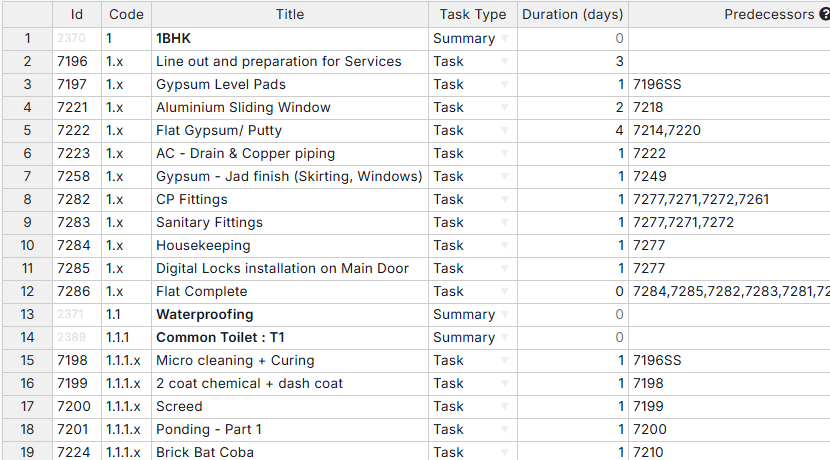
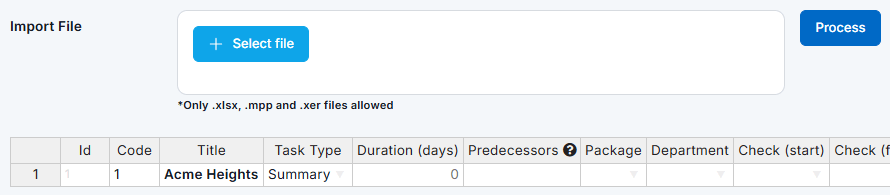
Import a plan from Excel or Microsoft Project, or draw it in the playground. The import creates a template with its WBS, tasks and predecessors, and you check the task table before you save it. Nothing goes live until the schedule is approved.
Place each template as a node, name it for its floor or tower, and link the nodes with a relation and a lag. Verify runs the critical path method on your working calendar, and the Gantt shows which tasks have no float.
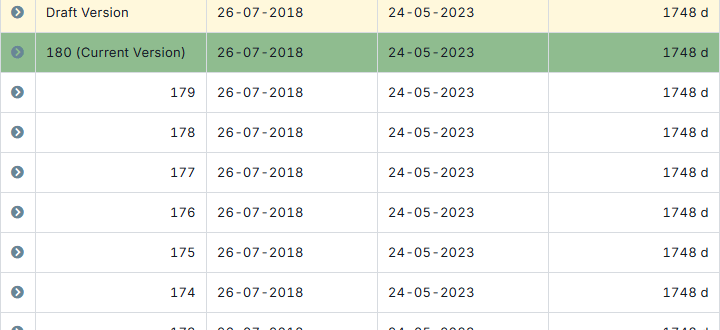
Approval promotes the working copy to the live schedule and raises the revision number. It also saves a baseline, a frozen copy of every task’s dates that later progress is measured against. Earlier baselines are kept.
Site teams record a percentage, a date and the actual start and finish on a task, with photos, or upload an Excel sheet. The sheet is checked first: progress cannot fall below the last figure recorded. The planner then reads the variance.
Each pass through approval leaves a baseline behind, so a schedule that is revised many times keeps every earlier baseline to compare against.
A template is a reusable schedule blueprint for one kind of work, such as a reinforced concrete slab or an MEP first fix. It holds a work breakdown structure with hierarchical codes (1, 1.1, 1.1.2) and, under it, the tasks, their durations, their predecessors and their milestones. The company library groups templates by category, for example structural, finishing, MEP and milestones.
A task can take a construction package for package-wise reporting, a responsible department, planned resources, linked BOQ items, and a start checklist and a finish checklist. With the enforce option on, a task cannot be completed without its finish checklist.
If you already have a schedule, templates import from Microsoft Project (MPP or XML) or from Excel, and the import runs as a background job that creates the template, its WBS, its tasks and its predecessors. The Excel sheet has a fixed layout with the columns Code, Title, TaskType (Summary, Task, Milestone or Dummy) and PlannedDuration, then Predecessors and optional columns for task steps, resources, BOQ items, package, department and checklists.
Predecessors are written as an id, a relation and a lag, so 12FS+2 means finish-to-start from task 12 with two units of lag. The relations are FS, SS, FF and SF. Package, department and checklist names must match what already exists in your masters.
On site
Progress is logged on a task, so the schedule shows where the work really is.
The playground assembles the project schedule as a graph. Each node is a template placed on the canvas, with a name and a prefix that names its tasks, such as 3rd floor. Nodes can sit inside parent nodes, which roll up in the Gantt. Links join the nodes, and a link carries task-level definitions that say which task in one node must finish before which task in the next can start, with a relation and a lag.
Edits go to a working copy, never straight to the live schedule. You save it, then verify it. Verification runs the critical path method as a background job: a forward pass finds the earliest start and finish of each task, a backward pass finds the latest, and tasks with no float form the critical path. You can revert the working copy to discard the edits.
The calculation runs on the project's working calendar. A calendar sets the working days of the week, the working hours per day for hour-based schedules, and dated non-working days with a reason, such as Diwali or a site shutdown. Tasks skip those days when dates are computed.
The Gantt chart shows the result. It draws a planned bar for each task, milestones as diamonds and the critical path highlighted, and it can show the baseline bars beside them. The task view lists the same tasks as a tree with WBS codes, dates and durations.
Approval promotes the working copy to the live schedule and raises the revision number. It also saves a baseline, a frozen copy of every task's dates, titled with the date of approval and the revision.
One baseline is active at a time. You can set another one active or capture a manual baseline between approvals. Each baseline task keeps its dates at that moment and records the start variance and the finish variance in days ahead or behind. A revised schedule goes through approval again and saves a new baseline, and the earlier baselines are kept.
The reports read the baseline for you. The schedule-wise task summary in the MIS report lists planned and actual dates with SPI and variance, and the package-wise schedule summary rolls each node up to its construction package with percentage complete and delay in days. These sit beside the cost and billing reports in construction management software for India.
Site teams record progress against a task as a percentage, a date, and the actual start and finish. You can enter one task at a time, or upload an Excel sheet with the columns SummaryCodeTitle, WBSTaskTitle, CurrentProgress, ProgressDate, ActualStart and ActualFinish. A task is not started, in progress, completed or on hold.
The sheet is checked before it is accepted. Progress must be between 0 and 100 and cannot fall below the last recorded figure, a progress date cannot be in the future, and an actual finish is mandatory at 100 percent. Each row must match an existing WBS code and task title in the active project.
Users with the Progress add privilege can also ask the help agent to log progress, and the Zapier trigger Task Progress Logged fires when progress is recorded. The same updates feed the site progress section of the daily report, and planners who keep a Primavera or MS Project update cycle can read how site figures fit it in the field update guide.
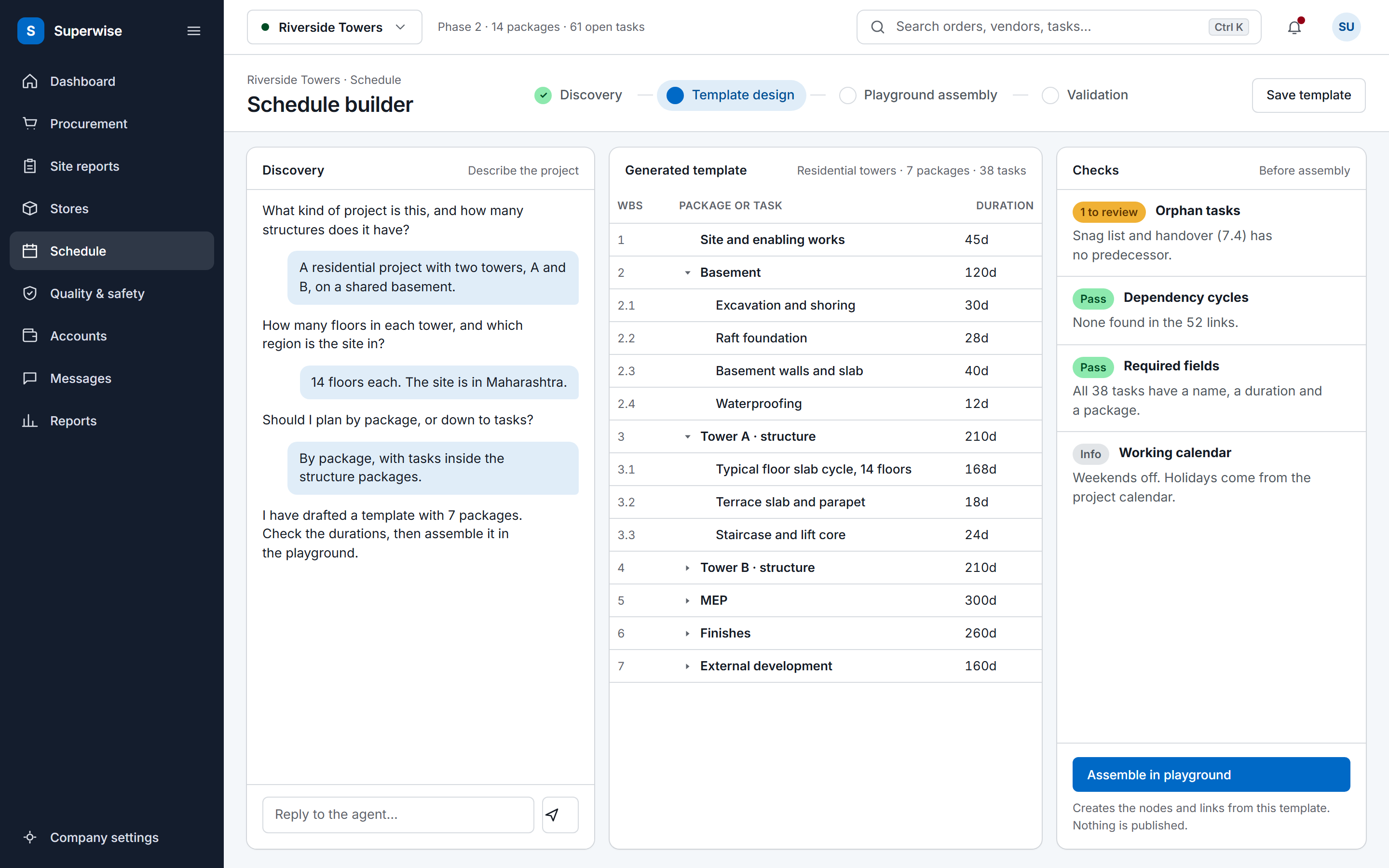
The AI schedule builder works through a conversation. It asks what you are building and where the site is, looks up matching templates in your library, drafts a template where none fits, and places nodes and links in the playground. You then verify and approve the result there, as you would any other schedule.
Each output is computed from the same schedule and progress records, so the dates in a report match the Gantt.
SuperWise imports a schedule into a template from a Microsoft Project file (MPP or XML) or from an Excel sheet in a fixed column layout. Both routes create the template, its WBS, its tasks and its predecessors as a background job, and you can then place the template in the playground as many times as the project needs. No other import format is documented.
The critical path method runs when you verify the playground. A forward pass sets each task's earliest start and finish, a backward pass sets the latest, and tasks with zero float form the critical path, which the Gantt highlights. The dates respect the project's working calendar, so weekly off days and listed holidays are skipped.
The working copy becomes the live schedule and the revision number goes up. SuperWise saves a baseline automatically, titled with the approval date and the revision, so later progress can be compared with it. Edits in the playground stay in a working copy until then, and you can revert the working copy to discard them.
Against the active baseline. Each baseline task keeps its start and finish dates, and the variance is stored in days ahead or behind. The package-wise schedule summary shows delay for each schedule node, and the MIS report's schedule-wise task summary shows planned against actual dates with SPI. You can switch the active baseline when a revision replaces the old one.
Record progress on a task one at a time, or upload an Excel sheet to update many tasks at once. Progress must run from 0 to 100 and cannot fall below the last figure, dates cannot be in the future, and 100 percent needs an actual finish date. Users whose role has Progress add access can also ask the help agent to log it.
No. The builder does not optimise the programme and it does not level resources. It drafts templates and playground nodes from a conversation, and before assembly it checks the draft for orphan tasks, dependency cycles and required fields. A planner still verifies the schedule to compute the CPM dates and approves it, so the draft goes through the same approval as any other change.
Book a demo and we load a programme from Microsoft Project or Excel into a template in your account.