
Primavera and MS Project field updates
The round trip from plan to site and back, step by step.
Planning integration
Upload an XER file or the Excel template and SuperWise creates a schedule template with its WBS, tasks and predecessors. The site records progress on the tasks, and the planner keeps planning in Primavera.
Files in
The import creates
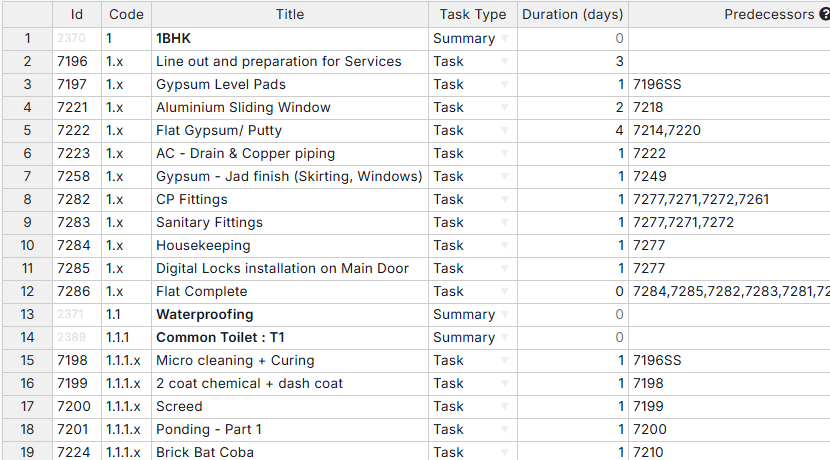
A plan file goes in once. After that the site works on the tasks, and the planner reads the variance.
In Planning, Schedule, choose Use Existing File, select your XER or Excel plan and click Process. The file must be smaller than 75 MB, and importing replaces the rows already in the table, after SuperWise asks you to confirm.
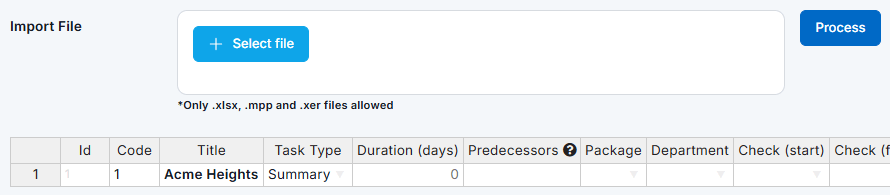
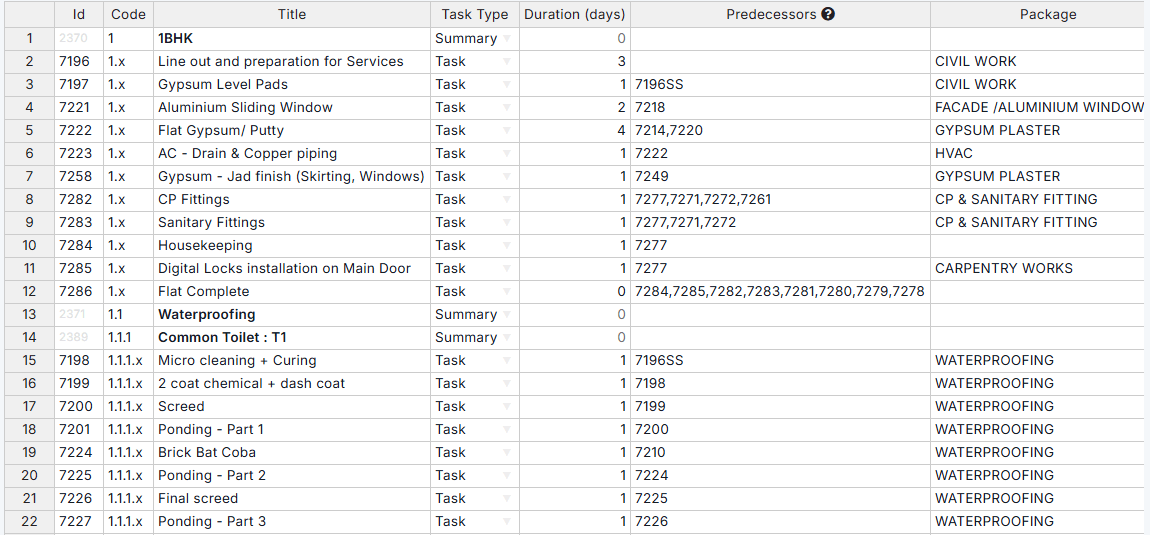
The tasks appear in a table with id, code, title, task type, duration and predecessors. Fix any cell, click Verify and save. A plan with more than 10,000 rows is saved in the background.
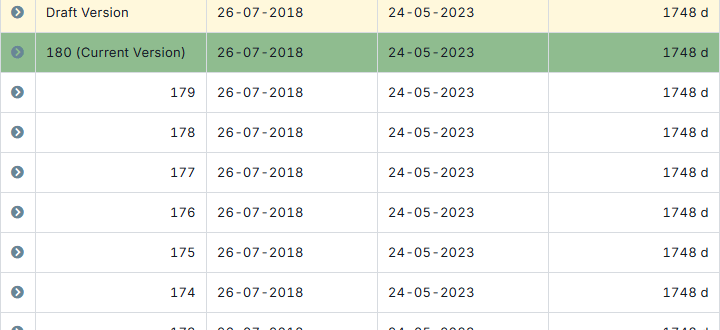
The imported tasks go into the schedule playground, are calculated with the critical path method and approved. Approval saves the baseline, a frozen copy of every task’s dates, and the earlier baselines are kept.
Site teams record progress on the tasks with photos. The planner reads start and finish variance against the baseline in the reports, revises the plan in Primavera by hand and imports the revised file.
SuperWise reads a Primavera plan from an XER file, or from the Excel template. Either route creates a schedule template with its WBS, tasks, durations and predecessors as a background job. Try a small plan before you load a full programme.
After the import the templates are placed in the schedule playground as nodes, linked, calculated with the critical path method and approved. Approval saves a baseline.
The import creates a template with its WBS nodes, tasks and predecessors, whichever file it reads. The Excel template is documented column by column, and this table lists each column and what SuperWise does with it.
| Column | Becomes in SuperWise | Rule from the guide |
|---|---|---|
| Code | WBS code of the template WBS node | Hierarchy such as 1, 1.1 and 1.1.2, used for nesting. |
| Title | Title of the task or summary | Cannot be empty and cannot repeat under the same WBS parent. |
| TaskType | Summary, Task, Milestone or Dummy | A milestone has zero duration. A Dummy is a placeholder that carries logic. |
| PlannedDuration | Planned duration | In the template's duration unit, days or hours. |
| Predecessors | Template predecessors | Relation FS, SS, FF or SF with an optional lag, such as 12FS+2. |
| TaskSteps | Steps inside a task | Sequence, title and weightage. The weightages add up to 1. |
| TaskResources | Resources assigned to the task | Resource id and quantity. |
| TaskBOQs | BOQ items linked to the task | Id, BOQ category id and BOQ item. |
| PackageName, DepartmentName | Construction package and department | Must match an existing record. |
| StartChecklistName, FinishChecklistName | Checklists that gate the start and the finish | Must match an existing checklist. |
SuperWise sends nothing back into Primavera, and no XER file leaves it. What leaves SuperWise is reports for people: the MIS report as a PDF with a schedule task summary and a baseline schedule chart, and the daily progress report as PDF or Excel. The planner reads them and updates Primavera by hand.
Zapier can carry the Task Progress Logged event to other tools, for example to add a row to a sheet the planner already keeps.
These limits come from the product guide and the help centre.
Yes. Choose Use Existing File on the schedule page, select the XER file and click Process. The file must be smaller than 75 MB. The import creates a schedule template with its WBS, tasks and predecessors, which you check before you save. SuperWise reads XER files but writes none.
No. Nothing is written back to Primavera and no dates are pushed. The planner reads progress and variance in SuperWise, revises the plan in Primavera by hand and imports the revised file when the plan changes.
SuperWise has its own schedule module with templates, critical path calculation and baselines. Some teams keep Primavera for planning and use SuperWise for the schedule that site teams update. That choice is yours, and this page covers the second arrangement.
As often as site records it. Progress is saved against a task with a date, and the planner can compare the actual dates with the active baseline whenever the planner chooses, in the schedule and in the MIS report.
Book a demo and bring your plan as an XER or Excel file. We import it and record progress on it with you.